الطلبات عبر الإنترنت

كيف يصلك طلب من الموقع، ثم توصيله وفوترته وتسجيل دفعته.

كيف يصلك الطلب

  • يظهر في الموقع الإلكتروني ← الطلبات عبر الإنترنت، وعدده على اختصار الطلبات في نظرة عامة.
  • يظهر في الرئيسية تحت الطلبات عبر الإنترنت للتوصيل حتى يُوصَّل.
  • يصل إشعار إلى المالك ومديري الفروع، فيه رقم الطلب واسم العميل والمبلغ.
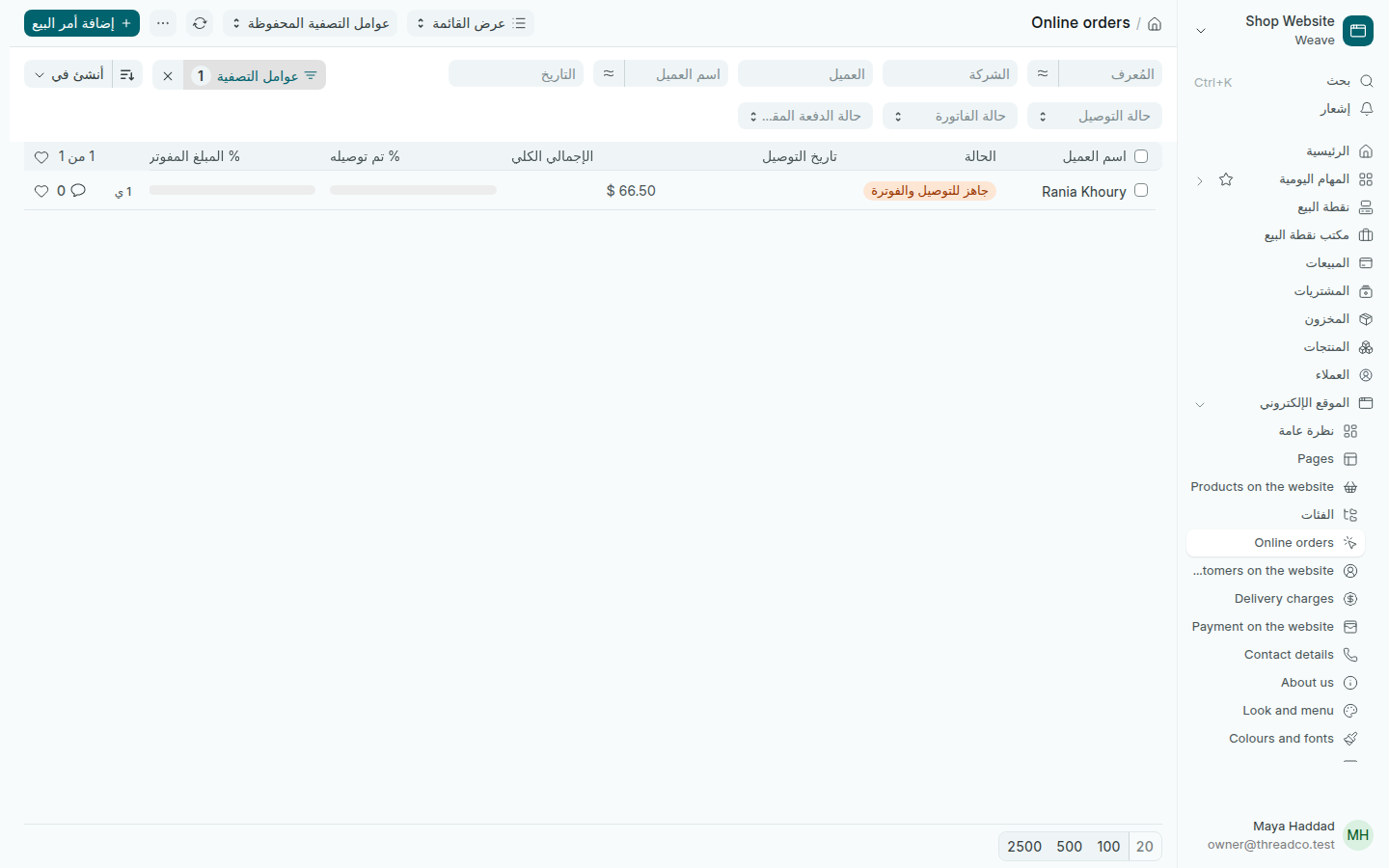
الطلبات عبر الإنترنت
كل طلب من الموقع وحالته.

من الطلب إلى التوصيل

طلب الموقع أمر بيع مؤكَّد، بأسعار متجرك ورسوم التوصيل. تعامل معه كأي أمر بيع:

  1. افتح الطلب وتحقق من المنتجات وعنوان التوصيل وهاتف العميل في العنوان وجهة الاتصال.
  2. جهّز البضاعة، ثم اضغط إنشاء ← إشعار التوصيل كما في التوصيلات. ولعدة طلبات مع سائق واحد، انظر رحلات التوصيل.
  3. اضغط إنشاء ← فاتورة العميل كما في فواتير العملاء.
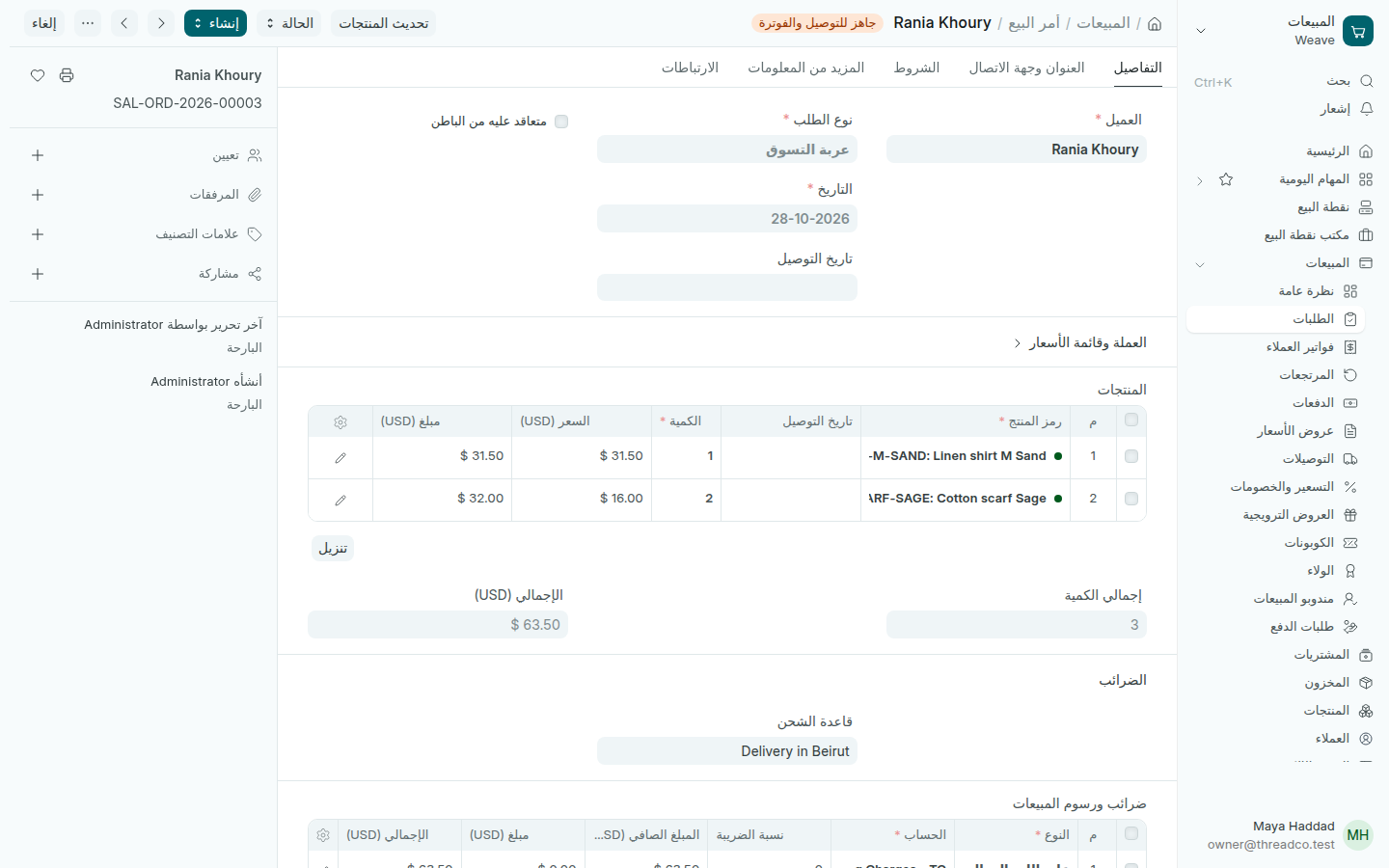
طلب من الموقع
طلب من الموقع، ومعه رسوم التوصيل Delivery in Beirut.

تسجيل الدفعة

  • عند الاستلام: عندما يعود السائق بالمال، افتح الفاتورة واضغط إنشاء ← الدفع، كما في المقبوضات.
  • Whish: عندما يصل التحويل إلى حسابك، ابحث عن رقم الطلب المكتوب معه. افتح الطلب أو فاتورته واضغط إنشاء ← الدفع، واختر Whish في طريقة الدفع. هكذا يصبح الطلب مدفوعاً.

الموقع لا يتحقق من تحويلات Whish: تأكّد من وصول المال قبل أن تسجّل الطلب مدفوعاً.
Online orders

How an order from the website reaches you, then delivering it, billing it and recording its payment.

How an order reaches you

  • It shows in Website → Online orders, and its count on the Online orders shortcut in the overview.
  • It shows on Home under Online orders to deliver until it is delivered.
  • The owner and store managers get a notification with the order number, the customer's name and the amount.
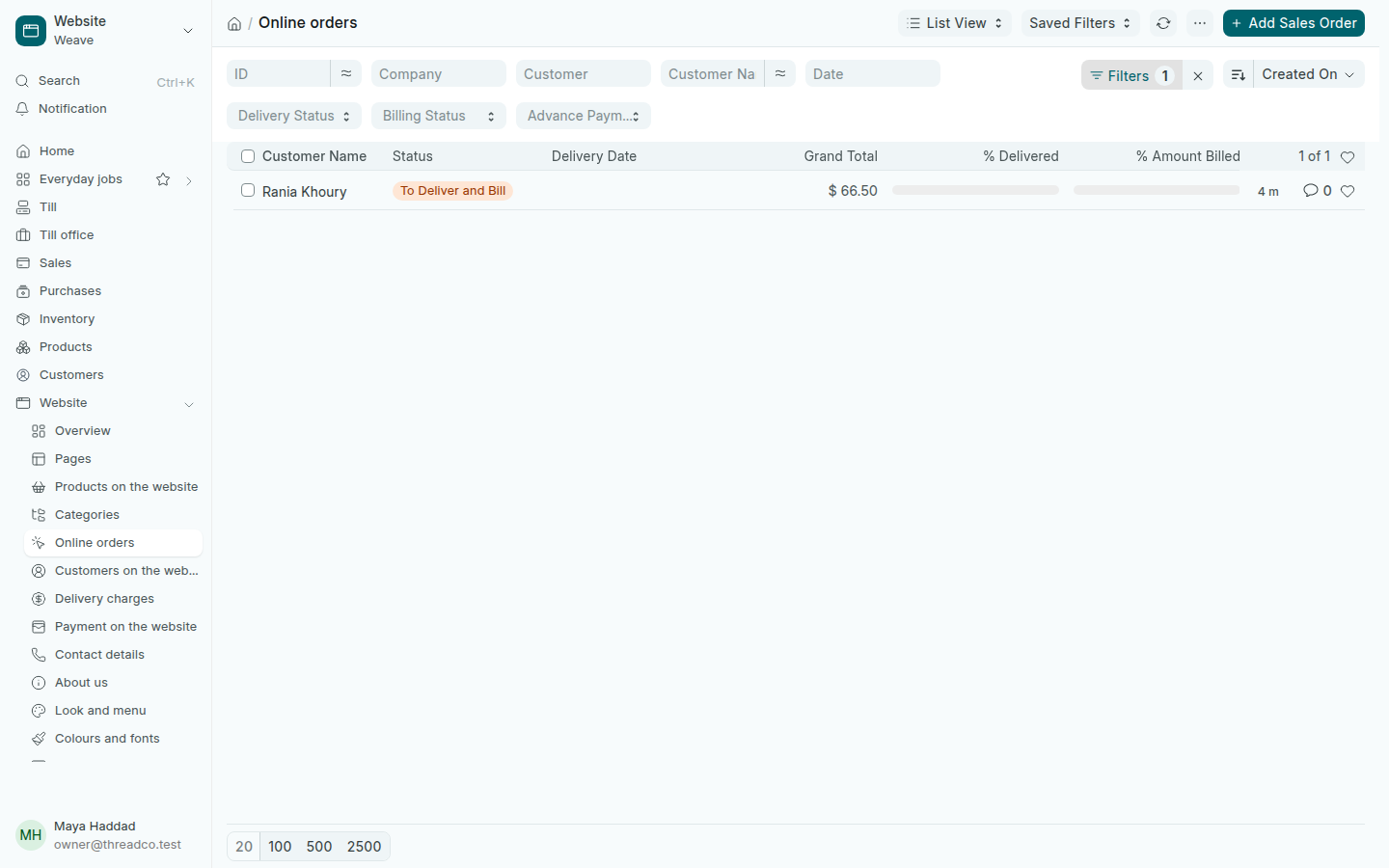
Online orders
Every order from the website and its status.

From order to delivery

A website order is a submitted sales order, at your shop's prices and with the delivery charge. Handle it like any sales order:

  1. Open the order and check the products, and the delivery address and the customer's phone in Address & Contact.
  2. Prepare the goods, then press Create → Delivery Note as in Deliveries. For several orders with one driver, see Delivery trips.
  3. Press Create → Sales Invoice as in Invoices.
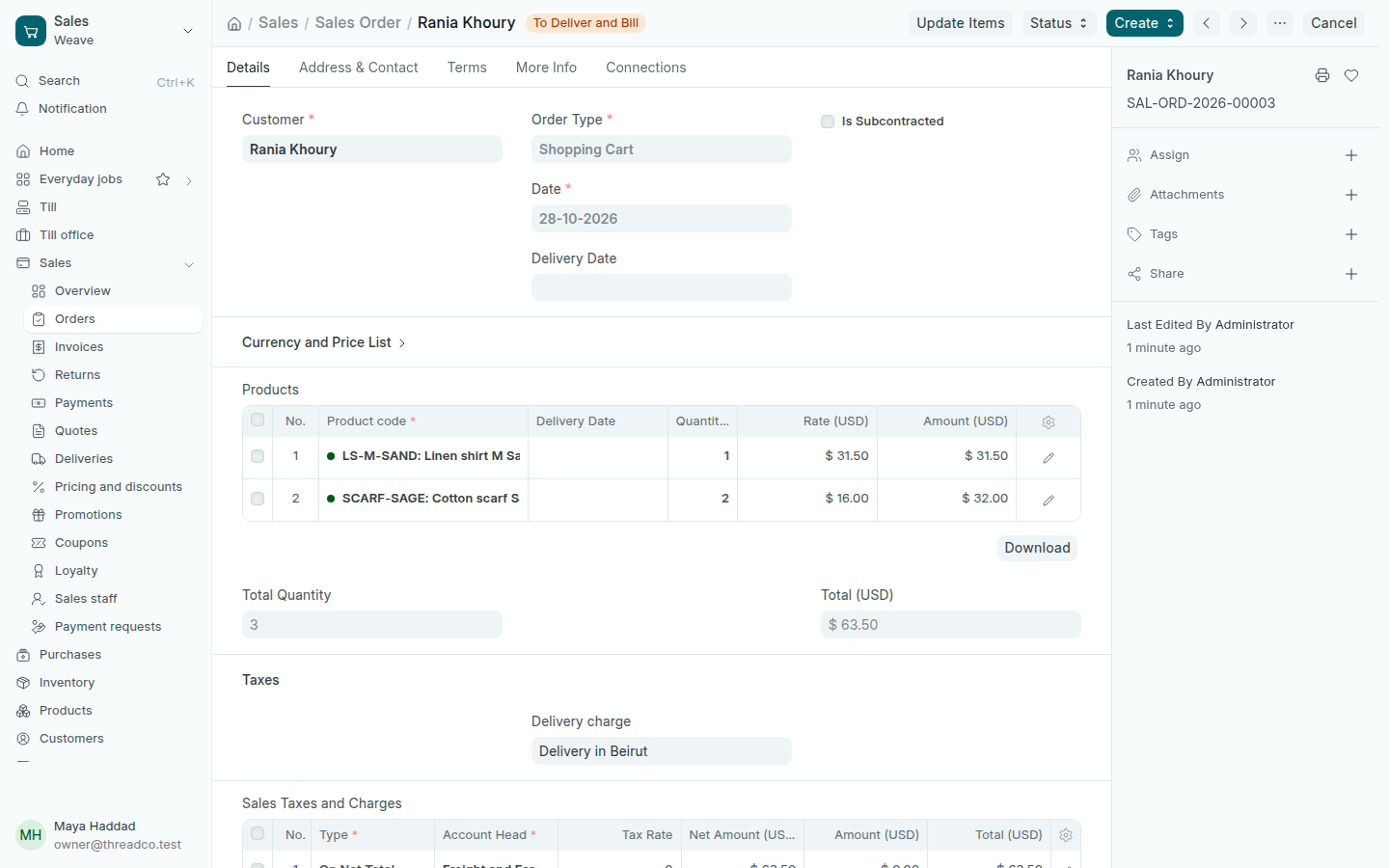
An order from the website
An order from the website, with the Delivery in Beirut charge.

Record the payment

  • On delivery: when the driver comes back with the money, open the invoice and press Create → Payment, as in Payments received.
  • Whish: when the transfer reaches your account, find the order number written with it. Open the order or its invoice, press Create → Payment and choose Whish as the Mode of Payment. That marks the order paid.

The website does not check Whish transfers: make sure the money has arrived before you record the order as paid.