المنتجات على الموقع والفئات

اختر المنتجات التي تظهر على موقعك وصورها، والفئات التي يتصفّحها العملاء.

لا يظهر منتج على موقعك حتى تضعه عليه. يأخذ الموقع اسم المنتج وسعره من قائمة أسعار البيع في متجرك، فإذا غيّرت السعر في Weave تغيّر على الموقع أيضاً.

وضع منتج على الموقع

  1. افتح الموقع الإلكتروني ← المنتجات على الموقع واضغط إضافة.
  2. اختر المنتج في رمز المنتج. لمنتج بمقاسات وألوان، أضف كل مقاس ولون تريد بيعه.
  3. في مستودع الموقع اختر الفرع الذي تخرج منه طلبات الموقع.
  4. تحقق من الصورة، وحدّد نشرت، ثم اضغط حفظ.
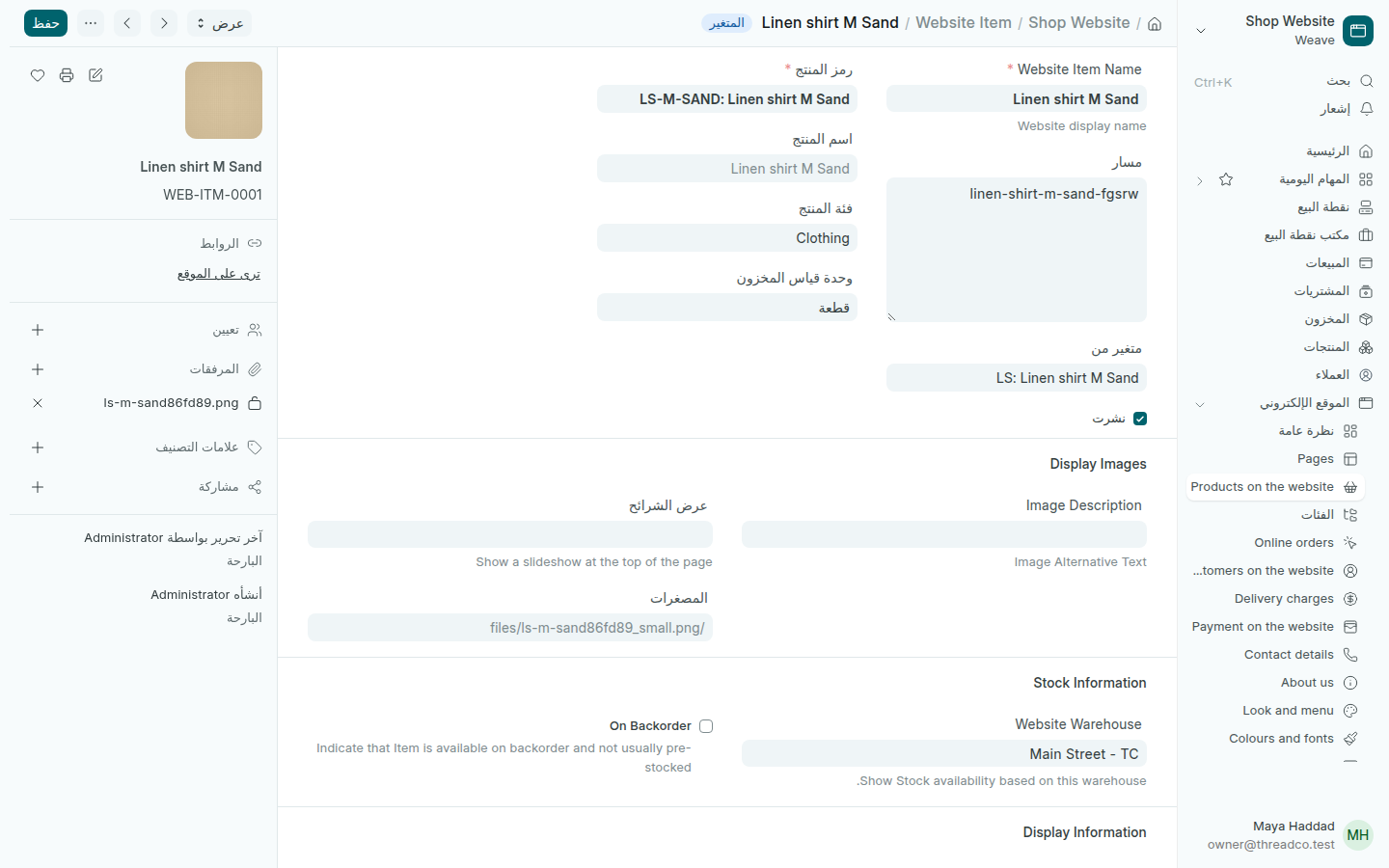
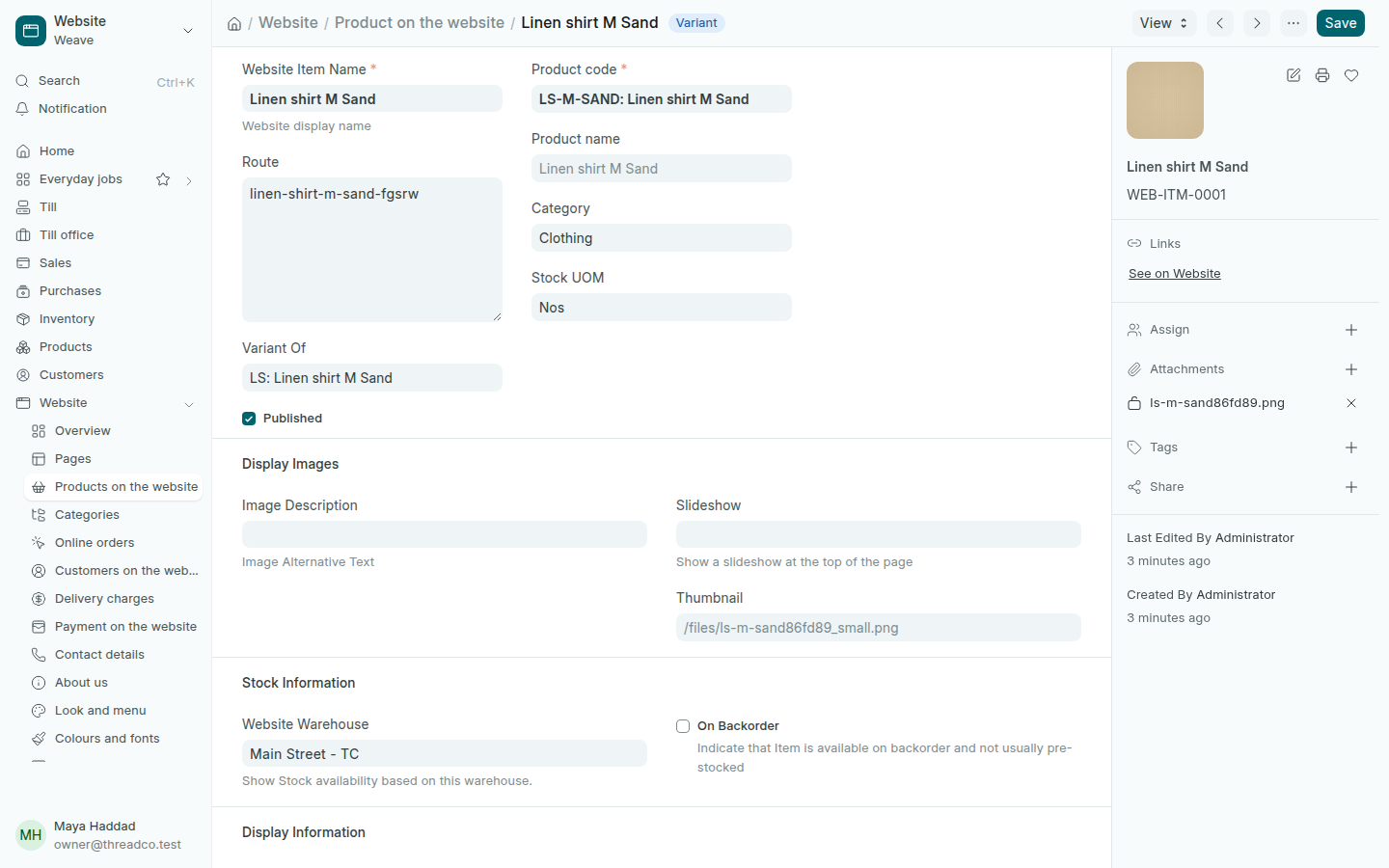
منتج على الموقع
منتج منشور، تخرج طلباته من فرع Main Street.
  • لا يرى العملاء كمية المخزون، لكن لا يمكنهم طلب ما ليس متوفراً في مستودع الموقع.
  • المنتج الذي لا سعر له في قائمة أسعار البيع لا يمكن طلبه.
  • لإخفاء منتج أزل التحديد عن نشرت واحفظ. لا يُحذف شيء.

الفئات

يتصفّح العملاء المنتجات حسب فئاتها، وهي فئات المنتجات نفسها في Weave.

  1. افتح الموقع الإلكتروني ← الفئات وافتح الفئة.
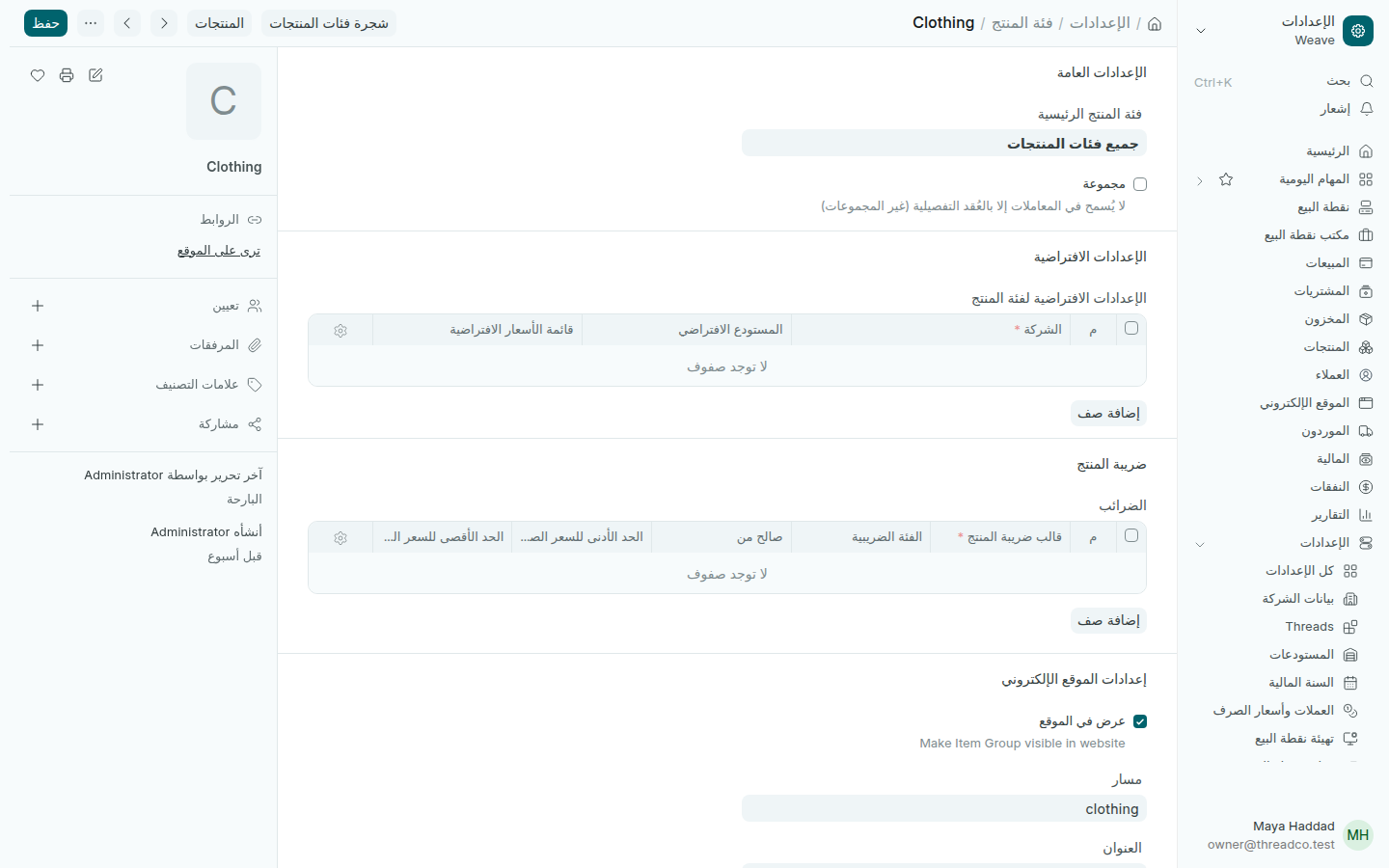
  2. في إعداد الموقع الإلكتروني حدّد عرض في الموقع، وتحقق من مسار صفحتها.
  3. اضغط حفظ.
فئة منتجات معروضة على الموقع
فئة Clothing معروضة على الموقع.

Products on the website and categories

Choose which products show on your website and their pictures, and the categories customers browse.

A product does not show on your website until you put it there. The website takes the product's name and its price from your shop's selling price list, so a price you change in Weave changes on the website too.

Put a product on the website

  1. Open Website → Products on the website and press Add.
  2. Choose the product in Product code. For a product with sizes and colours, add each size and colour you want to sell.
  3. In Website Warehouse, choose the branch website orders leave from.
  4. Check the picture, tick Published, then press Save.
A product on the website
A published product, its orders leaving from Main Street.
  • Customers do not see stock quantities, but they cannot order what is not in stock in the website warehouse.
  • A product with no price in the selling price list cannot be ordered.
  • To hide a product, untick Published and save. Nothing is deleted.

Categories

Customers browse products by category: the same product categories you use in Weave.

  1. Open Website → Categories and open the category.
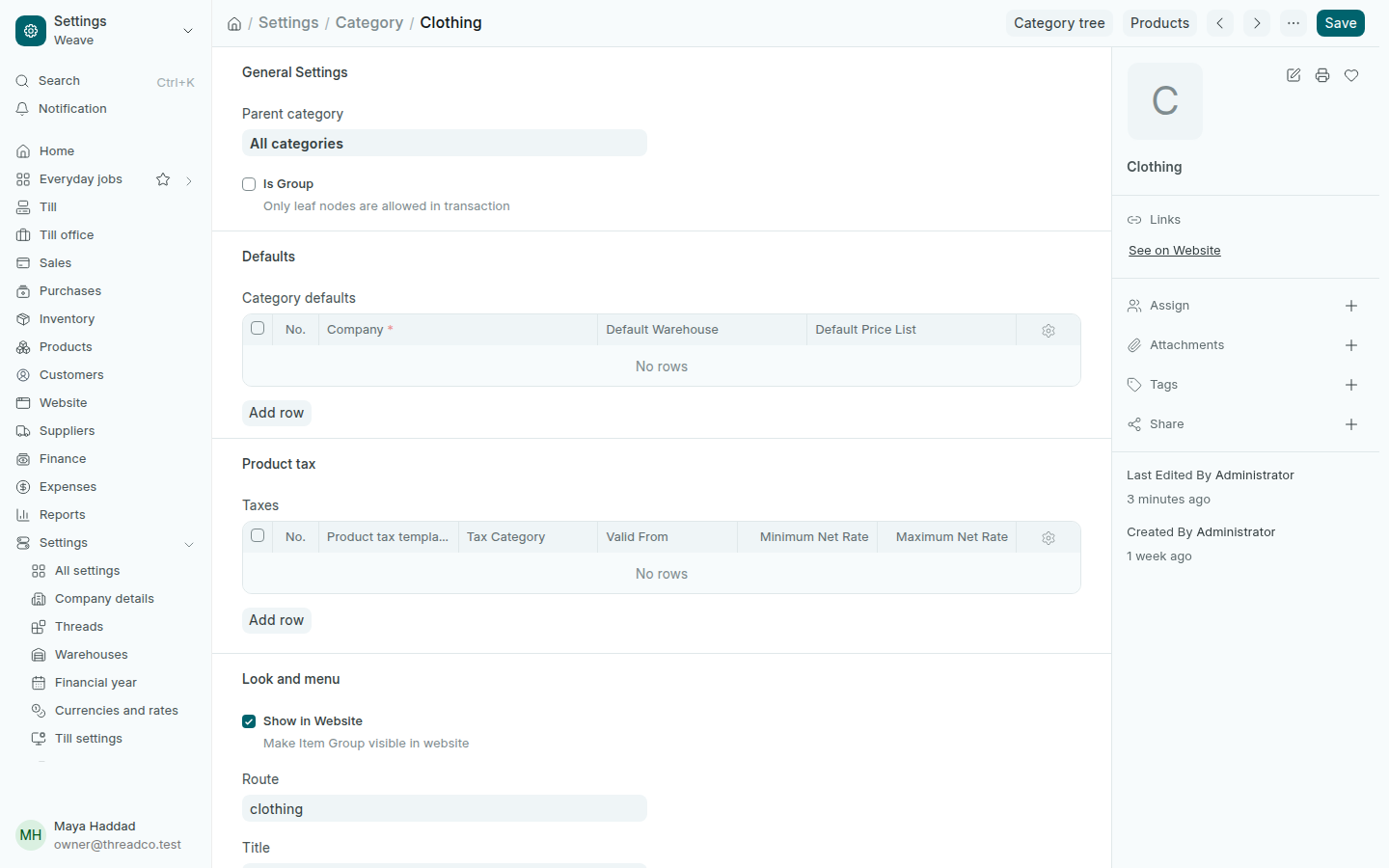
  2. In Look and menu, tick Show in Website and check its page's Route.
  3. Press Save.
A product category shown on the website
The Clothing category, shown on the website.