صفحات الموقع والصفحة الرئيسية

عدّل الصفحة الرئيسية كتلةً كتلة، وأضف صفحات أخرى لموقعك.

كل صفحة في موقعك مبنية من كتل جاهزة بعضها فوق بعض: صورة كبيرة مع عنوان، وشبكة صور، ودعوة إلى زيارة المتجر، وغيرها. تكتب كلماتك وتختار صورك في كل كتلة، وشكلها جاهز.

الصفحة الرئيسية

  1. افتح الموقع الإلكتروني ← الصفحات وافتح الصفحة التي مسارها home. هذه أول ما يراه الزائر.
  2. في كتل إنشاء الصفحة، اضغط تحرير القيم في سطر الكتلة التي تريد تغييرها.
  3. اكتب العنوان والنص، وأضف الصور، ثم أغلق النافذة.
  4. اضغط حفظ. ولترى النتيجة اضغط ترى على الموقع في اللوحة الجانبية.
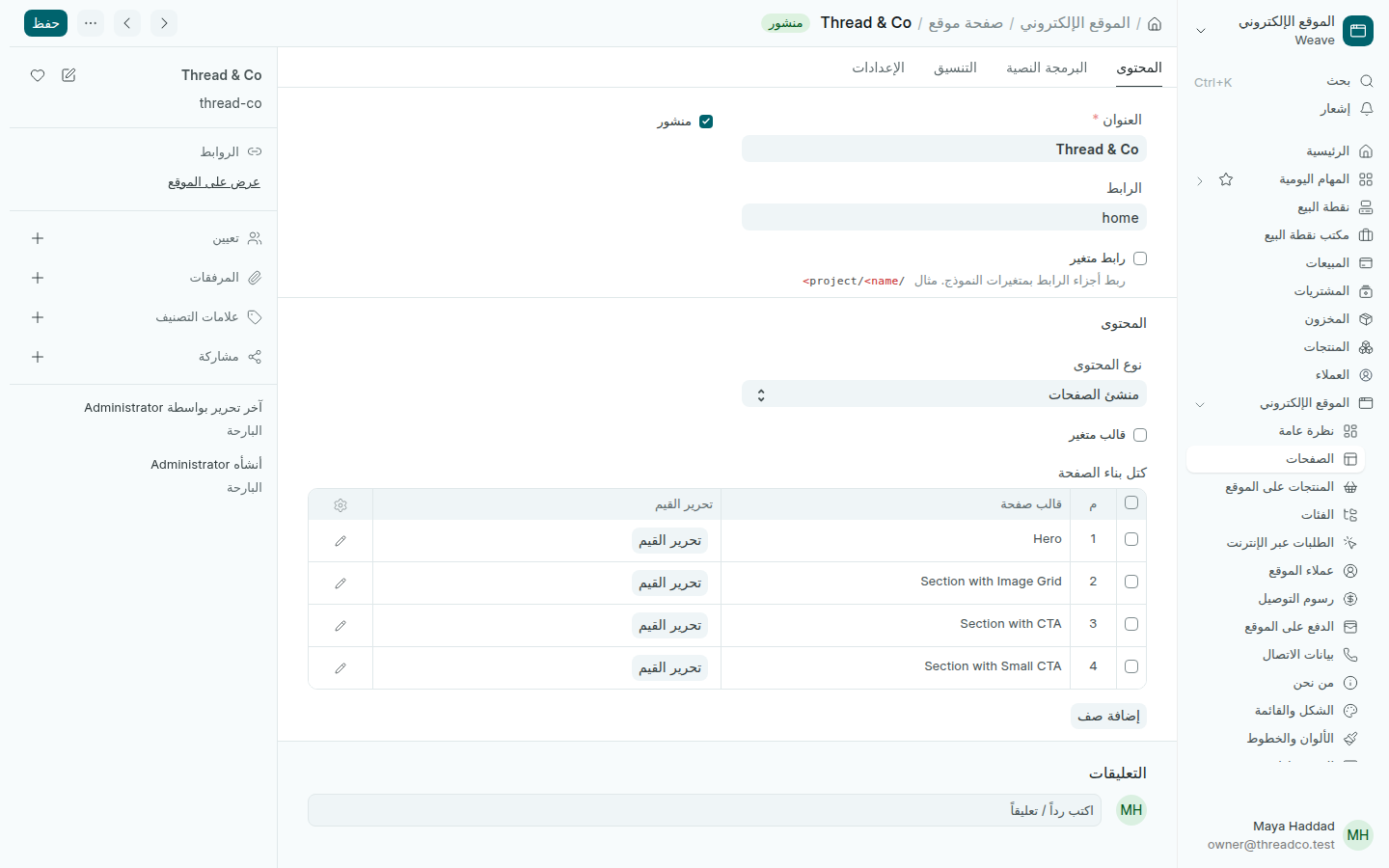
الصفحة الرئيسية وكتلها
الصفحة الرئيسية الأولى: صورة كبيرة باسم المتجر، وشبكة صور، ودعوتان للتواصل.

لإضافة كتلة اضغط إضافة صف واختر نوعها في قالب الويب. ولتغيير الترتيب اسحب السطر إلى مكانه. ولحذف كتلة حدّد سطرها واحذفه.

صفحة جديدة

  1. في الموقع الإلكتروني ← الصفحات اضغط إضافة.
  2. اكتب العنوان، وفي مسار كلمة قصيرة بأحرف إنجليزية صغيرة، مثل offers. تصبح الصفحة على العنوان yourshop.erpweave.com/offers.
  3. أضف كتلها كما في الصفحة الرئيسية، وحدّد نشرت، ثم اضغط حفظ.
  4. لتظهر الصفحة في قائمة الموقع، أضفها في الشكل والقائمة.

لإخفاء صفحة مؤقتاً أزل التحديد عن نشرت واحفظ. لا تُحذف الصفحة، وتعود حين تنشرها من جديد.
Website pages and the home page

Edit the home page block by block, and add other pages to your website.

Each page of your website is built from ready blocks stacked one above the other: a large picture with a heading, a picture grid, an invitation to visit the shop, and more. You write your words and choose your pictures in each block; the design is done for you.

The home page

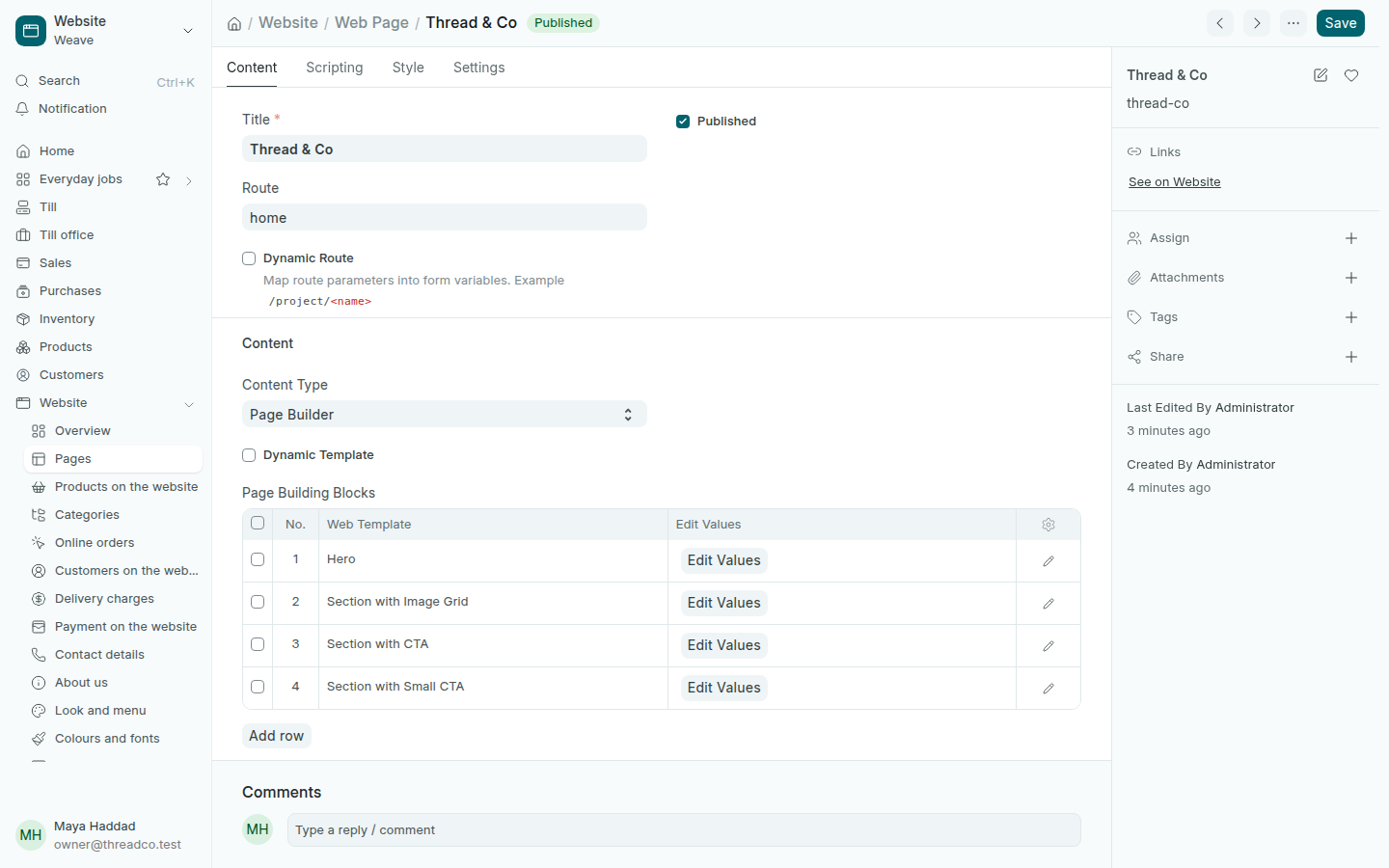
  1. Open Website → Pages and open the page whose Route is home. This is the first thing a visitor sees.
  2. In Page Building Blocks, press Edit Values on the row of the block you want to change.
  3. Type the heading and the text, add the pictures, then close the window.
  4. Press Save. To see the result, press See on Website in the side panel.
The home page and its blocks
The first home page: a large picture with the shop's name, a picture grid and two invitations to get in touch.

To add a block, press Add row and choose its kind in Web Template. To change the order, drag the row into place. To remove a block, tick its row and delete it.

A new page

  1. In Website → Pages, press Add.
  2. Type the Title, and in Route a short word in small English letters, such as offers. The page is then at yourshop.erpweave.com/offers.
  3. Add its blocks as on the home page, tick Published, then press Save.
  4. To show the page in the website's menu, add it in Look and menu.

To hide a page for a while, untick Published and save. The page is not deleted and comes back when you publish it again.