شكل الموقع وقائمته وألوانه

شعار متجرك، وروابط القائمة أعلى الموقع، وأسفل الصفحة، والألوان والخطوط.

للموقع شكل متجرك أنت: شعارك وألوانك وخطوطك، لا شكل Weave.

الشعار والقائمة

  1. افتح الموقع الإلكتروني ← الشكل والقائمة.
  2. في تبويب شريط التنقل، افتح العلامة التجارية وأرفق شعار متجرك.
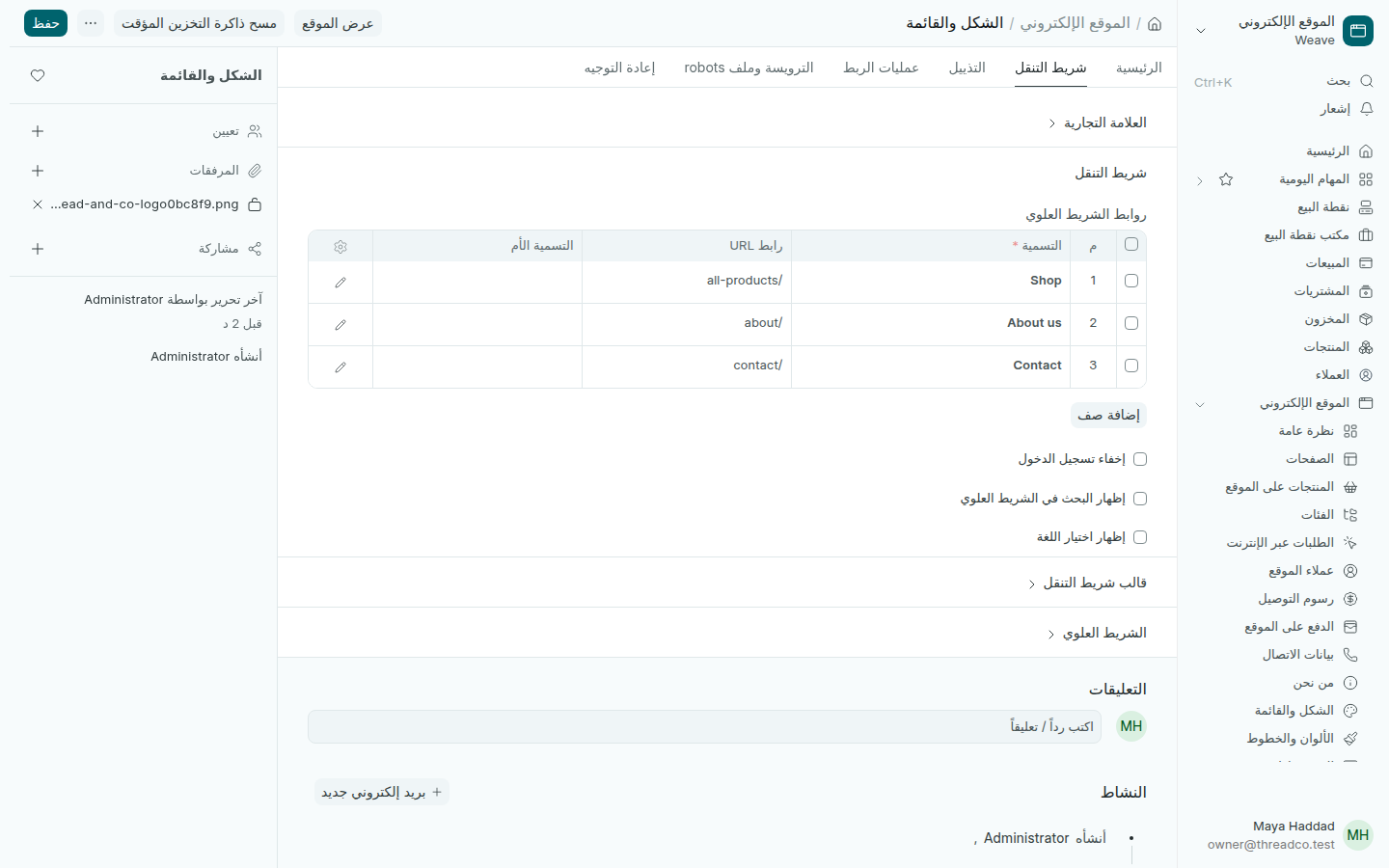
  3. في روابط الشريط العلوي، كل سطر رابط في القائمة: التسمية التي يقرؤها الزائر، ورابط URL الصفحة، مثل /all-products للمنتجات، و/about و/contact.
  4. اضغط حفظ.
الشكل والقائمة
ثلاثة روابط في القائمة: المتجر، ومن نحن، والتواصل.

في تبويب التذييل تكتب ما يظهر أسفل كل صفحة، مثل العنوان وروابط إضافية. وفي تبويب الرئيسية تختار الصفحة الرئيسية وشكل الألوان المستخدم.

إذا لم يظهر تغيير على الموقع بعد الحفظ، اضغط مسح ذاكرة التخزين المؤقت أعلى الصفحة ثم أعد تحميل الموقع.

الألوان والخطوط

الشكل Standard هو شكل الموقع الأول، ولا يُعدَّل. لألوانك وخطوطك أنشئ شكلاً خاصاً بمتجرك:

  1. افتح الموقع الإلكتروني ← الألوان والخطوط واضغط إضافة شكل الموقع.
  2. اكتب اسماً للشكل، مثل اسم متجرك.
  3. اختر الخط وحجمه، واللون الرئيسي ولون النص ولون الخلفية، وشكل الأزرار، ثم اضغط حفظ.
  4. اضغط تعيين كشكل افتراضي ليستخدمه الموقع.
الألوان والخطوط
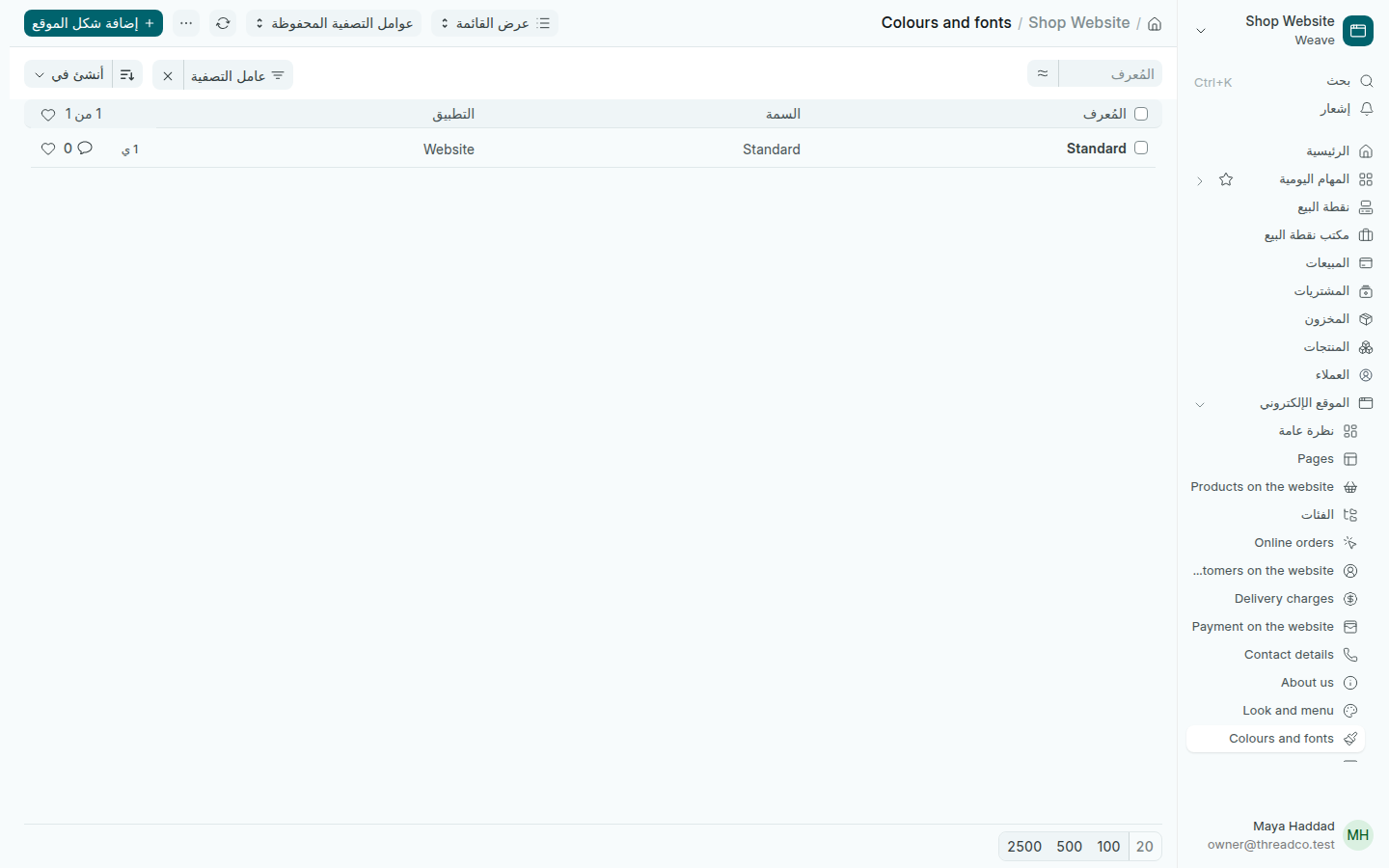
قائمة أشكال الموقع، وفيها الشكل الأول Standard.

The website's look, menu and colours

Your shop's logo, the menu links at the top, the footer, and the colours and fonts.

The website has your shop's look: your logo, your colours and your fonts, not Weave's.

The logo and the menu

  1. Open Website → Look and menu.
  2. On the Navbar tab, open Brand and attach your shop's logo.
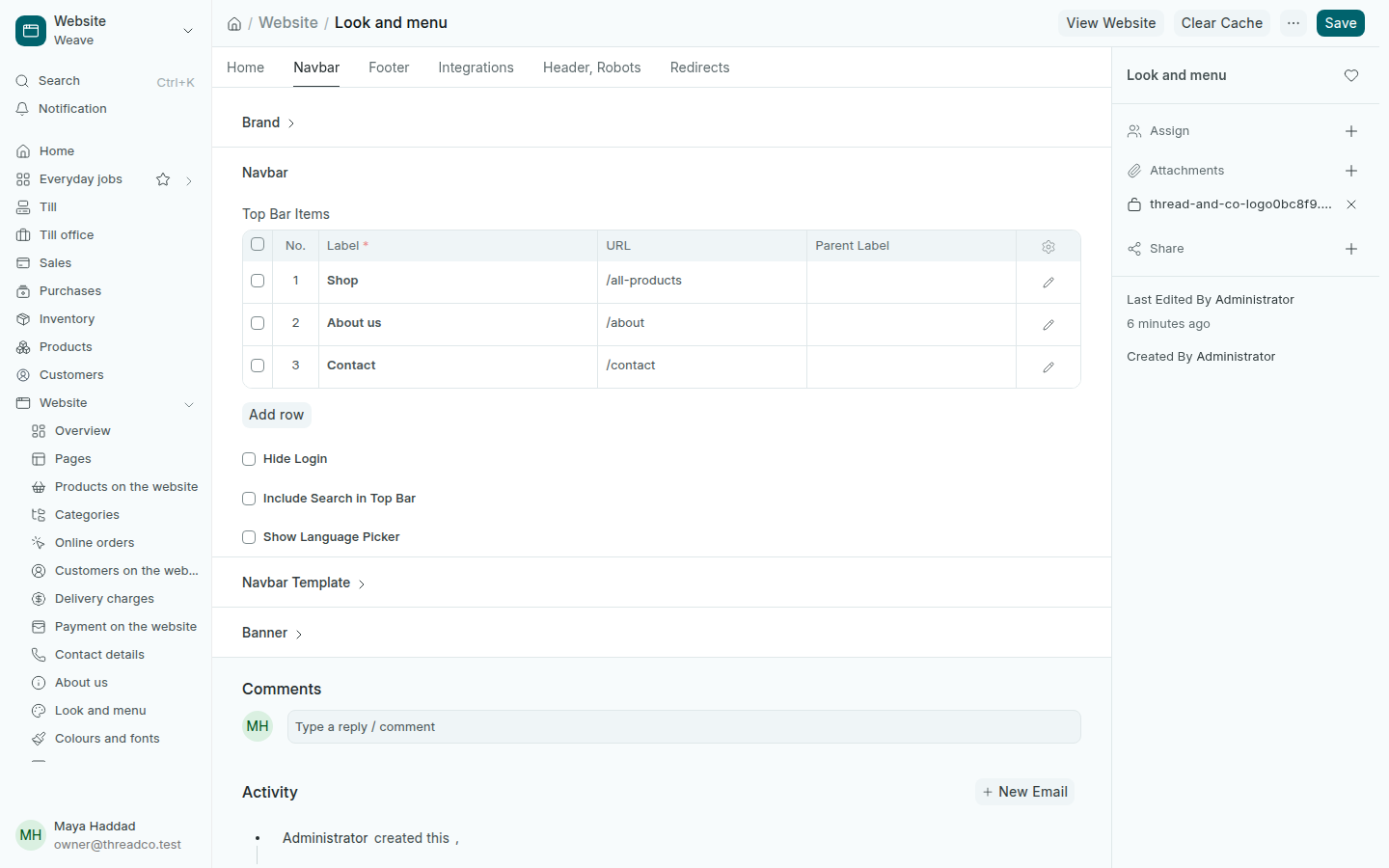
  3. In Top Bar Items, each row is one link in the menu: the Label the visitor reads and the page's URL, such as /all-products for the products, /about and /contact.
  4. Press Save.
Look and menu
Three links in the menu: Shop, About us and Contact.

On the Footer tab you write what shows at the bottom of every page, such as your address and more links. On the Home tab you choose the home page and the theme in use.

If a change does not show on the website after saving, press Clear Cache at the top, then reload the website.

Colours and fonts

The Standard theme is the website's first look and cannot be changed. For your own colours and fonts, make a theme for your shop:

  1. Open Website → Colours and fonts and press Add Colours and fonts.
  2. Type a name for the theme, such as your shop's name.
  3. Choose the font and its size, the primary colour, the text and background colours, and the button style, then press Save.
  4. Press Set as Default Theme so the website uses it.
Colours and fonts
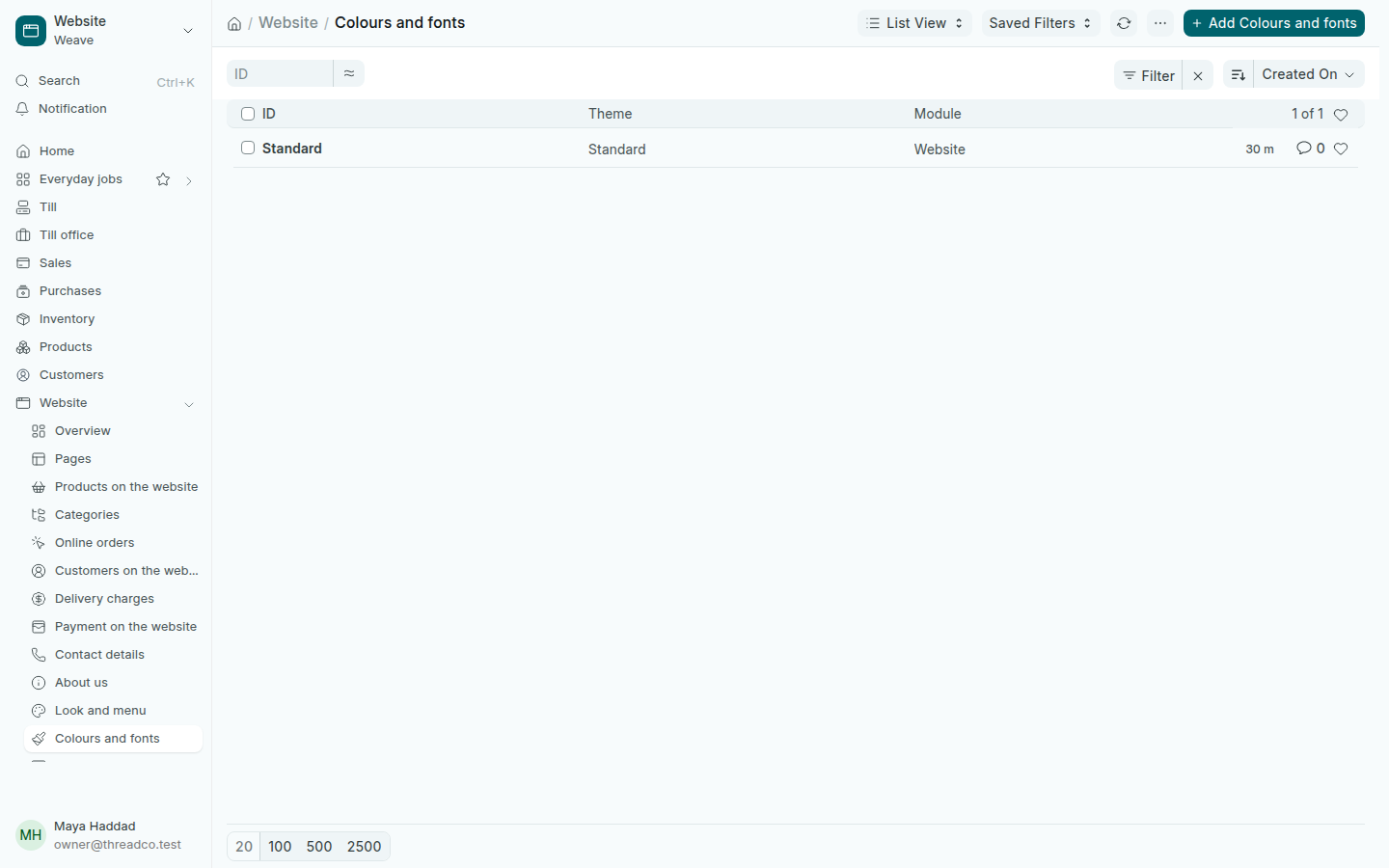
The list of themes, with the first one, Standard.