الاستلام والتحويل والشطب بالهاتف

استلام بضاعة طلبية، ونقل قطع بين الفروع، وشطب قطع مع سببها، بمسحها.

كل هذه في المهام، وتظهر لمن يسمح عمله بها.
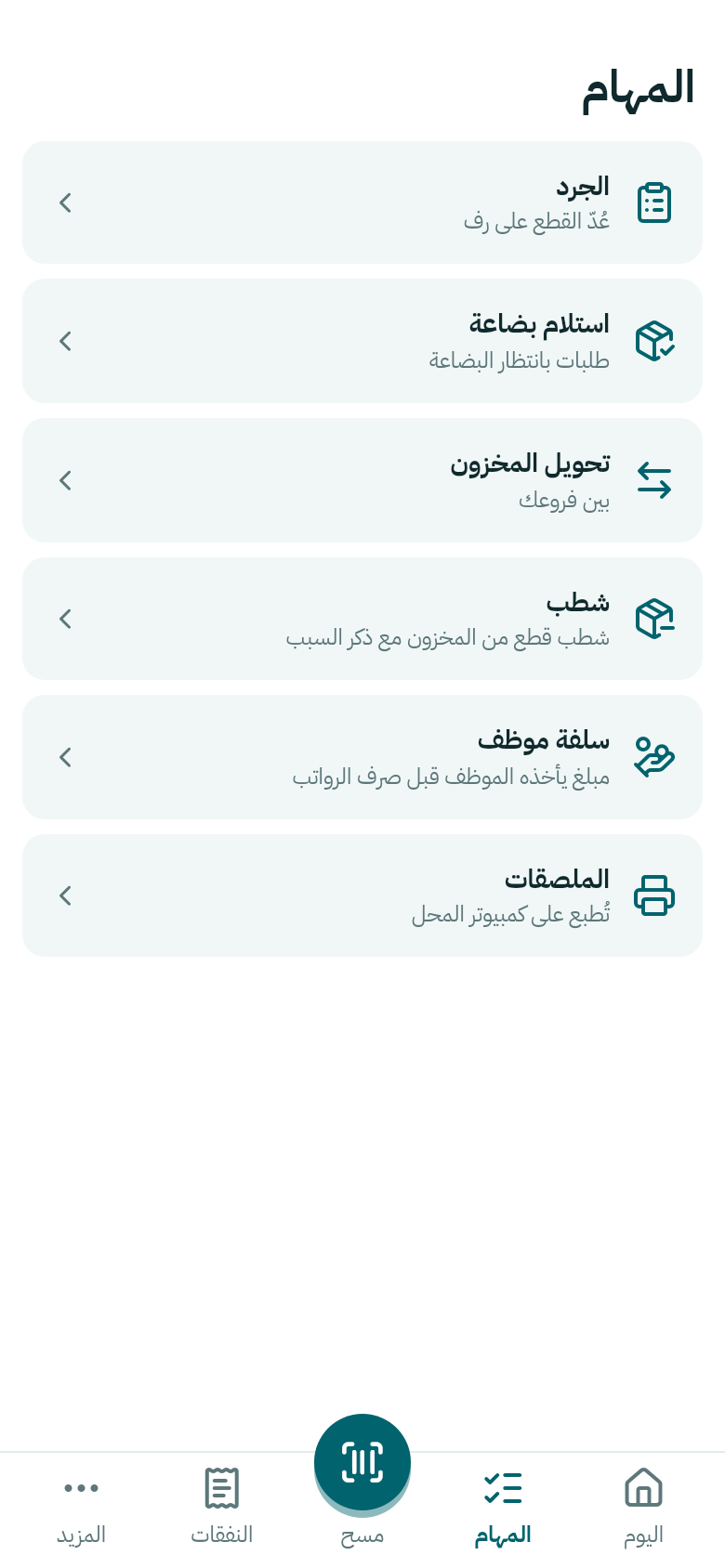
المهام في Weave Companion
مهام المالك كلها.

استلام بضاعة

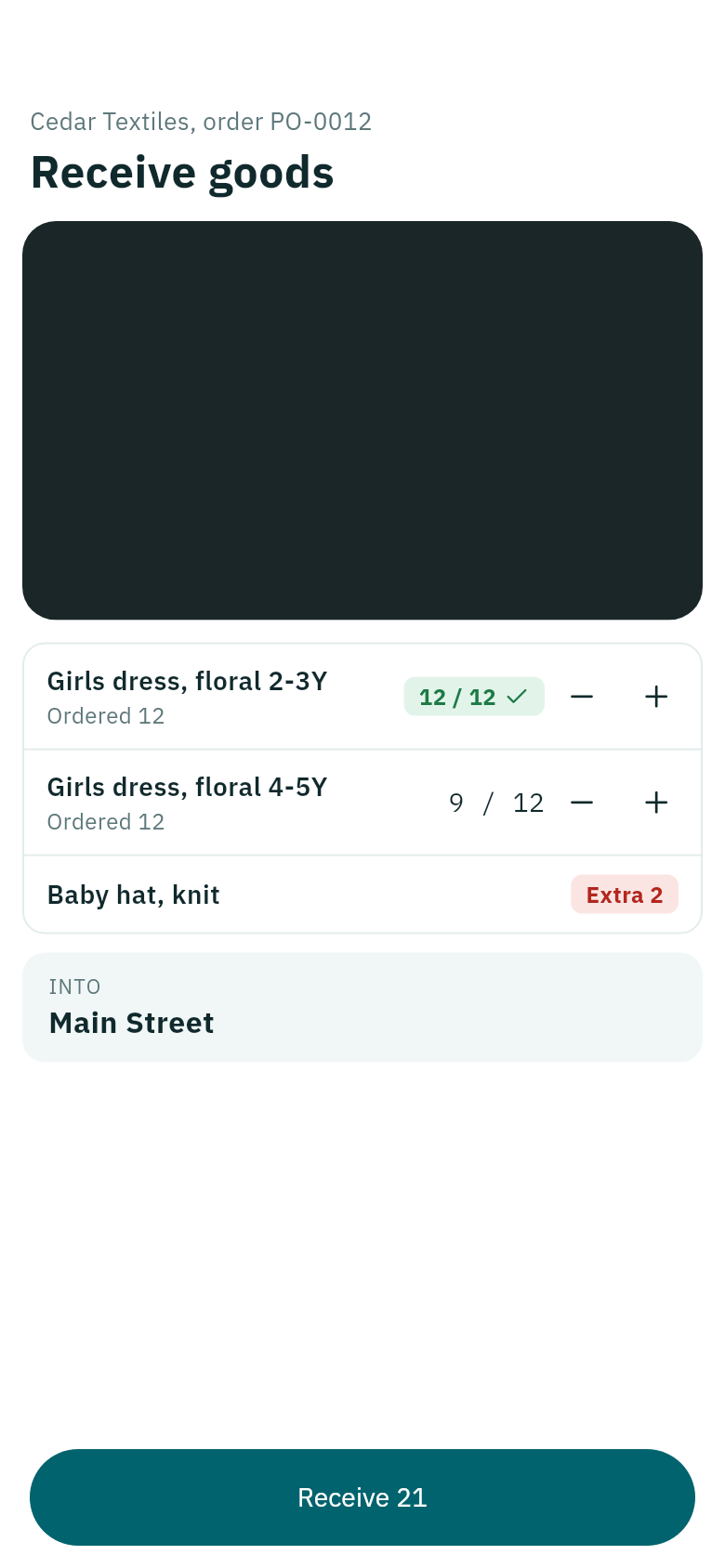
  1. اضغط استلام بضاعة، واختر الطلبية من طلبات بانتظار البضاعة.
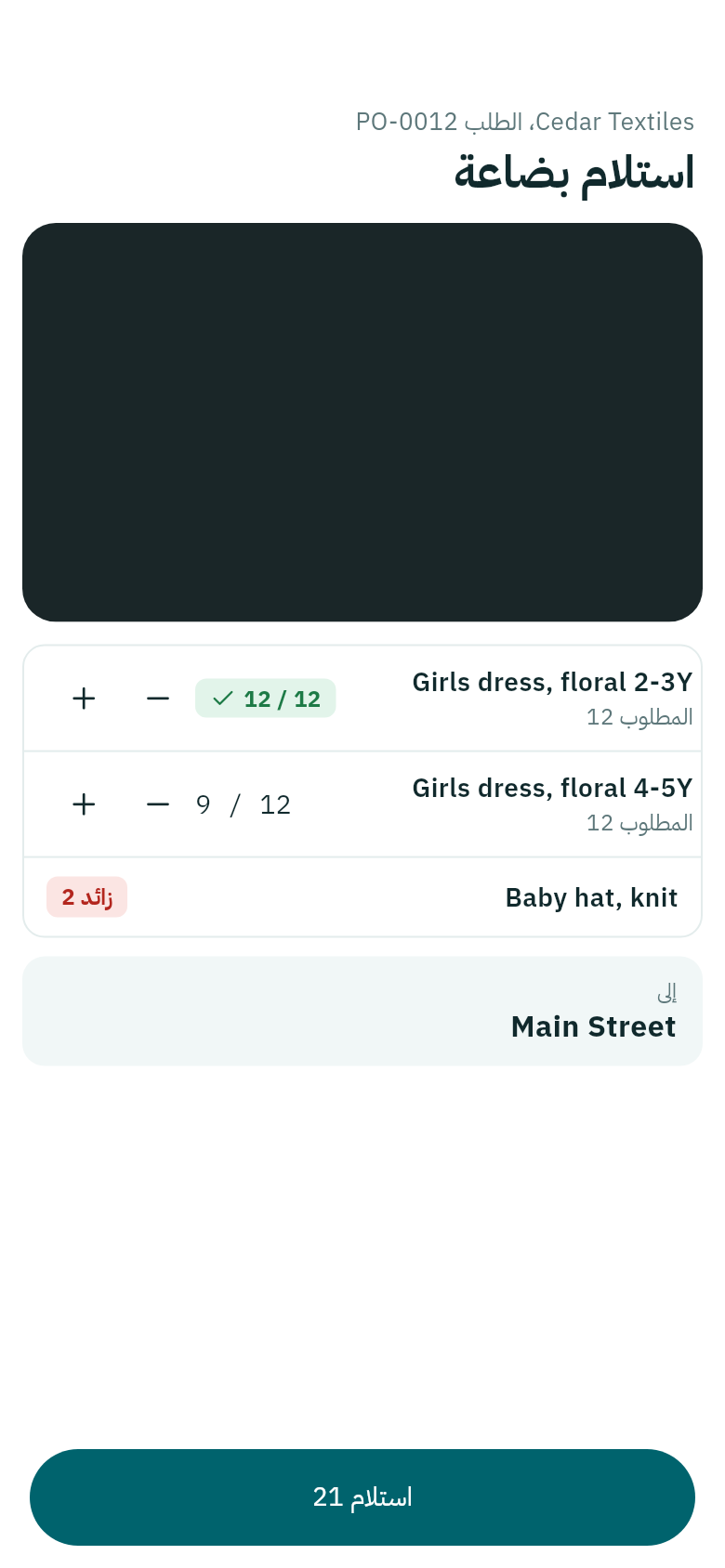
  2. امسح كل قطعة تصل. بجانب كل منتج ما استُلم من الكمية المطلوبة، وما ليس في الطلبية يظهر زائداً.
  3. تأكّد من الفرع في إلى، ثم اضغط الزر في الأسفل، مثل استلام 21.
استلام بضاعة
12 من 12 مكتملة، و9 من 12 ناقصة.

يظهر الاستلام على الحاسوب كما في استلام البضاعة.

تحويل المخزون

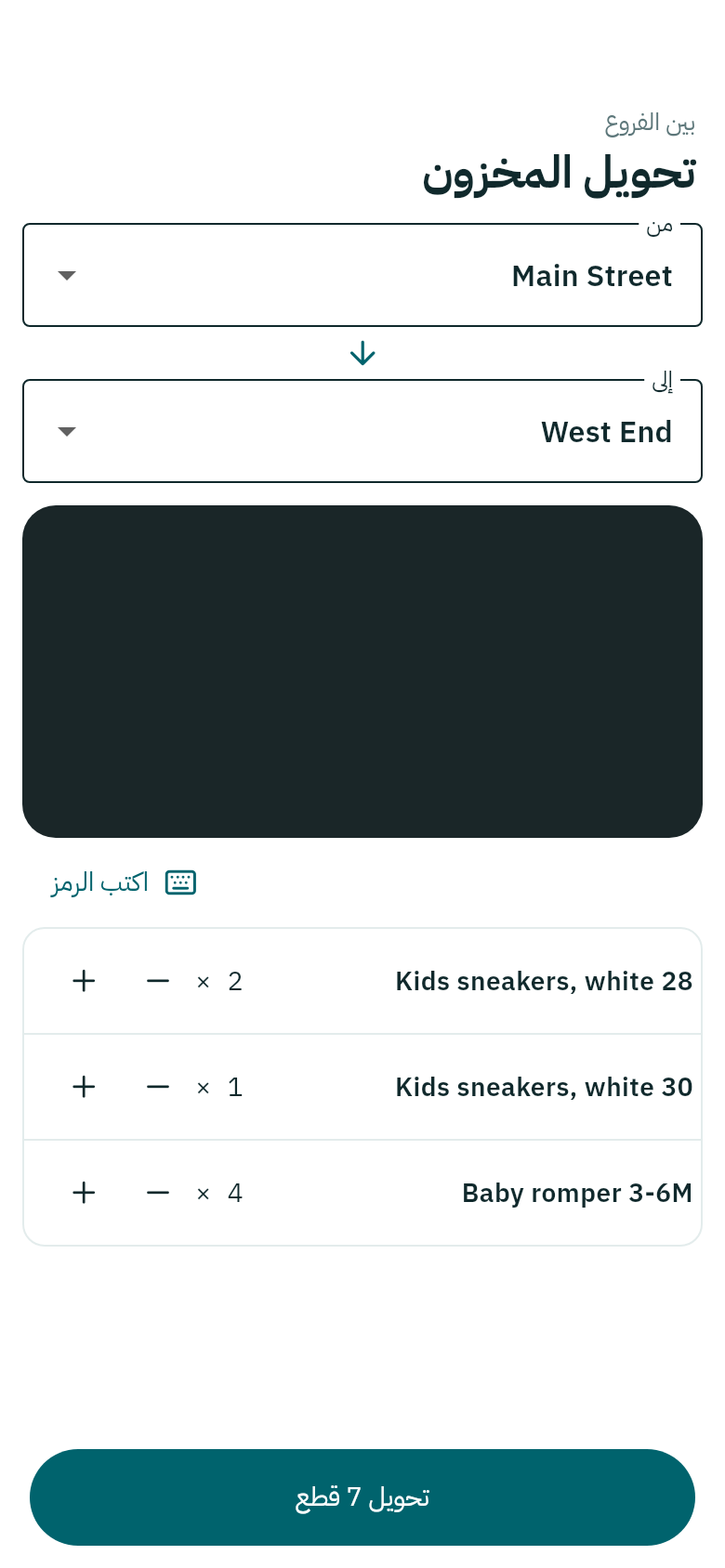
  1. اضغط تحويل المخزون، واختر الفرع في من والفرع في إلى.
  2. امسح القطع التي تنقلها.
  3. اضغط الزر في الأسفل، مثل تحويل 7 قطع.
تحويل المخزون
القطع وعددها قبل التحويل.

إن لم يكن في الفرع ما يكفي، يقول Weave كم فيه. انظر أيضاً نقل البضاعة بين الفروع.

شطب

  1. اضغط شطب، وامسح القطعة.
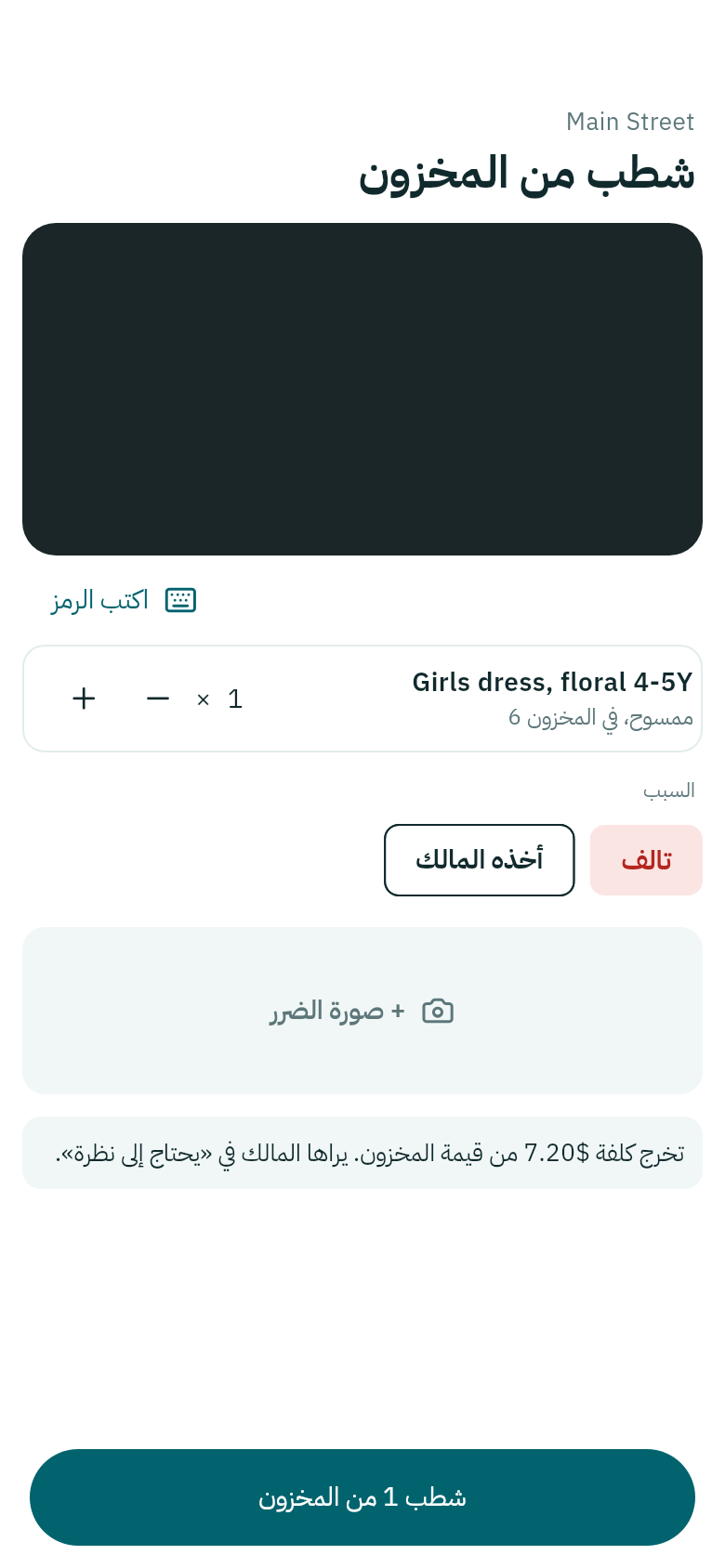
  2. اختر السبب من أسباب متجرك، وأضف صورة الضرر إن كانت تالفة.
  3. اضغط الزر في الأسفل، مثل شطب 1 من المخزون.
شطب من المخزون
تكلفة القطعة تخرج من قيمة المخزون.

يرى المالك كل شطب في «يحتاج إلى نظرة». الأسباب نفسها التي في شطب من المخزون.

هذه المهام الثلاث تحتاج اتصالاً: بلا اتصال لا يُرسل شيء، وتبقى القطع الممسوحة لتحاول مجدداً.
Receive, move and take out with your phone

Receiving an order's goods, moving pieces between branches, and taking pieces out with the reason, by scanning them.

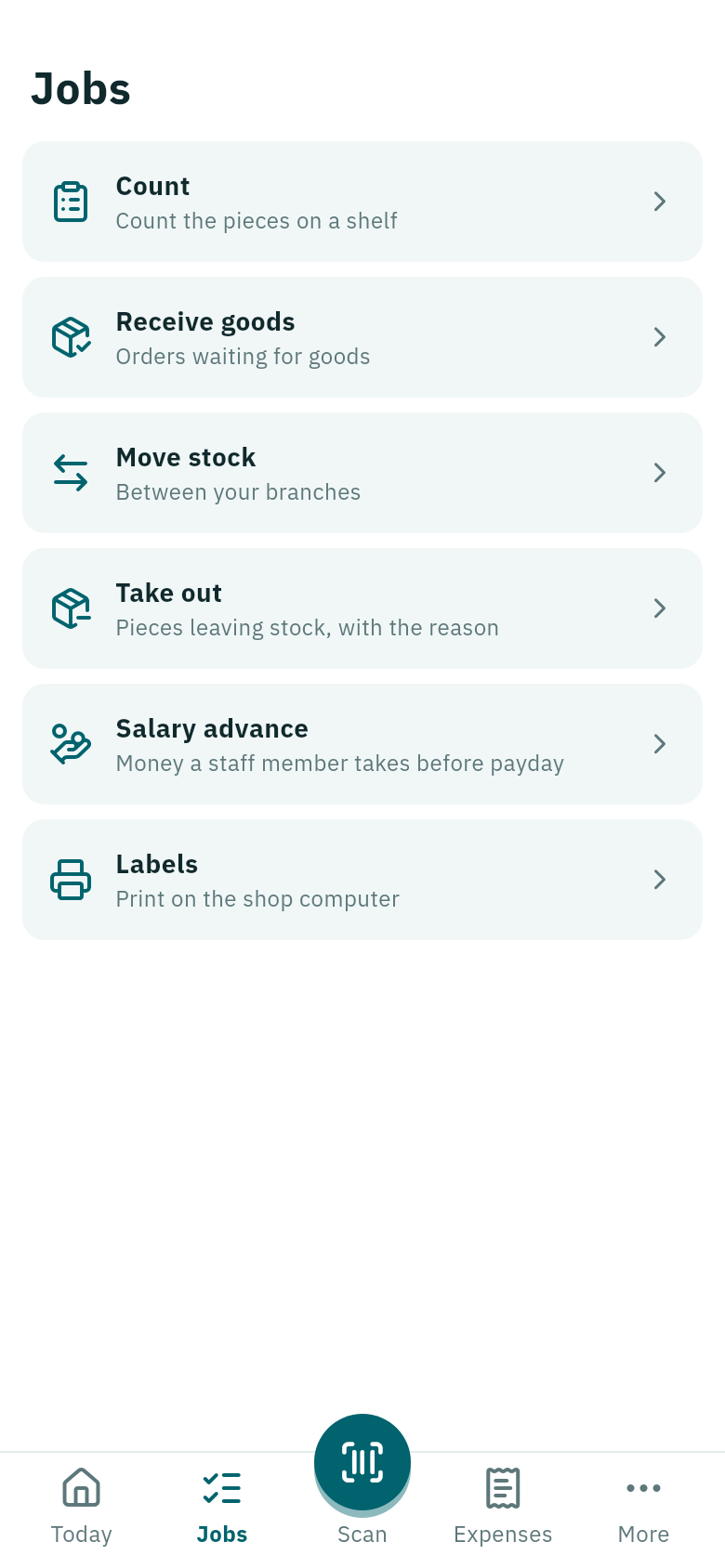
These are all under Jobs, for whoever's job allows them.

Jobs in Weave Companion
All of the owner's jobs.

Receive goods

  1. Tap Receive goods and choose the order from Orders waiting for goods.
  2. Scan each piece as it arrives. Beside each product is how many arrived of how many were ordered, and what is not on the order shows as Extra.
  3. Check the branch under Into, then tap the button at the bottom, such as Receive 21.
Receive goods
12 of 12 complete, 9 of 12 short.

The delivery shows on the computer as in Receiving goods.

Move stock

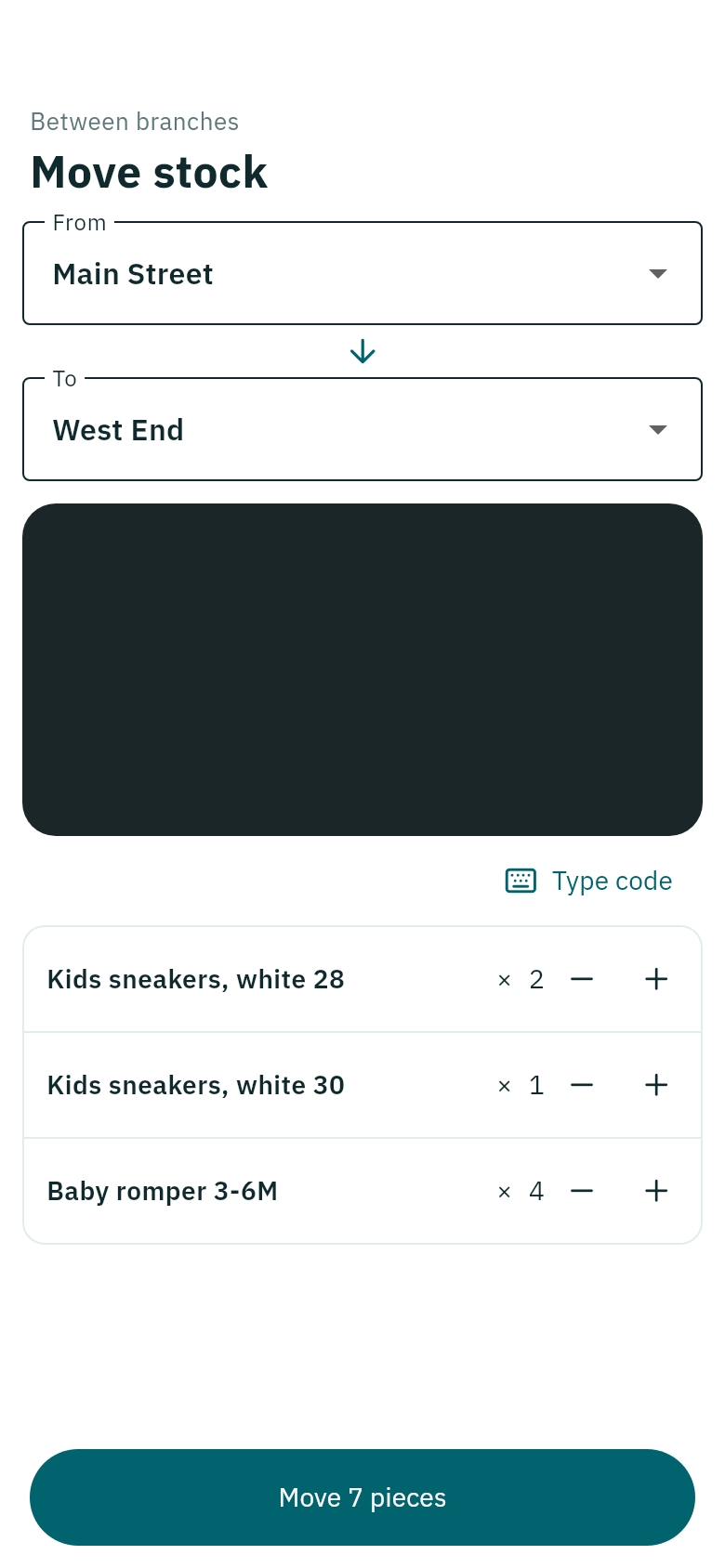
  1. Tap Move stock, choose the branch under From and the one under To.
  2. Scan the pieces you are moving.
  3. Tap the button at the bottom, such as Move 7 pieces.
Move stock
The pieces and their count before moving.

If the branch does not hold enough, Weave says how many it has. See also Moving stock between branches.

Take out

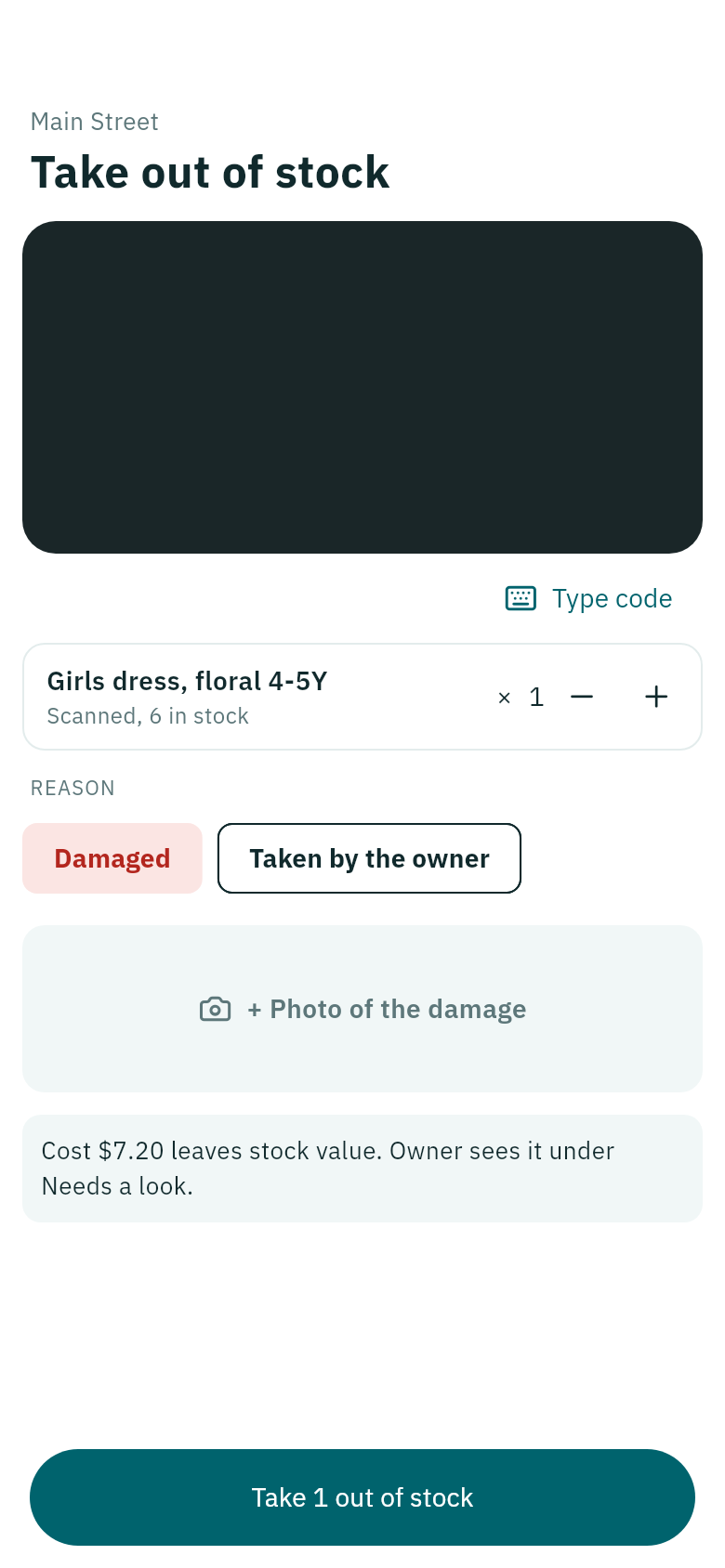
  1. Tap Take out and scan the piece.
  2. Choose the Reason from your shop's reasons, and add a Photo of the damage if it is damaged.
  3. Tap the button at the bottom, such as Take 1 out of stock.
Take out of stock
The piece's cost leaves the stock value.

The owner sees every take-out under Needs a look. The reasons are the same as in Take out of stock.

These three jobs need signal: without it nothing is sent, and the scanned pieces stay so you can try again.