العملاء المدينون والنفقات في الهاتف

من يدين للمتجر وبكم ومنذ متى، ونفقات الشهر، وتسجيل نفقة بصورة إيصالها.

العملاء المدينون

في شاشة اليوم اضغط العملاء المدينون. لكل عميل ما يدين به ومنذ كم يوماً، والأقدم أولاً. اضغط عميلاً لترى عمليات البيع والدفعات والإرجاع ورصيده بعد كل منها.
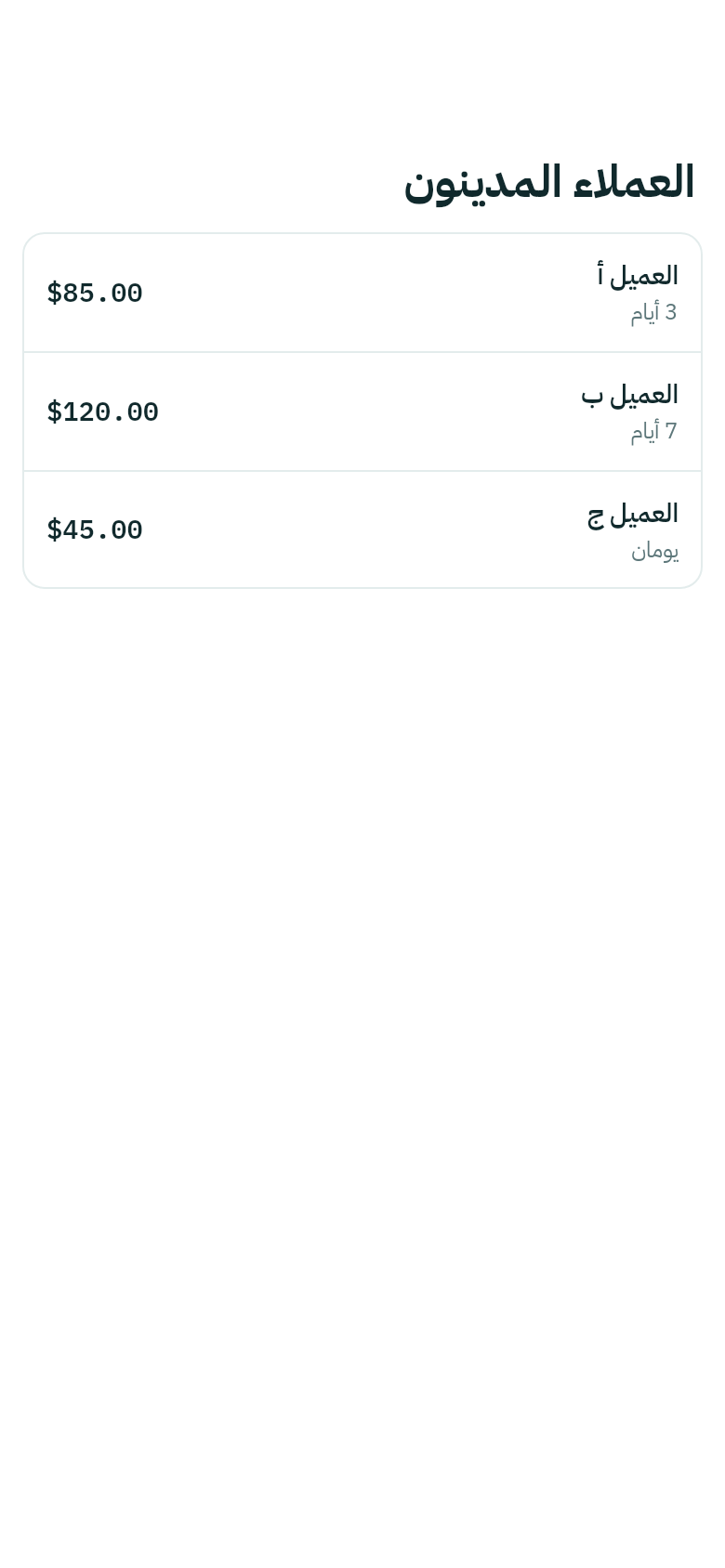
العملاء المدينون في الهاتف
اضغط عرض المزيد في آخر القائمة لبقية العملاء.

لتسجيل دفعة من عميل، انظر العملاء المدينون.

النفقات

اضغط النفقات في الشريط السفلي. في الأعلى مجموع نفقات الشهر حتى الآن، وعددها، وكم منها بلا صورة، ثم كل نفقة بتاريخها وفرعها.
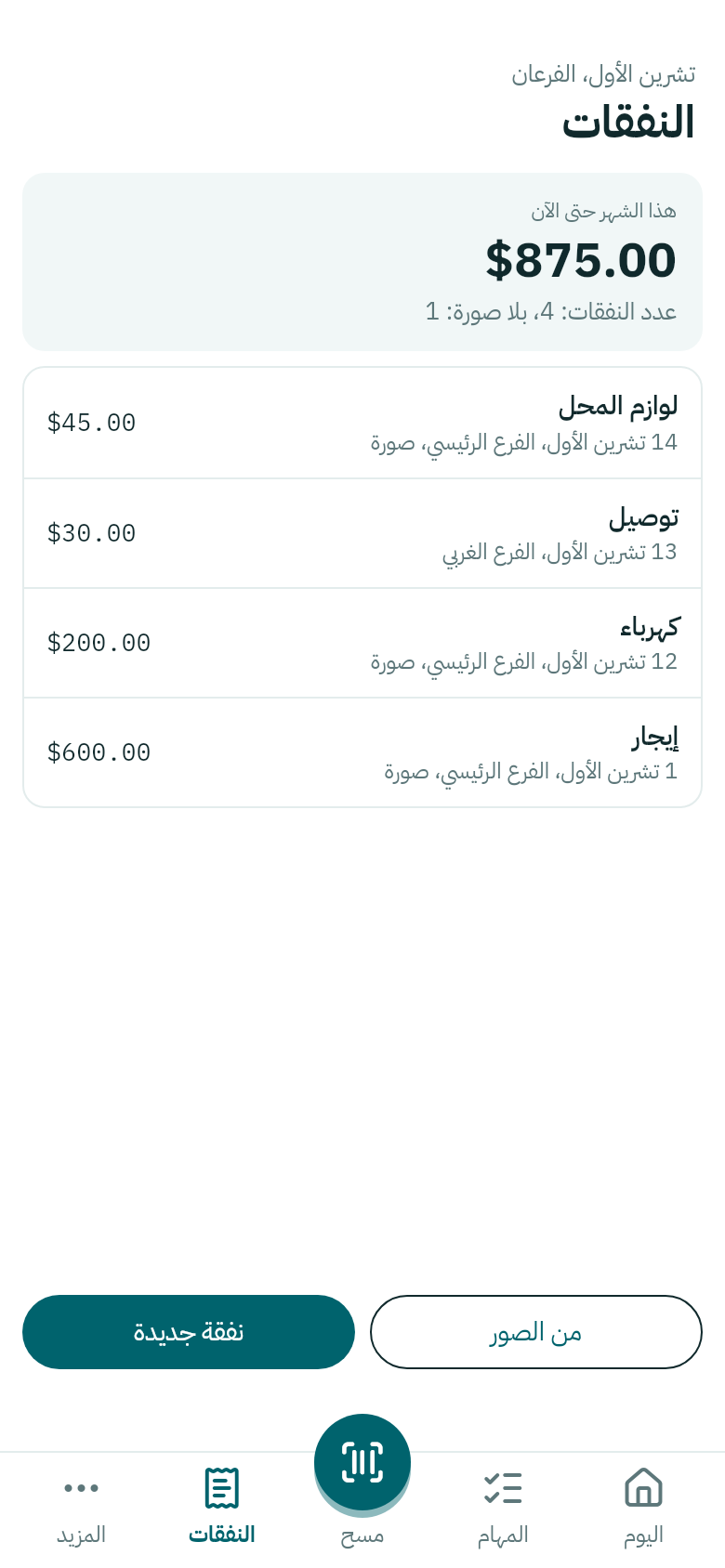
النفقات في الهاتف
نفقات الشهر في الفرعين.
  1. اضغط نفقة جديدة، ثم التقط صورة للإيصال أو اختر من الصور.
  2. اكتب المبلغ، واختر العملة ونوع النفقة والفرع، ودُفع من أي درج أو حساب.
  3. اضغط حفظ النفقة.

لإيصالات كثيرة دفعة واحدة، اضغط من الصور واختر صورها. نفقة مدير المتجر تظهر بانتظار المالك حتى يؤكدها، كما في تسجيل نفقة.
Customers who owe and expenses on your phone

Who owes the shop, how much and for how long, the month's expenses, and recording an expense with a photo of its receipt.

Customers who owe

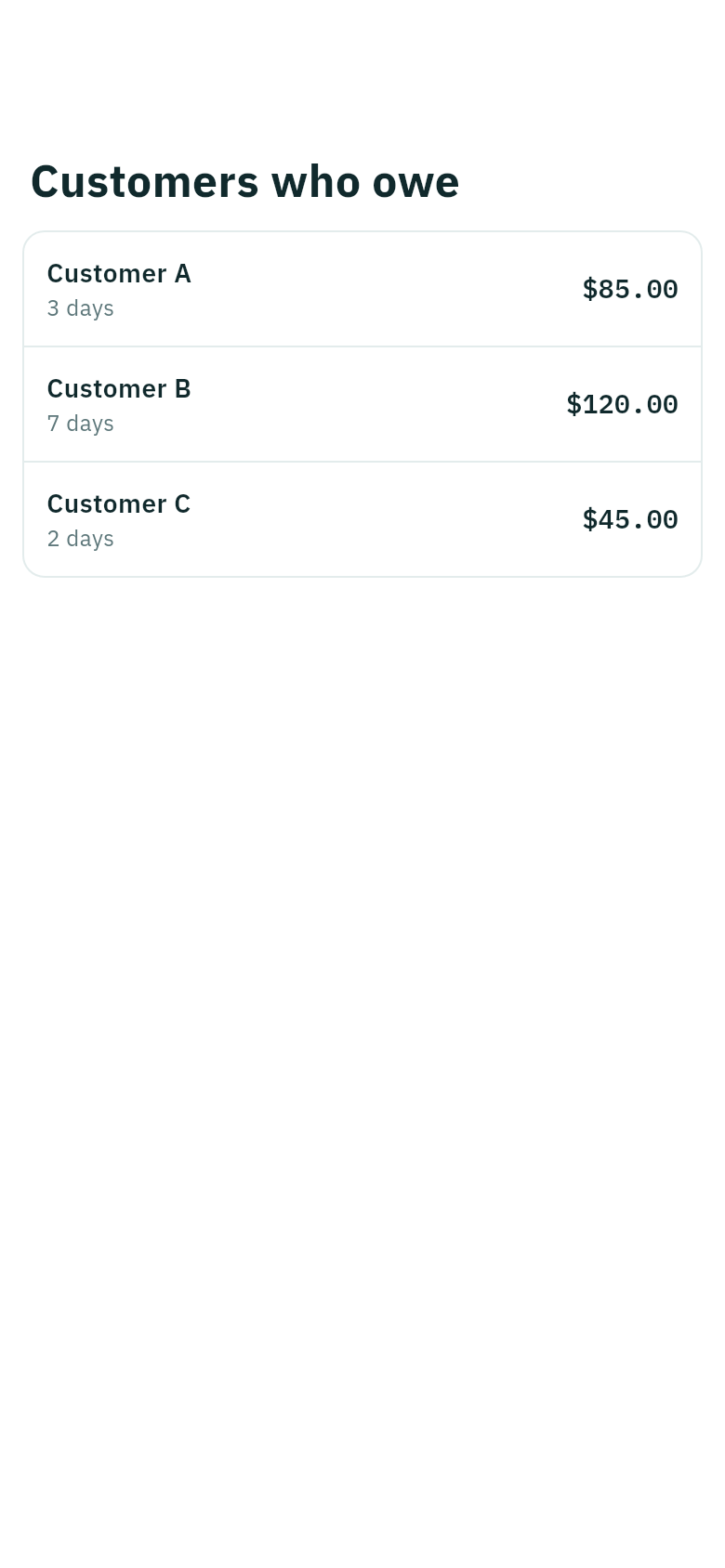
On Today, tap Customers who owe. Each customer shows what they owe and for how many days, oldest first. Tap a customer to see their sales, payments and returns, and their balance after each.

Customers who owe on the phone
Tap Show more at the end of the list for the rest.

To record a customer's payment, see Customers who owe.

Expenses

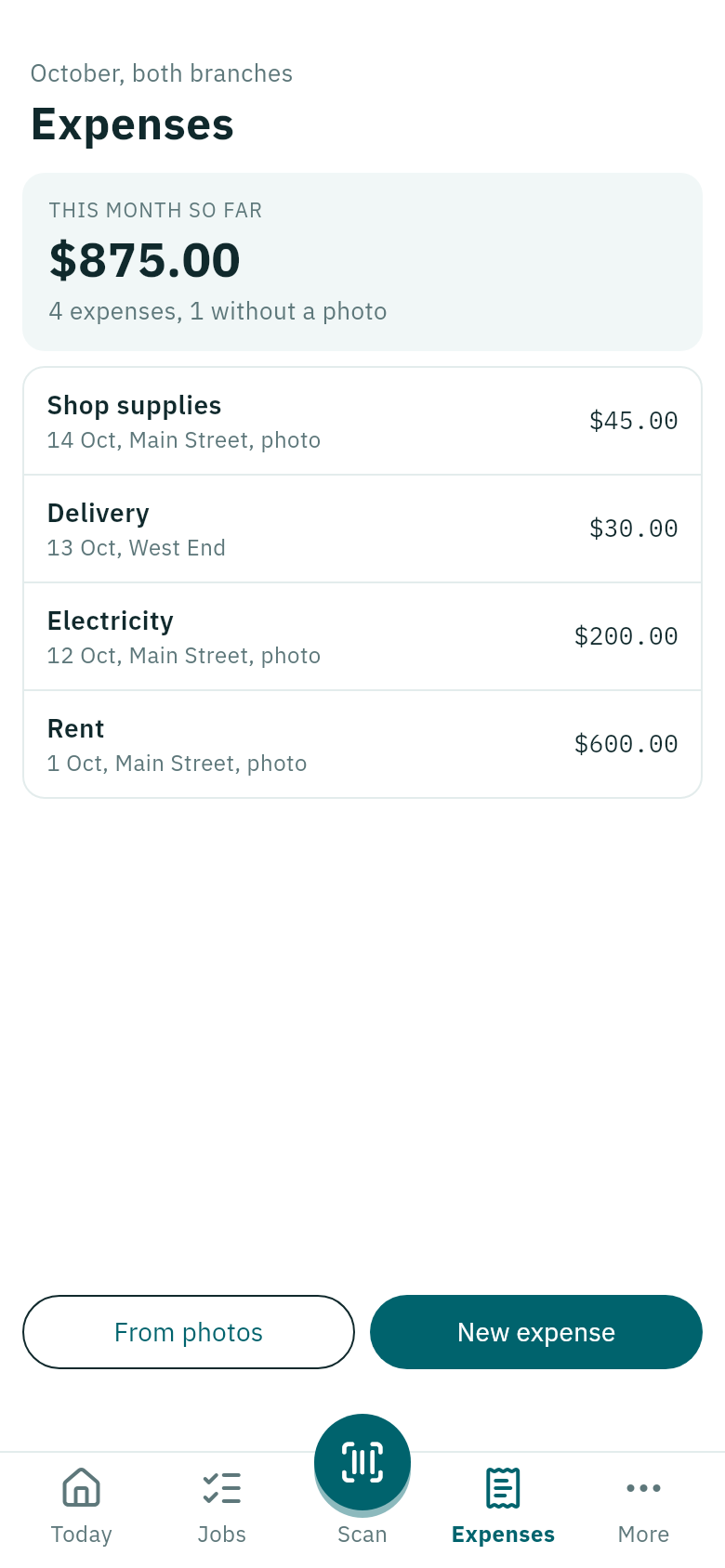
Tap Expenses in the bottom bar. At the top is the month's total so far, how many expenses there are and how many have no photo, then each expense with its date and branch.

Expenses on the phone
The month's expenses in both branches.
  1. Tap New expense, then Take a photo of the receipt or Choose from photos.
  2. Type the Amount, choose the Currency, What for and the Branch, and which drawer or account it was Paid from.
  3. Tap Save expense.

For many receipts at once, tap From photos and choose their pictures. A store manager's expense shows Waiting for the owner until the owner confirms it, as in Record an expense.