الملصقات وسلف الموظفين بالهاتف

إرسال ملصقات إلى حاسوب الفرع لطباعتها، وصرف سلفة لموظف من الهاتف.

الملصقات

  1. اضغط المهام ثم الملصقات، وامسح كل منتج تريد له ملصقات. أو اضغط طباعة ملصق على منتج.
  2. عدّل عدد الملصقات لكل منتج بـ + و−، واختر الملصق.
  3. اضغط الزر في الأسفل، مثل إرسال 23 ملصقاً.
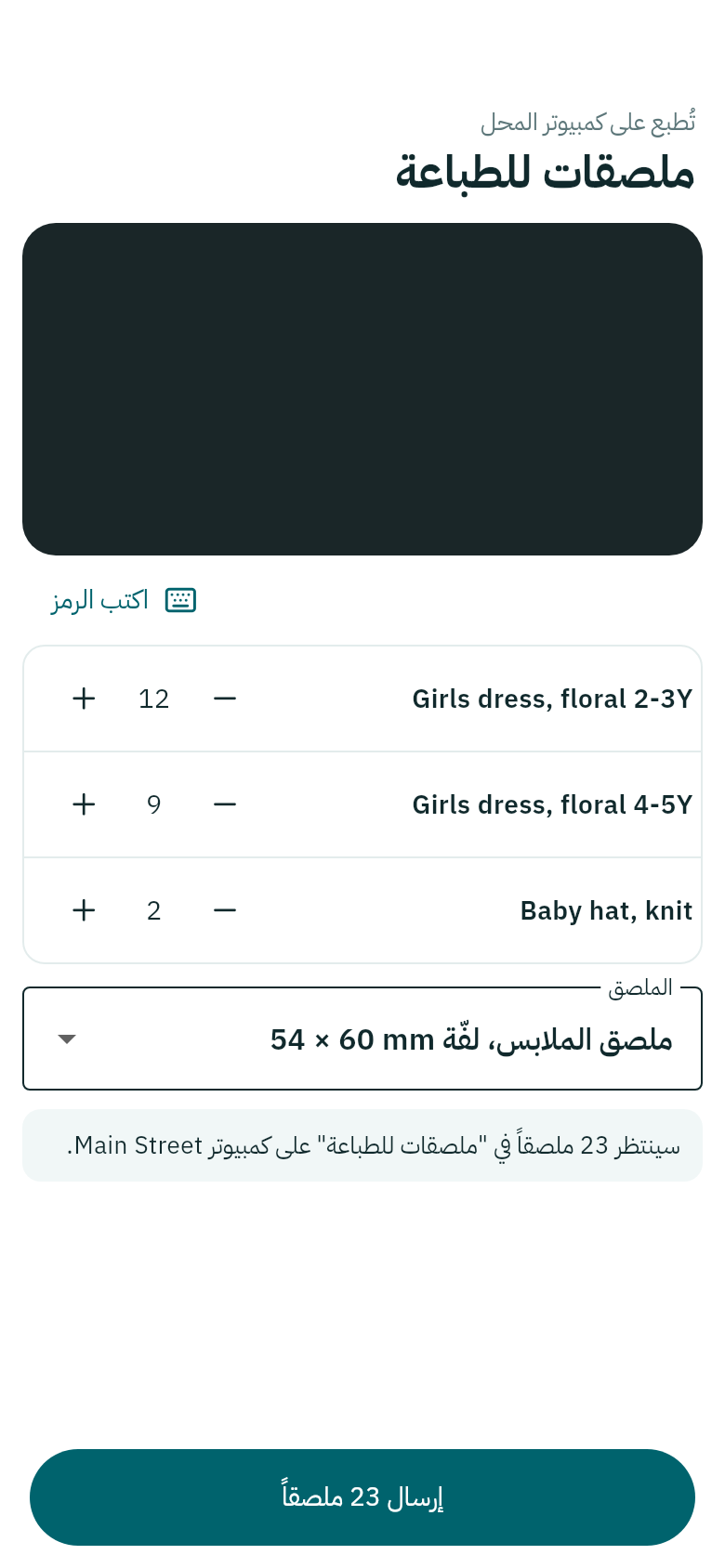
ملصقات للطباعة
تُطبع على كمبيوتر الفرع.

تنتظر الملصقات في «ملصقات للطباعة» على الحاسوب، ومن هناك تُطبع كما في الباركود والملصقات.

سلفة موظف

  1. اضغط المهام ثم سلفة موظف.
  2. اختر الموظف. يظهر بجانبه المتبقي عليه من سلف سابقة.
  3. اكتب المبلغ والملاحظة، ثم اضغط صرف سلفة.

تُسجَّل السلفة كما تُسجَّل من الحاسوب، وتُخصم يوم صرف الرواتب. انظر سلف الموظفين.
Labels and salary advances with your phone

Sending labels to the branch computer to print, and giving a staff member an advance from the phone.

Labels

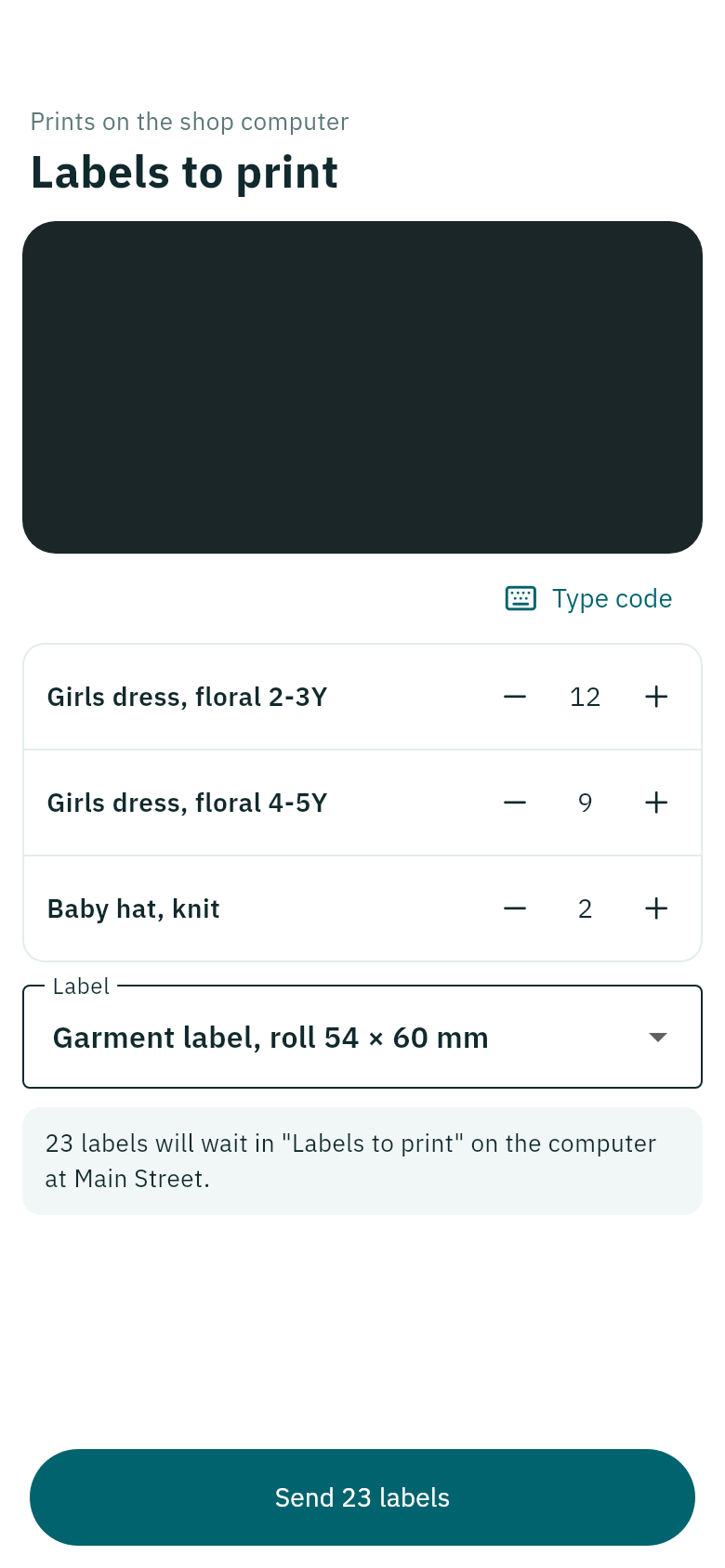
  1. Tap Jobs, then Labels, and scan each product you want labels for. Or tap Print label on a product.
  2. Set the number of labels for each product with + and −, and choose the Label.
  3. Tap the button at the bottom, such as Send 23 labels.
Labels to print
They print on the branch computer.

The labels wait in Labels to print on the computer, and print from there as in Barcodes and labels.

Salary advance

  1. Tap Jobs, then Salary advance.
  2. Choose the Staff member. Beside them is what they still owe from earlier advances.
  3. Type the Amount and a Note, then tap Give advance.

The advance is recorded as it is from the computer, and comes off on payday. See Salary advances.