الباركود والملصقات

كيف تجد نقطة البيع المنتج بالمسح، وكيف تطبع ملصقات بالباركود والسعر على لفّة أو على ورق A4.

تجد نقطة البيع المنتج عندما يُمسح الباركود الخاص به. لكل مقاس ولون باركود خاص، ويحمل الملصق الباركود والاسم والسعر.

باركود المنتج

  1. افتح المنتج من المنتجات ← كافة المنتجات. للمنتج بمقاسات أو ألوان، افتح المقاس واللون نفسه، لا المنتج الرئيسي.
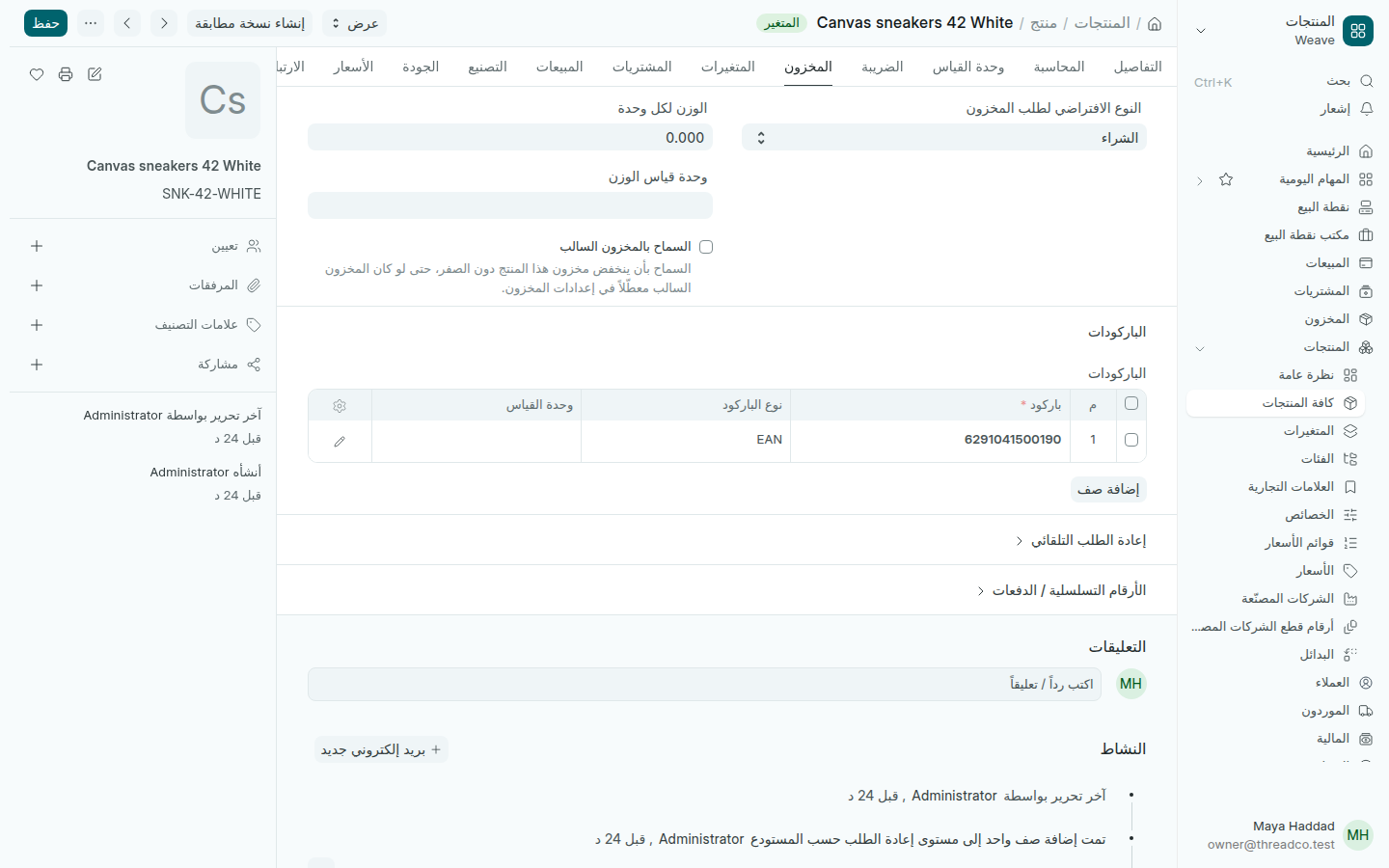
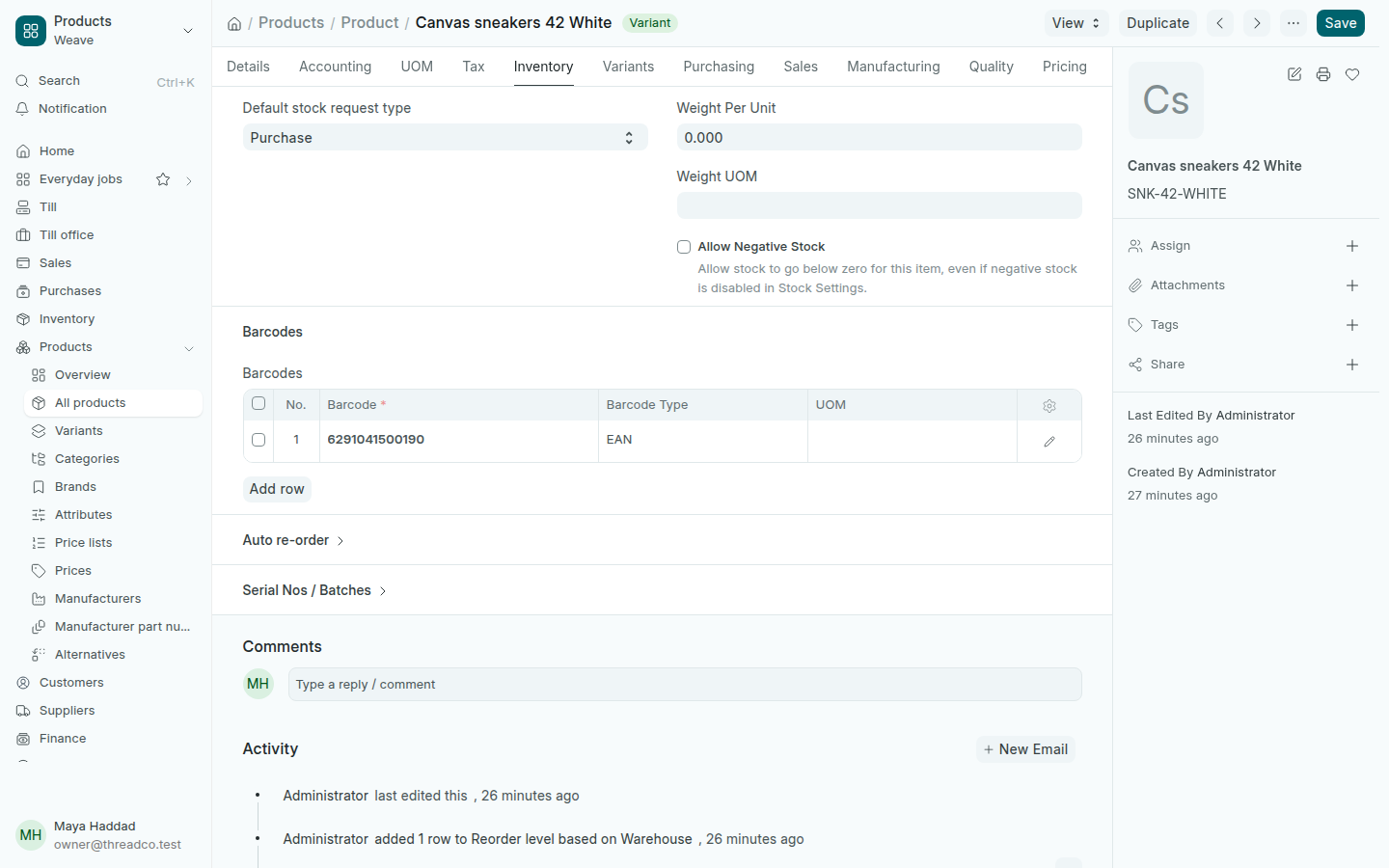
  2. في تبويب المخزون، اضغط إضافة صف في جدول الباركودات واكتب باركود. اختر نوع الباركود EAN للباركود المكوّن من 13 رقماً أو 8 أرقام.
  3. اضغط حفظ.
جدول الباركودات في تبويب المخزون
يطبع الملصق الباركود الأول في الجدول.

عند إضافة منتج بسرعة دون كتابة باركود، يعطيه Weave باركوداً خاصاً بمتجرك يبدأ بـ 200. تعرض صفحة المنتجات عدد المنتجات التي لا باركود لها أو التي لها باركود لا تجده نقطة البيع.

طباعة الملصقات من قائمة المنتجات

  1. افتح المنتجات ← كافة المنتجات وحدّد المقاسات والألوان التي تريد ملصقاتها.
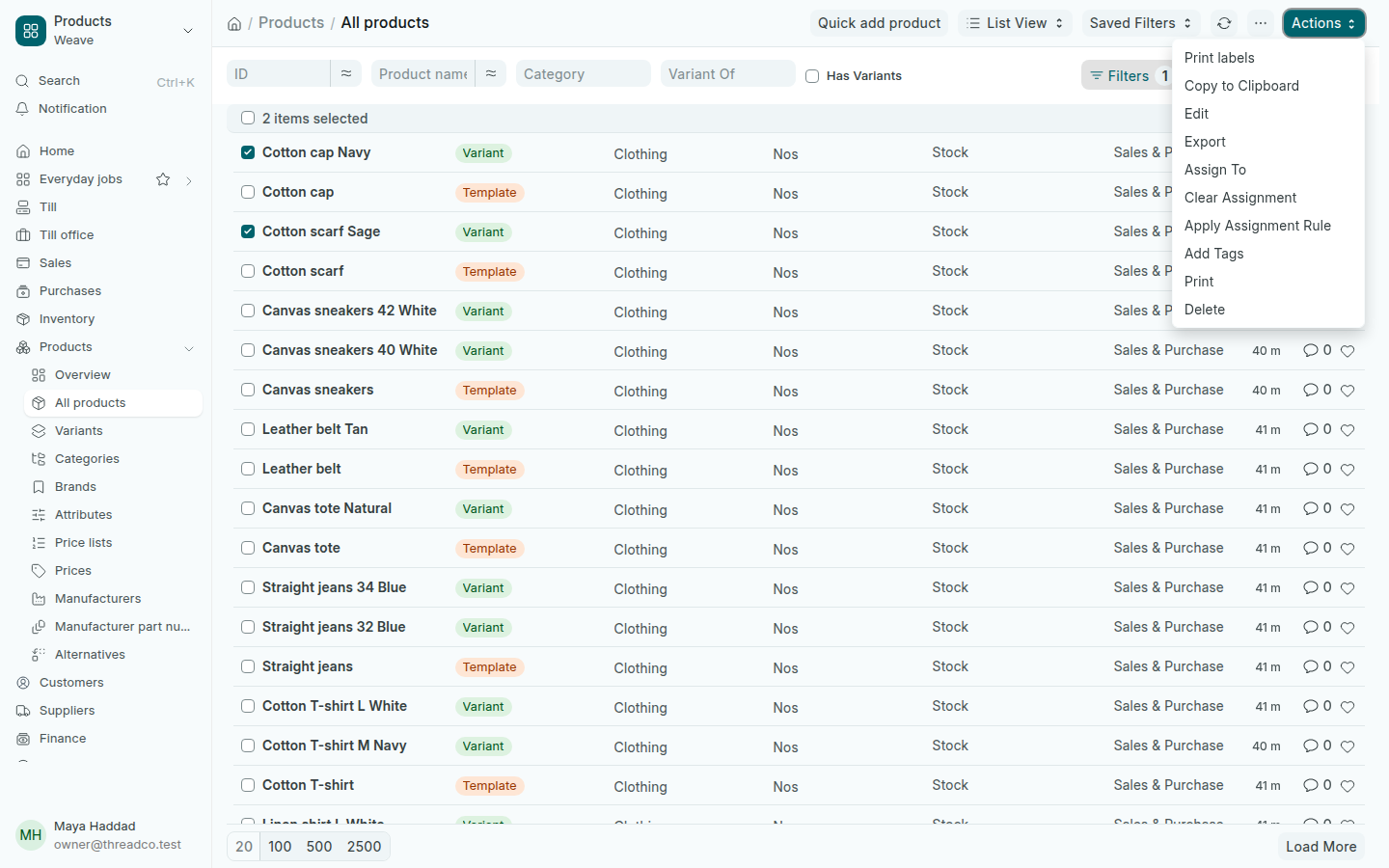
  2. اضغط الإجراءات ← طباعة الملصقات.
  3. اكتب عدد النسخ لكل منتج، واختر تصميم الملصق والطباعة على.
  4. اضغط طباعة. تُفتح الملصقات في تبويب جديد، فاطبعها من هناك.
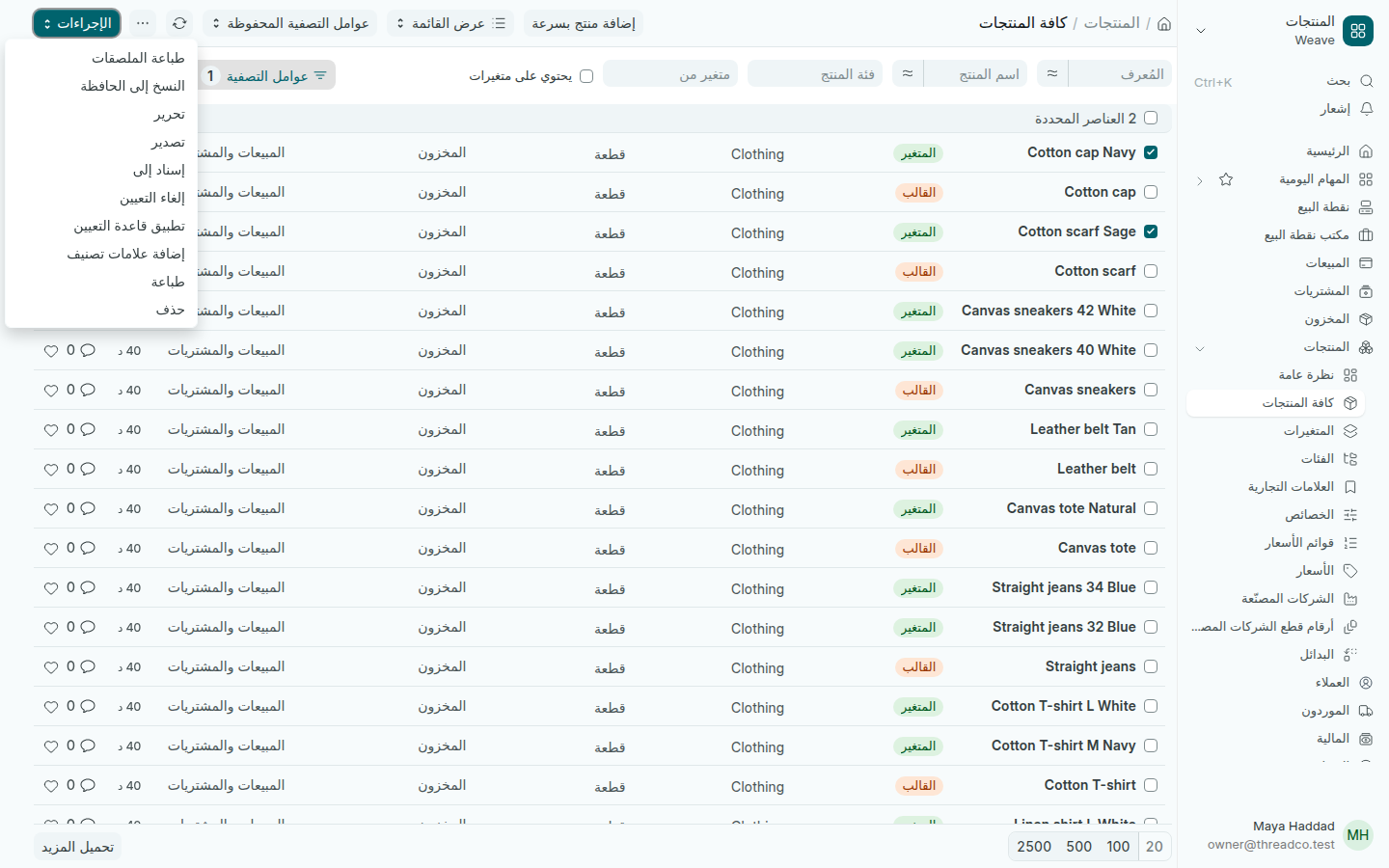
قائمة الإجراءات وفيها طباعة الملصقات
حدّد المقاسات والألوان، لا المنتج الرئيسي.

المنتج الرئيسي (القالب) لا يُطبع له ملصق، فحدّد مقاساته وألوانه. إذا كان أحد المنتجات بلا باركود صالح، يذكره Weave أعلى النافذة قبل الطباعة.

الملصقات التي تنتظر الطباعة

تصل الملصقات إلى المخزون ← ملصقات للطباعة من مكانين: من تسجيل استلام بضاعة بعدد القطع المستلمة، ومن الهاتف في Weave Companion عند التحقق من السعر أو استلام البضاعة. تظهر بحالة قيد الانتظار.

  1. اضغط طباعة الملصقات. تُطبع كل الملصقات المنتظرة في فروعك، أو الأسطر المحدّدة فقط إذا حدّدت بعضها.
  2. راجع عدد النسخ واضغط طباعة.
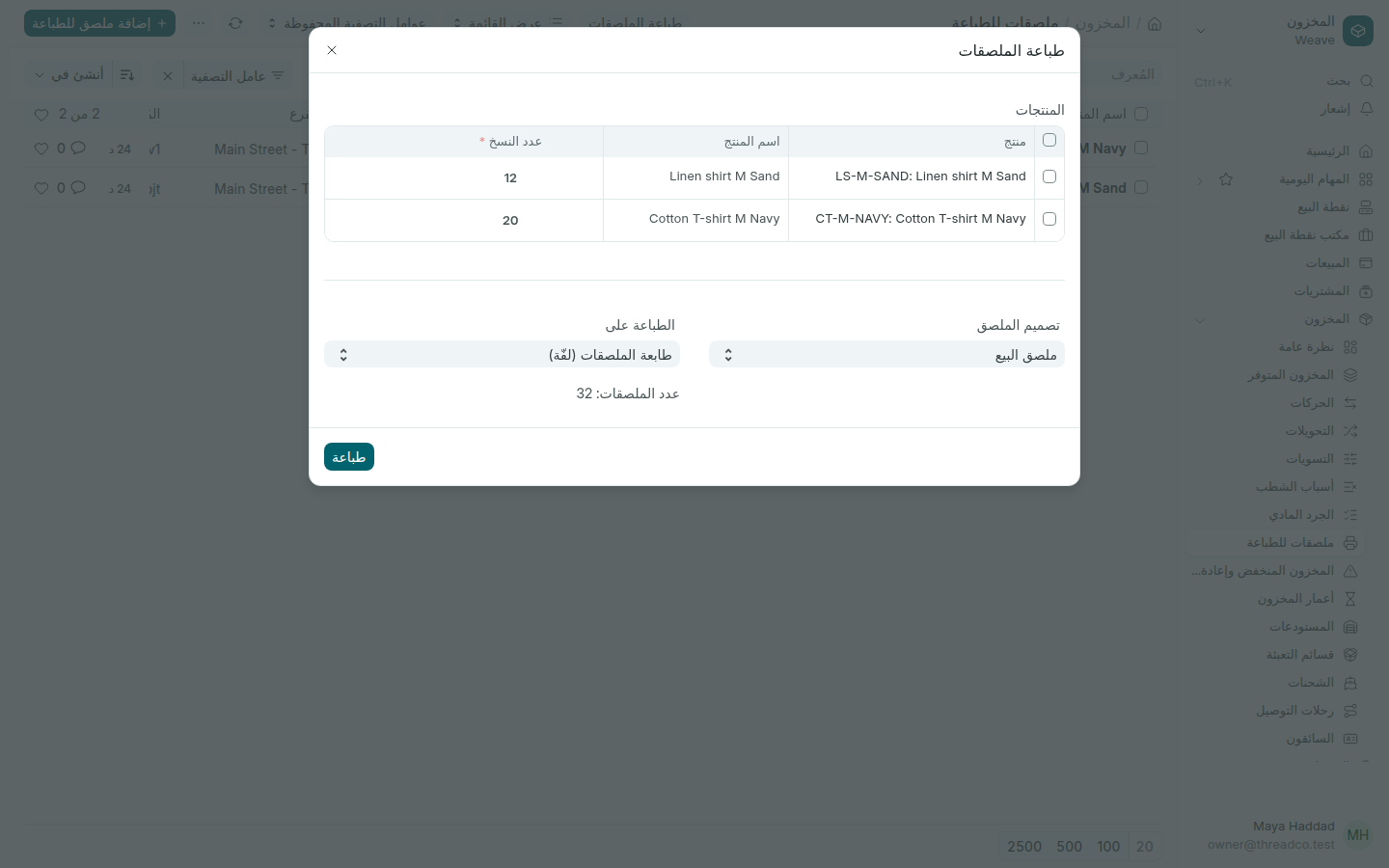
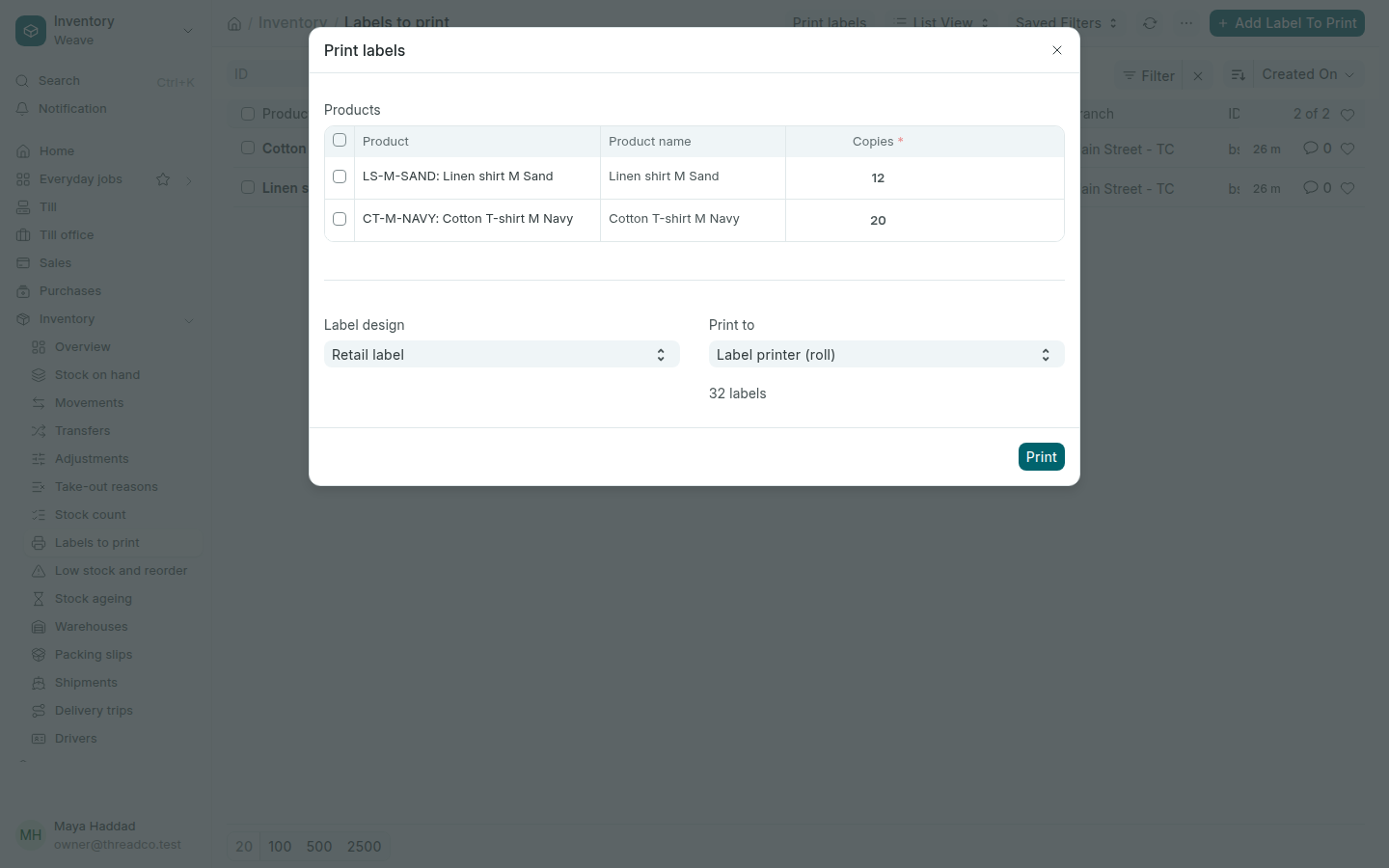
نافذة طباعة الملصقات
يظهر عدد الملصقات أسفل النافذة.

بعد الطباعة تصبح الأسطر مطبوع، مع اسم من طبعها ووقت الطباعة. يُطبع تصميم واحد في كل مرة.

التصاميم والورق

  • ملصق الملابس 38 × 25 مم، وملصق البيع 50 × 30 مم، وملصق الرف 60 × 30 مم.
  • طابعة الملصقات (لفّة): ملصق واحد في كل صفحة.
  • ورقة ملصقات A4: 40 ملصقاً في الورقة في الأصل. في ورقة مستعملة جزئياً، اكتب في البدء من الملصق رقم رقم أول ملصق فارغ، بالعدّ أفقياً.

إذا كانت ورقتك أو لفّتك بمقاس آخر، افتح الإعدادات ← كل الإعدادات ← الطباعة وعدّل ورقة ملصقات A4 أو لفّة الملصقات.
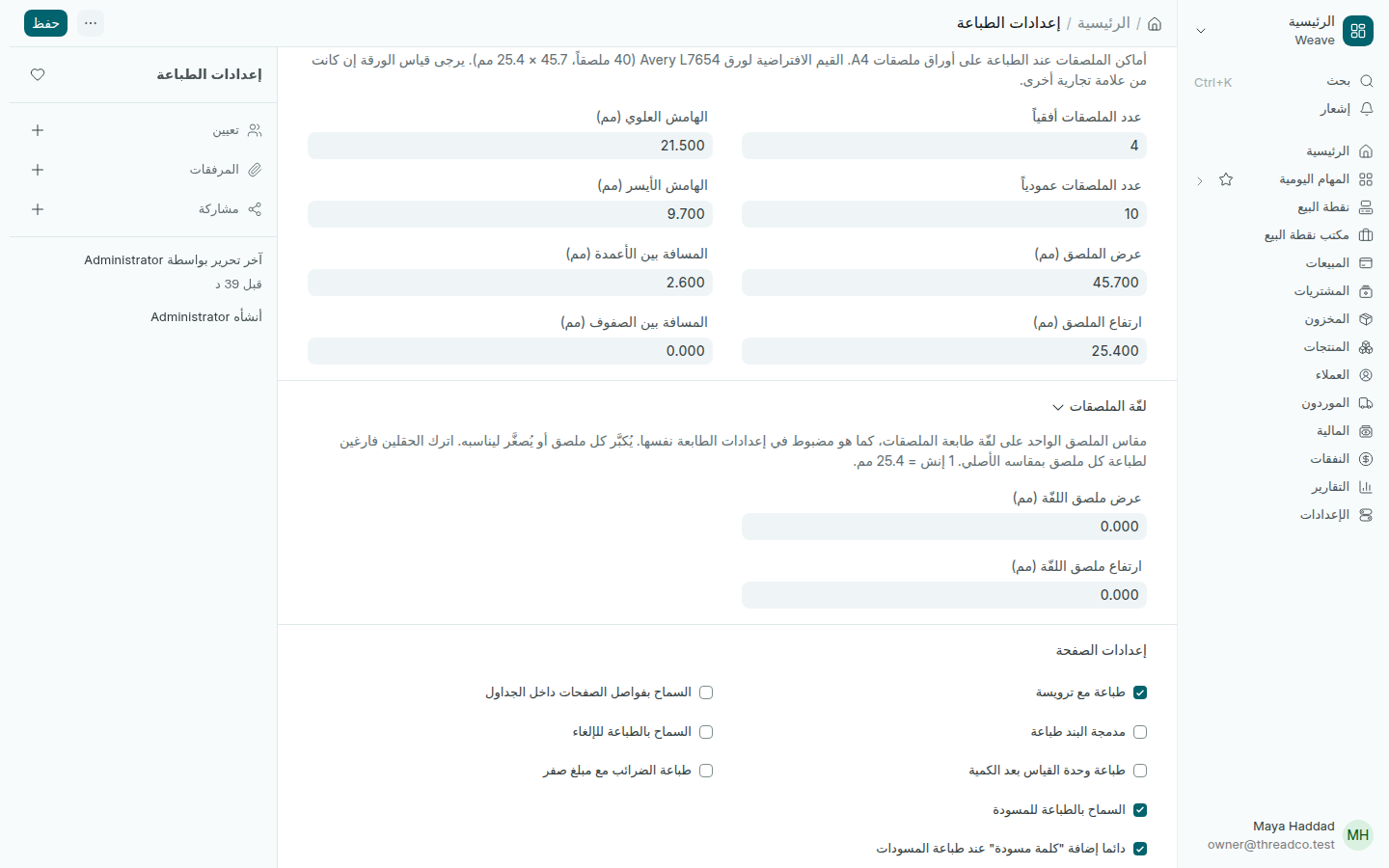
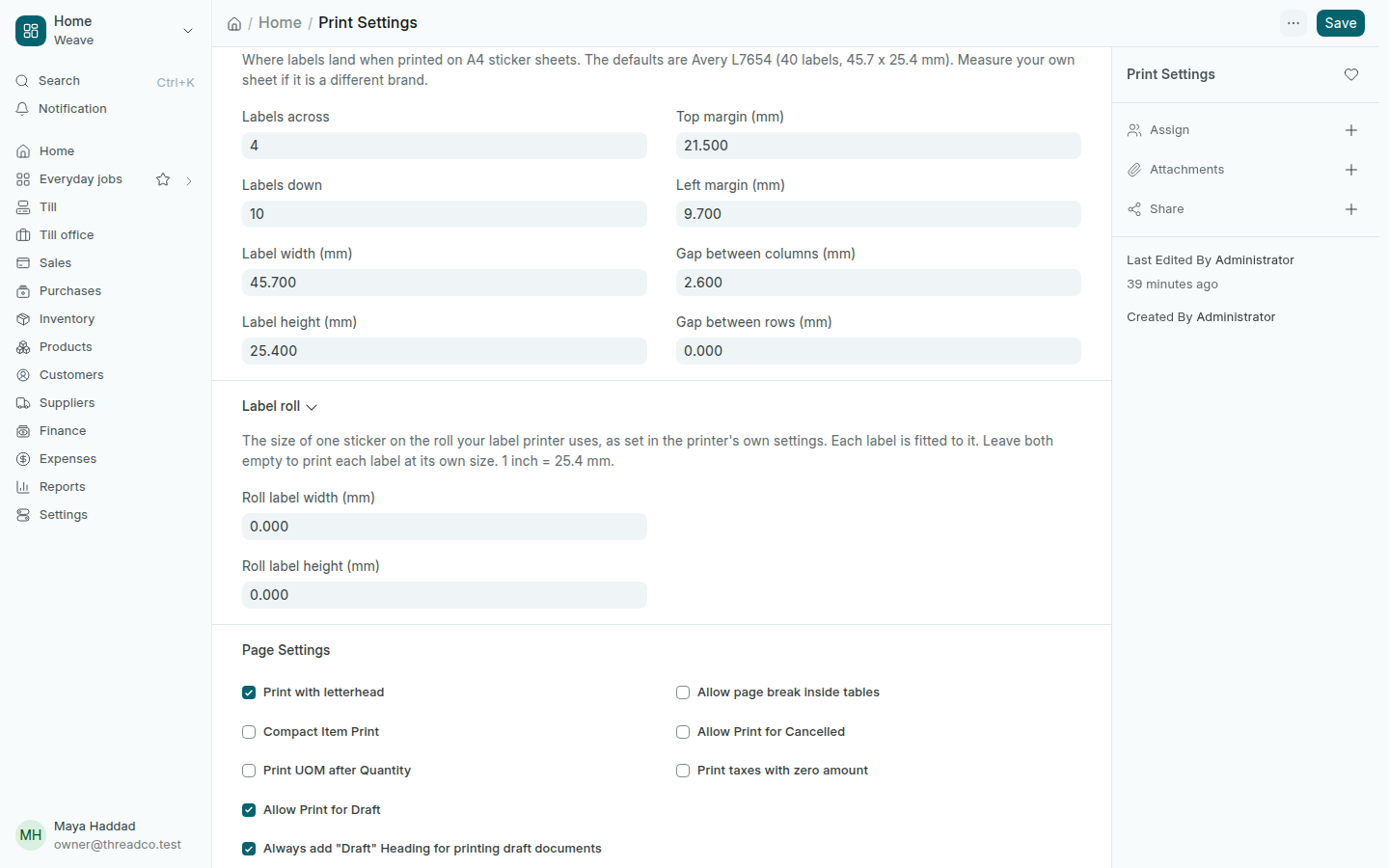
إعدادات ورقة الملصقات ولفّة الملصقات
القيم الأصلية لورق Avery L7654.

Barcodes and labels

How the till finds a product by scanning, and how to print labels with the barcode and price on a roll or on A4 sheets.

The till finds a product when its barcode is scanned. Every size and colour has its own barcode, and the label carries the barcode, the name and the price.

A product's barcode

  1. Open the product from Products → All products. For a product with sizes or colours, open the size and colour itself, not the main product.
  2. In the Inventory tab, press Add row in the Barcodes table and type the Barcode. Choose EAN as the Barcode Type for a 13 or 8 digit barcode.
  3. Press Save.
The Barcodes table in the Inventory tab
The label prints the first barcode in the table.

When you quick add a product without typing a barcode, Weave gives it one of your shop's own, starting with 200. The Products page counts products with no barcode, or with one the till cannot find.

Printing labels from the product list

  1. Open Products → All products and tick the sizes and colours you want labels for.
  2. Press Actions → Print labels.
  3. Type the Copies for each product, and choose the Label design and Print to.
  4. Press Print. The labels open in a new tab; print them from there.
The Actions menu with Print labels
Tick the sizes and colours, not the main product.

The main product (the template) has no label of its own, so tick its sizes and colours. If a product has no usable barcode, Weave names it at the top of the window before printing.

Labels waiting to print

Labels reach Inventory → Labels to print from two places: from Record a delivery, one for each piece received, and from the phone in Weave Companion when checking a price or receiving goods. They show as Waiting.

  1. Press Print labels. Every waiting label in your branches prints, or only the rows you ticked.
  2. Check the copies and press Print.
The Print labels window
The number of labels shows at the bottom of the window.

Once printed, the rows read Printed, with who printed them and when. One design prints at a time.

Designs and paper

  • Garment label 38 × 25 mm, Retail label 50 × 30 mm, Shelf label 60 × 30 mm.
  • Label printer (roll): one label per page.
  • A4 sticker sheet: 40 labels a sheet as standard. On a sheet already partly used, type the first empty sticker in Start at label, counting across.

If your sheet or roll is a different size, open Settings → All settings → Printing and change the A4 label sheet or the Label roll.

Settings for the label sheet and the label roll
The standard values fit Avery L7654 sheets.