المنتجات بمقاساتها وألوانها

المنتج الذي يُباع بعدة مقاسات أو ألوان قالب، ولكل مقاس ولون منتج خاص به له باركود وسعر ومخزون.

في المنتجات ← كافة المنتجات يظهر لكل منتج بمقاسات أو ألوان سطر القالب، وتحته سطر المتغير لكل مقاس ولون. القالب لا يُباع ولا يُخزَّن؛ ما يُباع ويُعدّ هو المتغير. المتغيرات في القائمة تعرض المتغيرات وحدها.
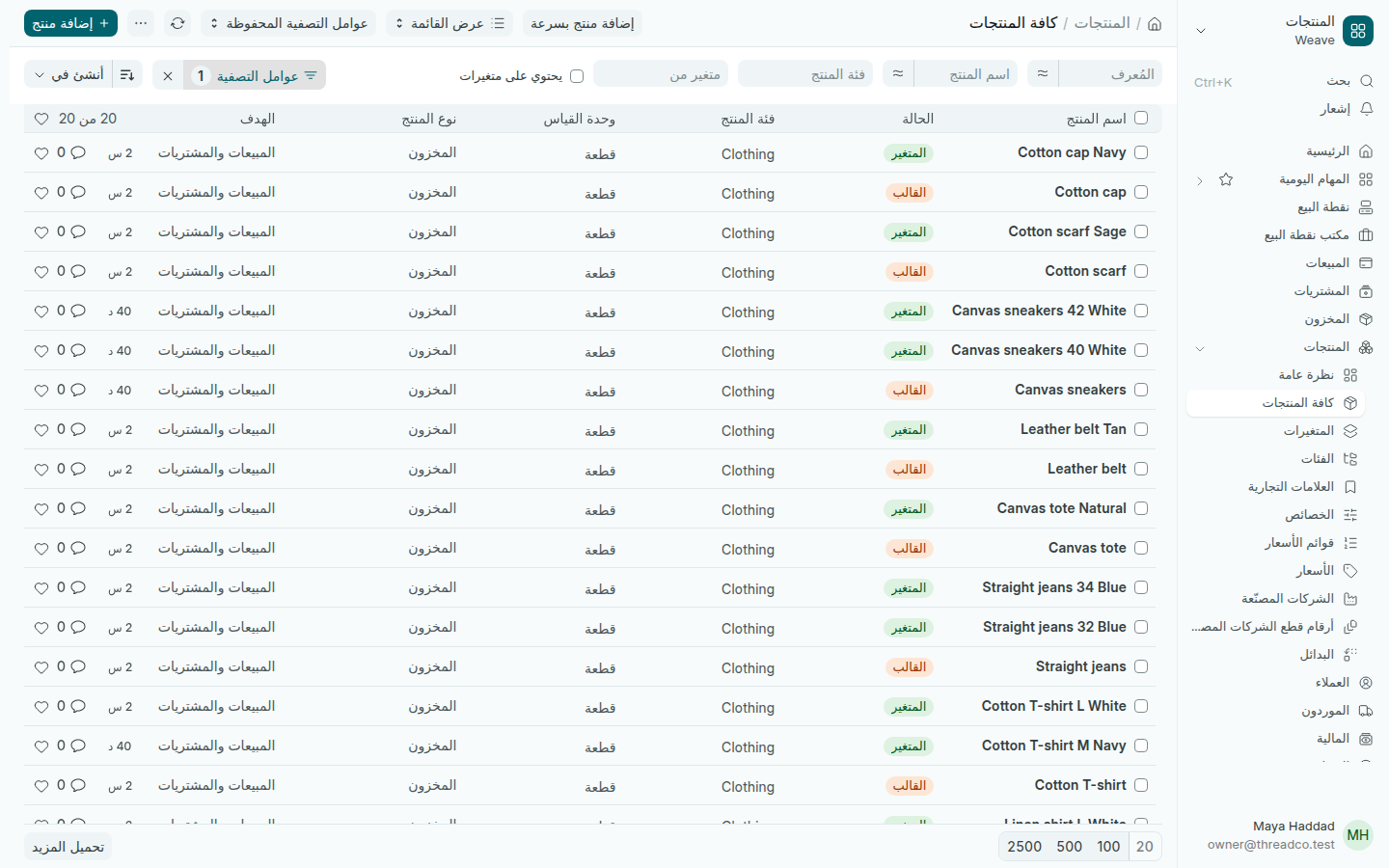
قائمة كافة المنتجات
القالب وتحته متغيراته، ولكل منها حالته.

منتج جديد بمقاسات وألوان

أسرع طريقة هي إضافة منتج بسرعة: تكتب الاسم والسعر مرة واحدة، ويُنشئ Weave سطراً لكل مقاس ولون. للتفاصيل اقرأ إضافة منتج بسرعة.

إضافة مقاس أو لون لمنتج موجود

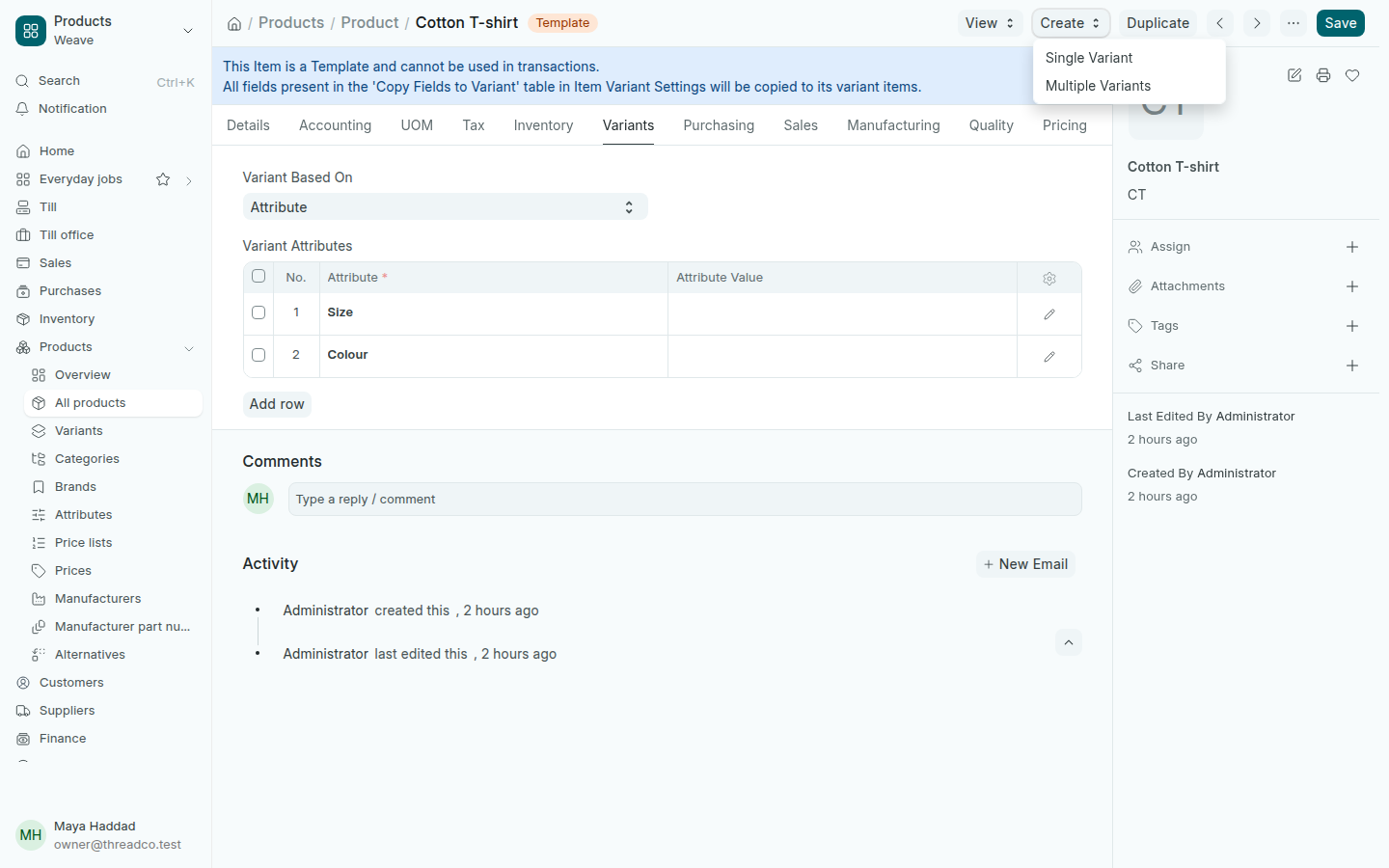
  1. افتح القالب من كافة المنتجات.
  2. اضغط إنشاء في أعلى الصفحة، ثم متغير واحد لمقاس أو لون واحد، أو عدة متغيرات لعدة مقاسات وألوان معاً.
  3. اختر المقاس واللون ثم اضغط إنشاء، أو حدّد القيم في نافذة اختيار قيم الخصائص ثم اضغط إنشاء المتغيرات. يأخذ كل متغير جديد اسم القالب وفئته.
  4. افتح المتغير الجديد وأضف باركوده في تبويب المخزون، وسعره في الأسعار.
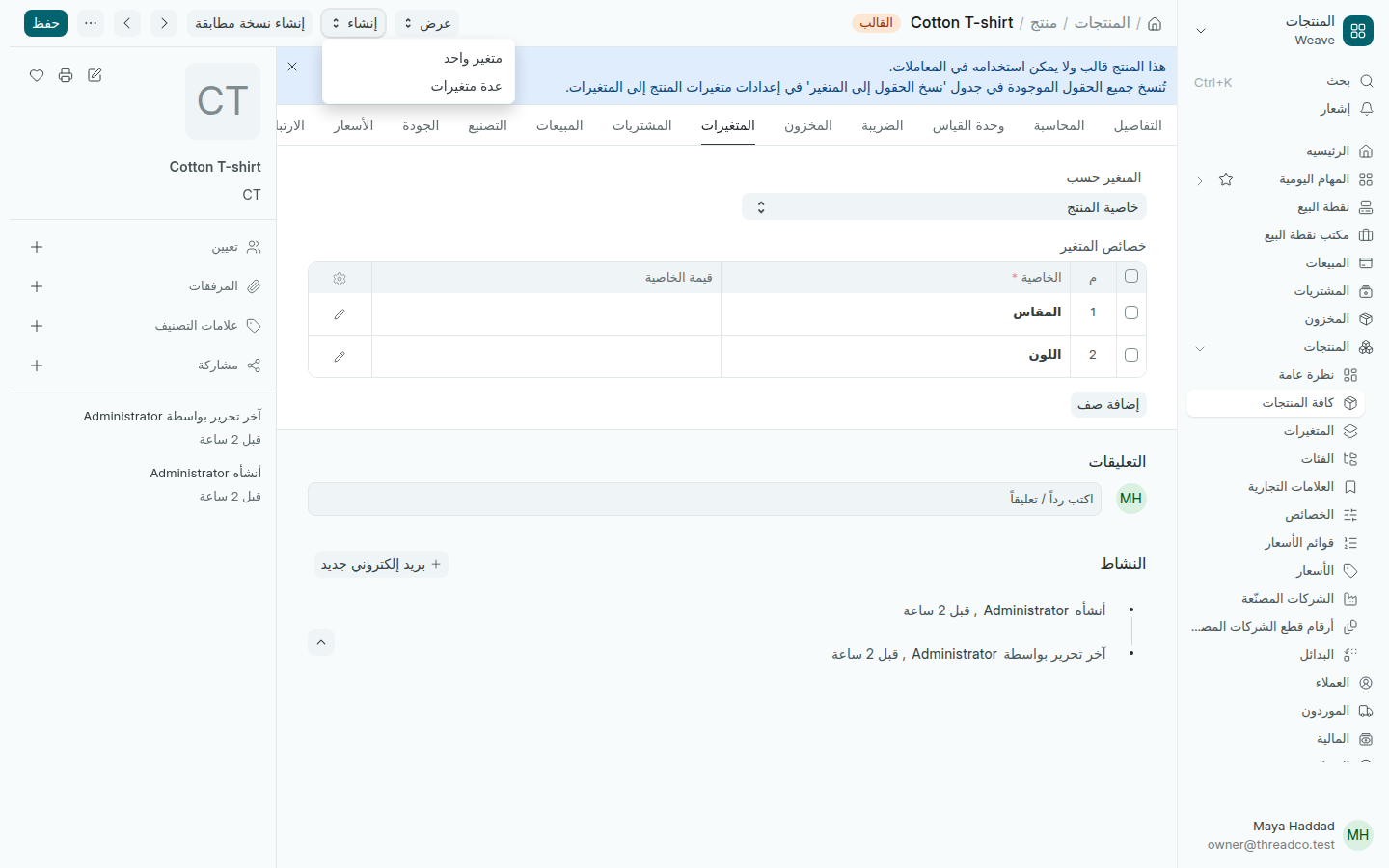
تبويب المتغيرات في قالب منتج مع قائمة إنشاء
تبويب المتغيرات يعرض الخصائص التي يتغيّر بها المنتج.

المقاسات والألوان المتاحة

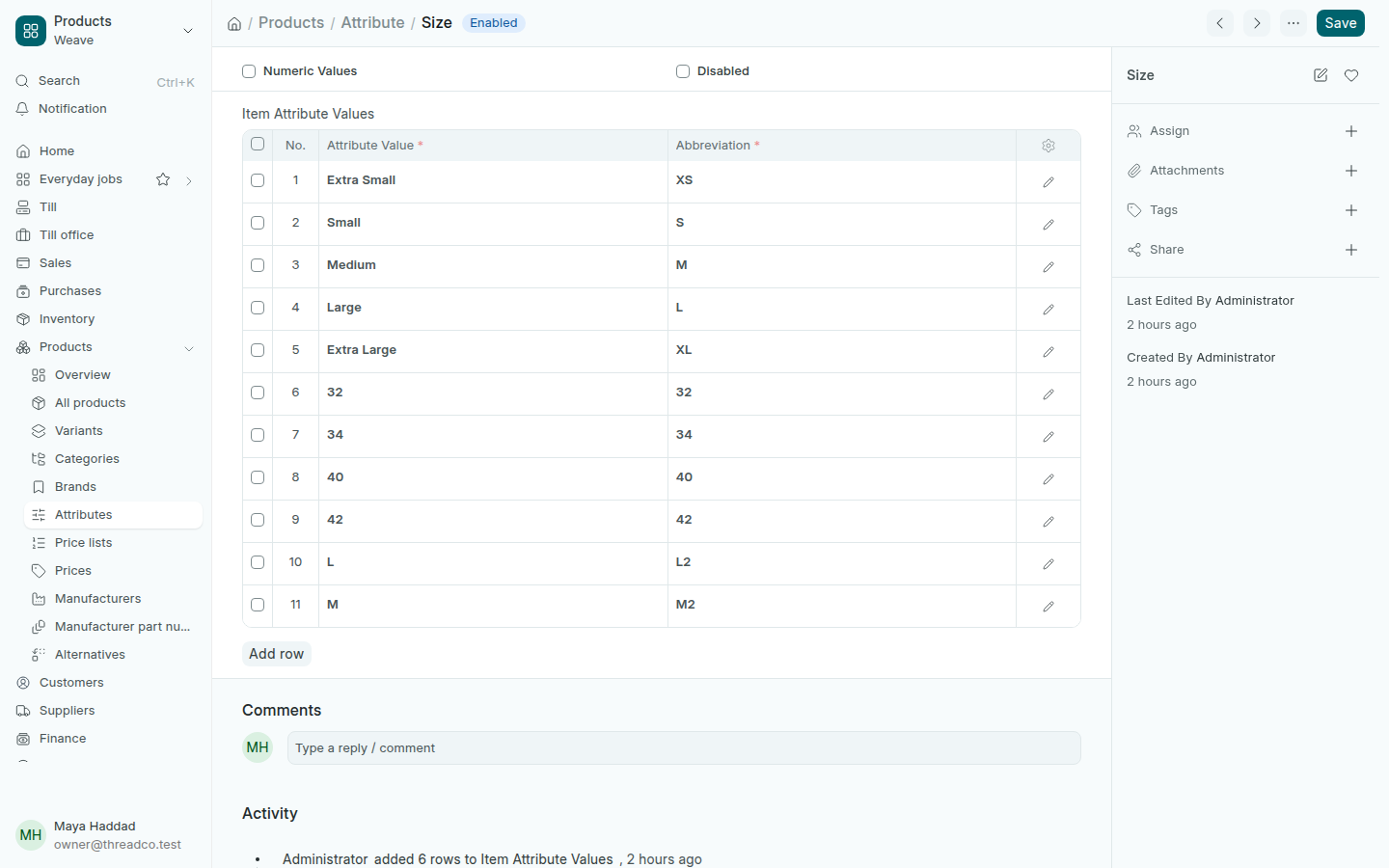
المقاسات والألوان هي الخصائص. افتح المنتجات ← الخصائص ثم المقاس أو اللون، وأضف صفاً لكل قيمة جديدة في قيم خاصية المنتج. الاختصار يدخل في رمز المتغير، فاختره قصيراً وواضحاً، ثم اضغط حفظ.
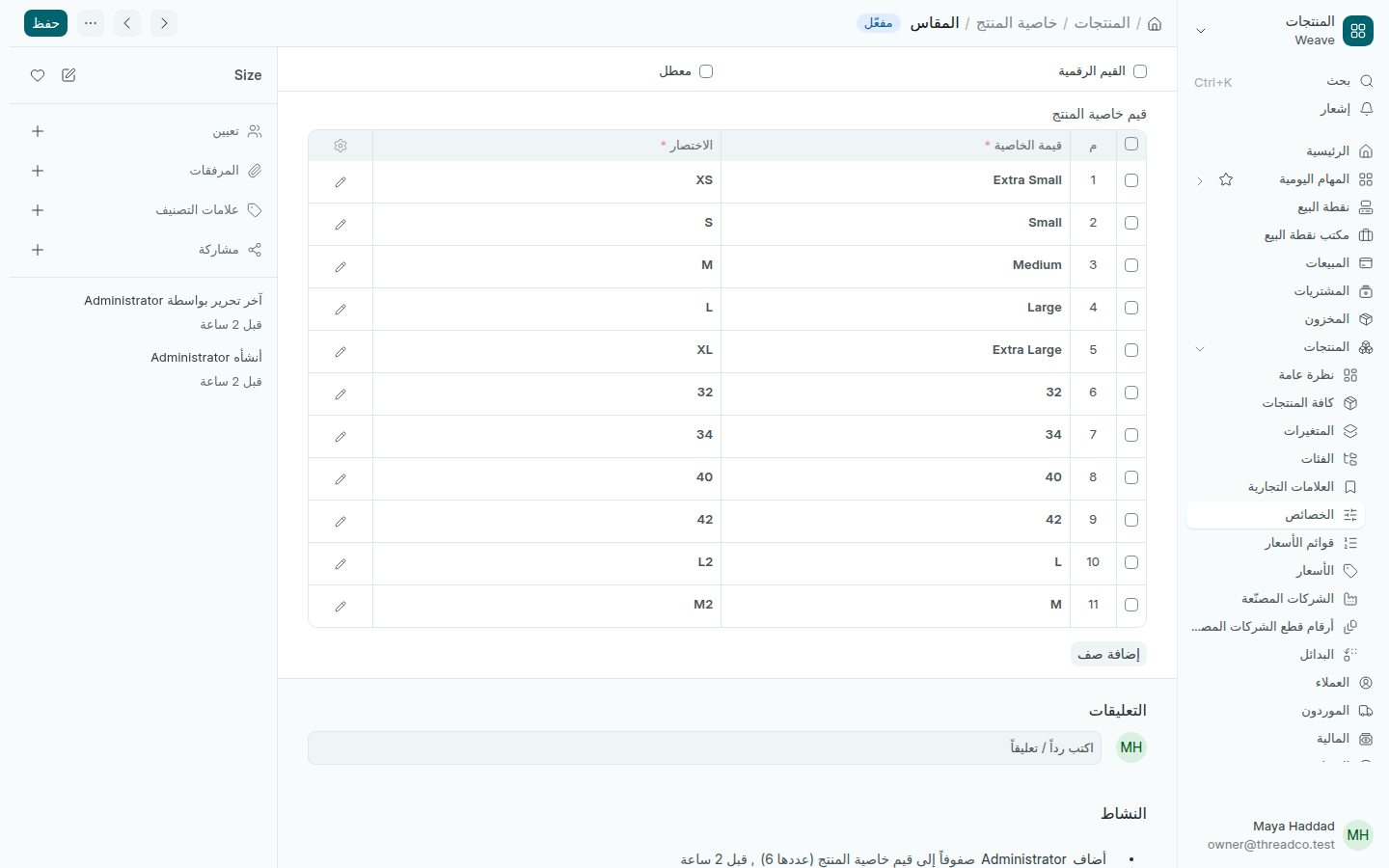
قيم خاصية المقاس
لكل قيمة اختصار يظهر في رموز المنتجات.

إذا حدثت مشكلة

  • يظهر في أعلى القالب: هذا المنتج قالب ولا يمكن استخدامه في المعاملات. اختر المتغير، أي المقاس واللون، في البيع والشراء.
  • لا تجد قيمة في القائمة عند إنشاء متغير: أضفها أولاً في الخصائص.
Products with sizes and colours

A product sold in several sizes or colours is a template; each size and colour is its own product, with its own barcode, price and stock.

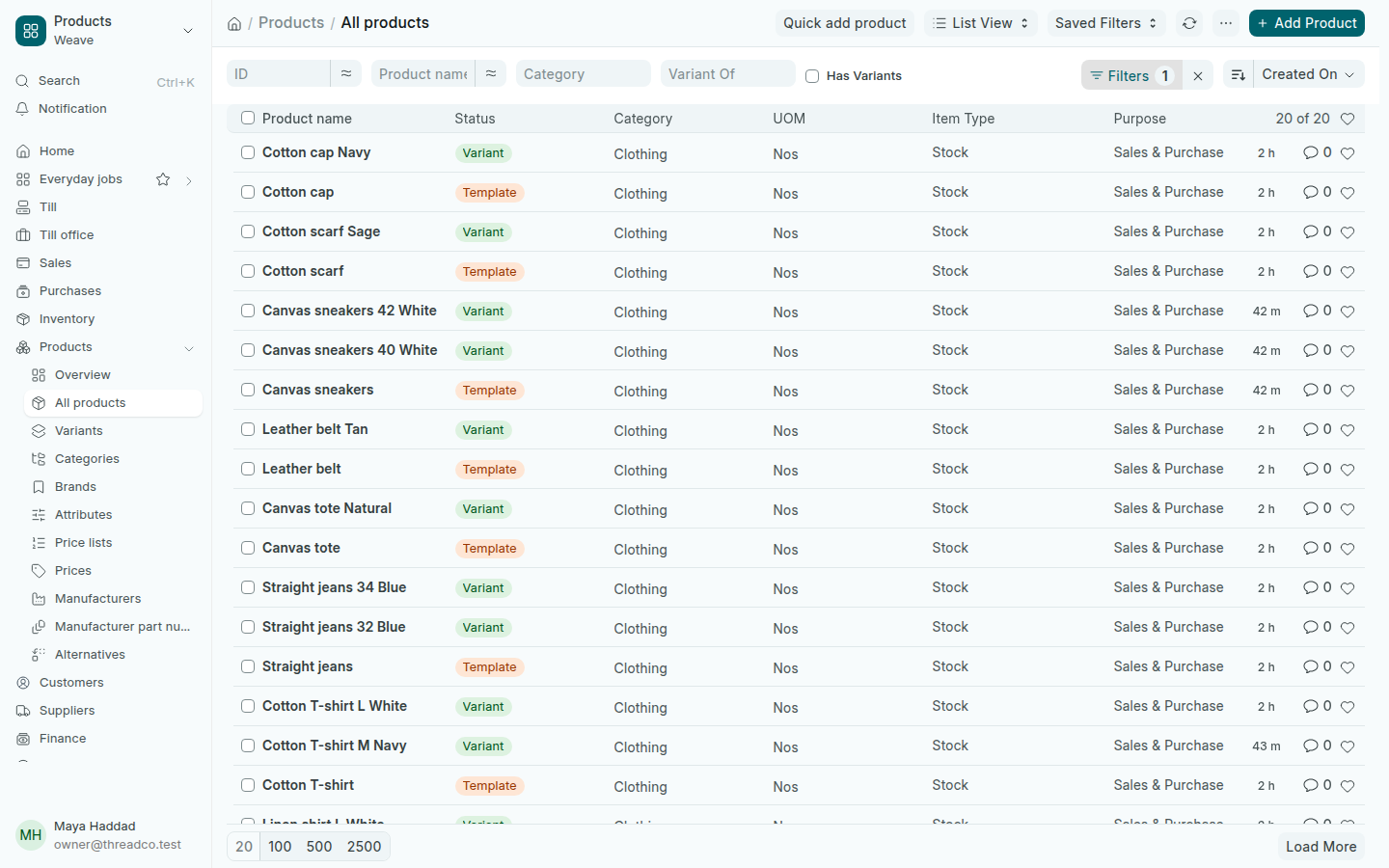
In Products → All products, a product with sizes or colours has a Template line, and under it a Variant line for each size and colour. The template is never sold or stocked; the variant is what you sell and count. Variants in the menu lists the variants on their own.

The All products list
Each template with its variants under it.

A new product in sizes and colours

The quickest way is Quick add product: you type the name and price once and Weave makes a line for each size and colour. See Quick add product.

Adding a size or colour to a product

  1. Open the template from All products.
  2. Press Create at the top, then Single Variant for one size or colour, or Multiple Variants for several at once.
  3. Choose the size and colour and press Create, or tick the values in Select Attribute Values and press Create Variants. Each new variant takes the template's name and category.
  4. Open the new variant and add its barcode in the Inventory tab, and its price in Prices.
The Variants tab of a product template, with the Create menu open
The Variants tab shows what the product varies by.

The sizes and colours on offer

Sizes and colours are Attributes. Open Products → Attributes, then Size or Colour, and add a row for each new value under Item Attribute Values. The Abbreviation goes into the variant's code, so keep it short and clear. Press Save.

The values of the Size attribute
Each value has an abbreviation used in product codes.

If something goes wrong

  • The template says This Item is a Template and cannot be used in transactions. Choose the variant, the size and colour, when selling or buying.
  • A value is missing when you make a variant: add it under Attributes first.