قوائم الأسعار والأسعار

سعر البيع الذي تتقاضاه نقطة البيع، وسعر التكلفة من المورد، وكيف تغيّر سعراً.

لكل منتج سعران بالدولار الأمريكي: سعر البيع في قائمة البيع القياسي، وهو ما تتقاضاه نقطة البيع، وسعر التكلفة في قائمة الشراء القياسي، وهو ما تدفعه للمورد. تعرض نقطة البيع المبلغ بالليرة اللبنانية حسب سعر الصرف لليوم.

قوائم الأسعار

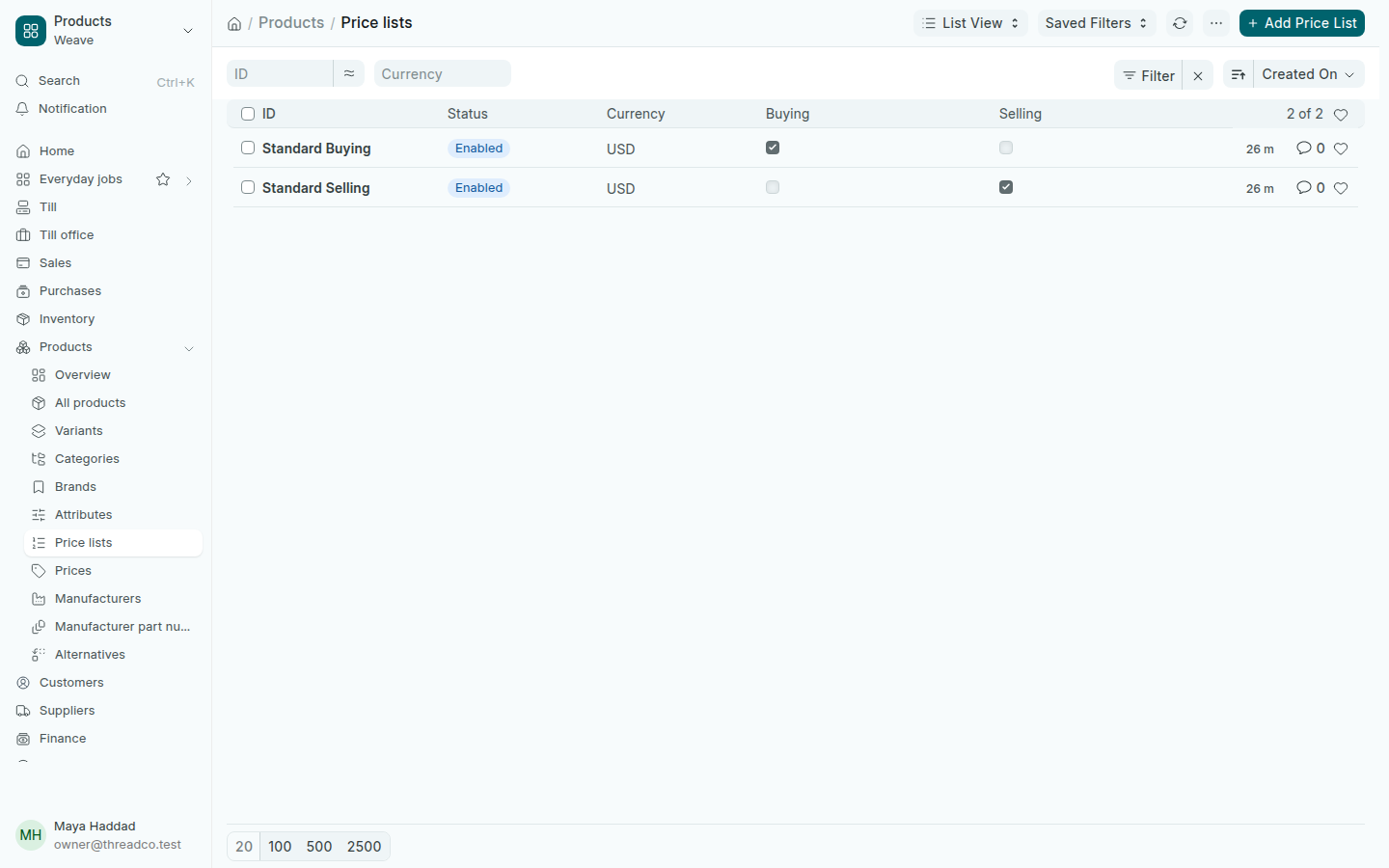
افتح المنتجات ← قوائم الأسعار. يُحدَّد المبيعات لقائمة البيع والمشتريات لقائمة الشراء، ولكل قائمة العملة الخاصة بها.
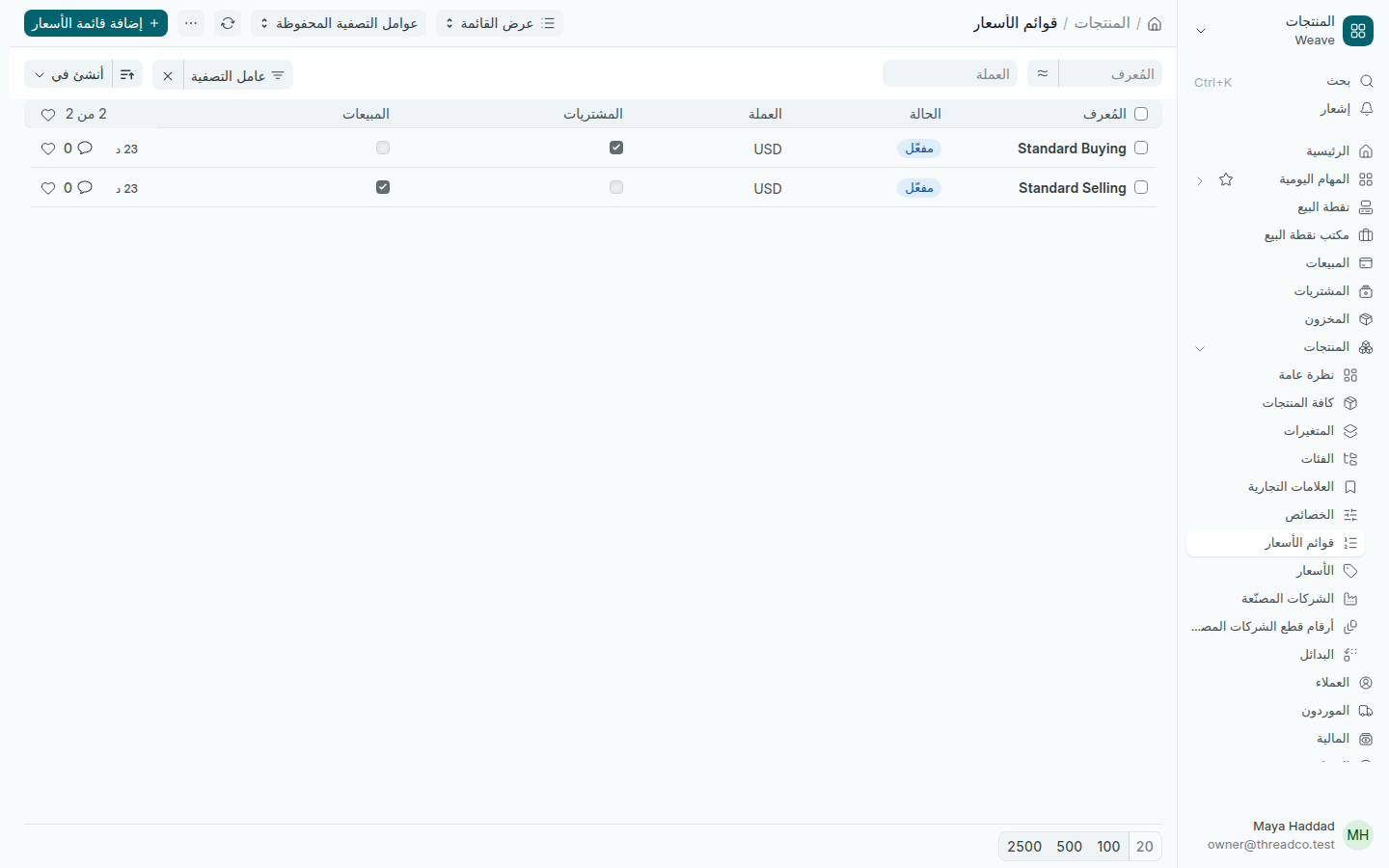
قائمتا البيع القياسي والشراء القياسي
قائمة للبيع وقائمة للشراء، بالدولار.

تبيع نقطة البيع حسب قائمة الأسعار المحددة في الإعدادات ← تهيئة نقطة البيع.

الأسعار

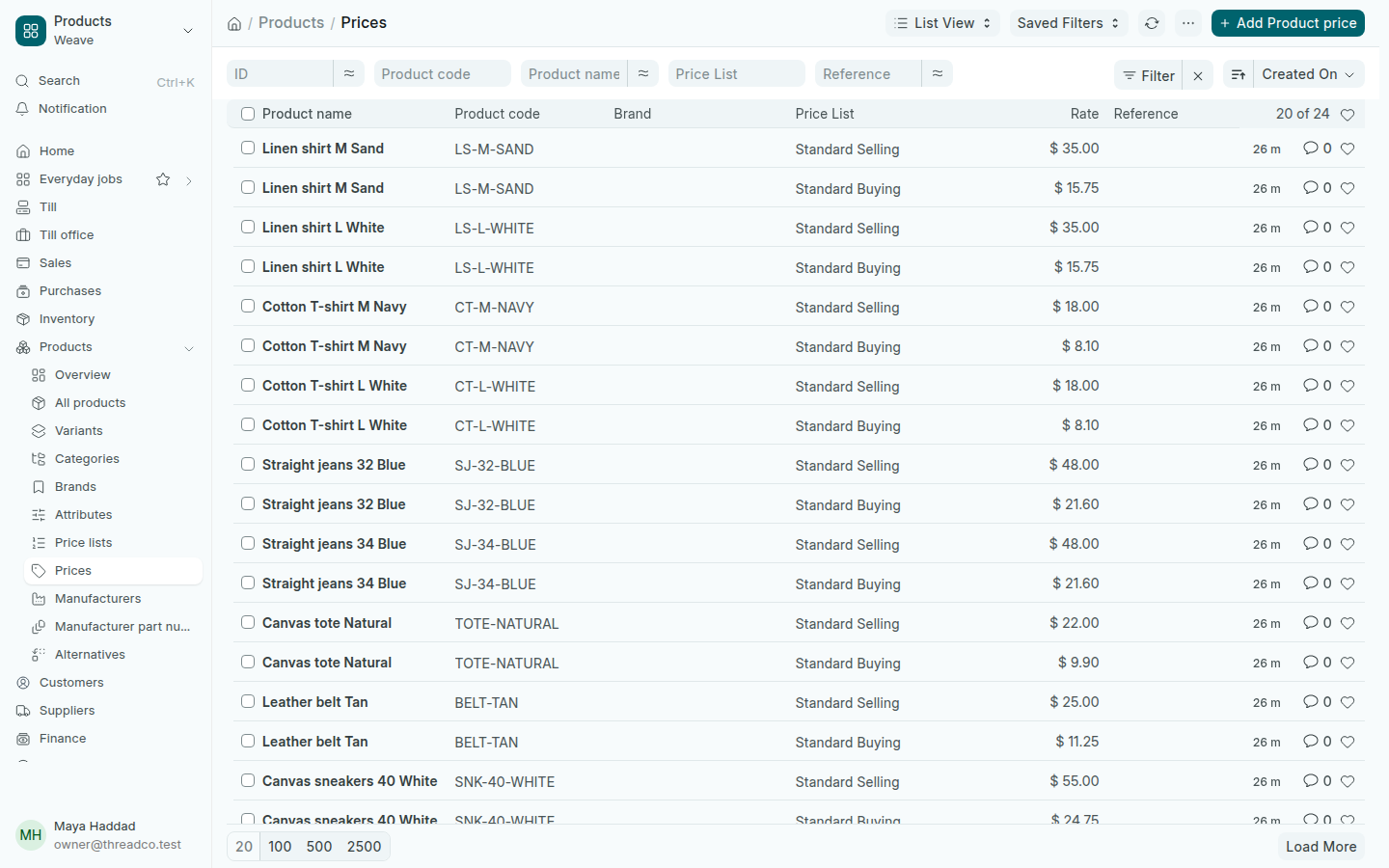
افتح المنتجات ← الأسعار. لكل منتج سطر في كل قائمة. ابحث بـرمز المنتج أو اسم المنتج، أو اختر قائمة الأسعار لترى أسعار البيع وحدها.
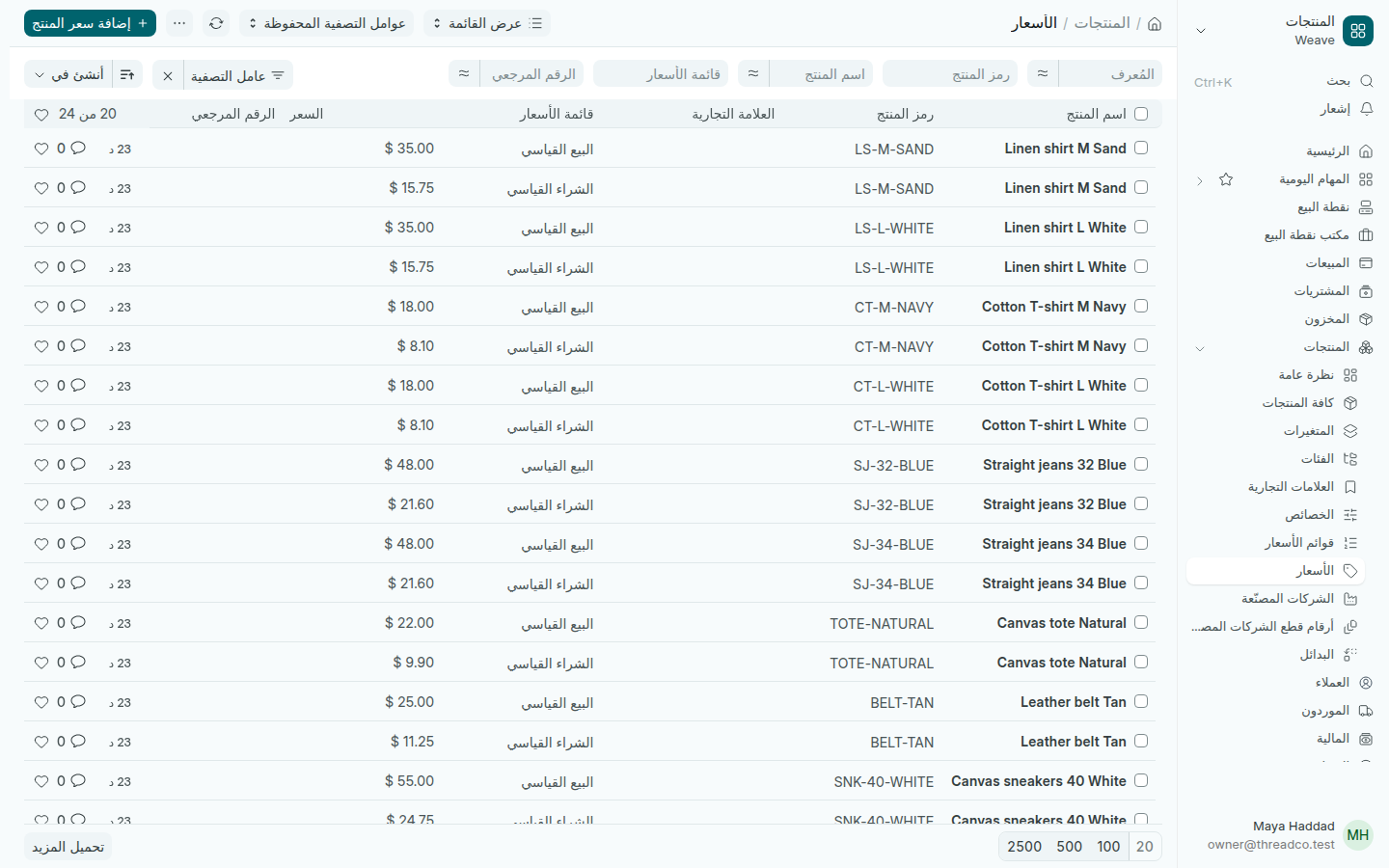
قائمة الأسعار لكل منتج
سعر البيع وسعر التكلفة لكل مقاس ولون.

تغيير سعر البيع

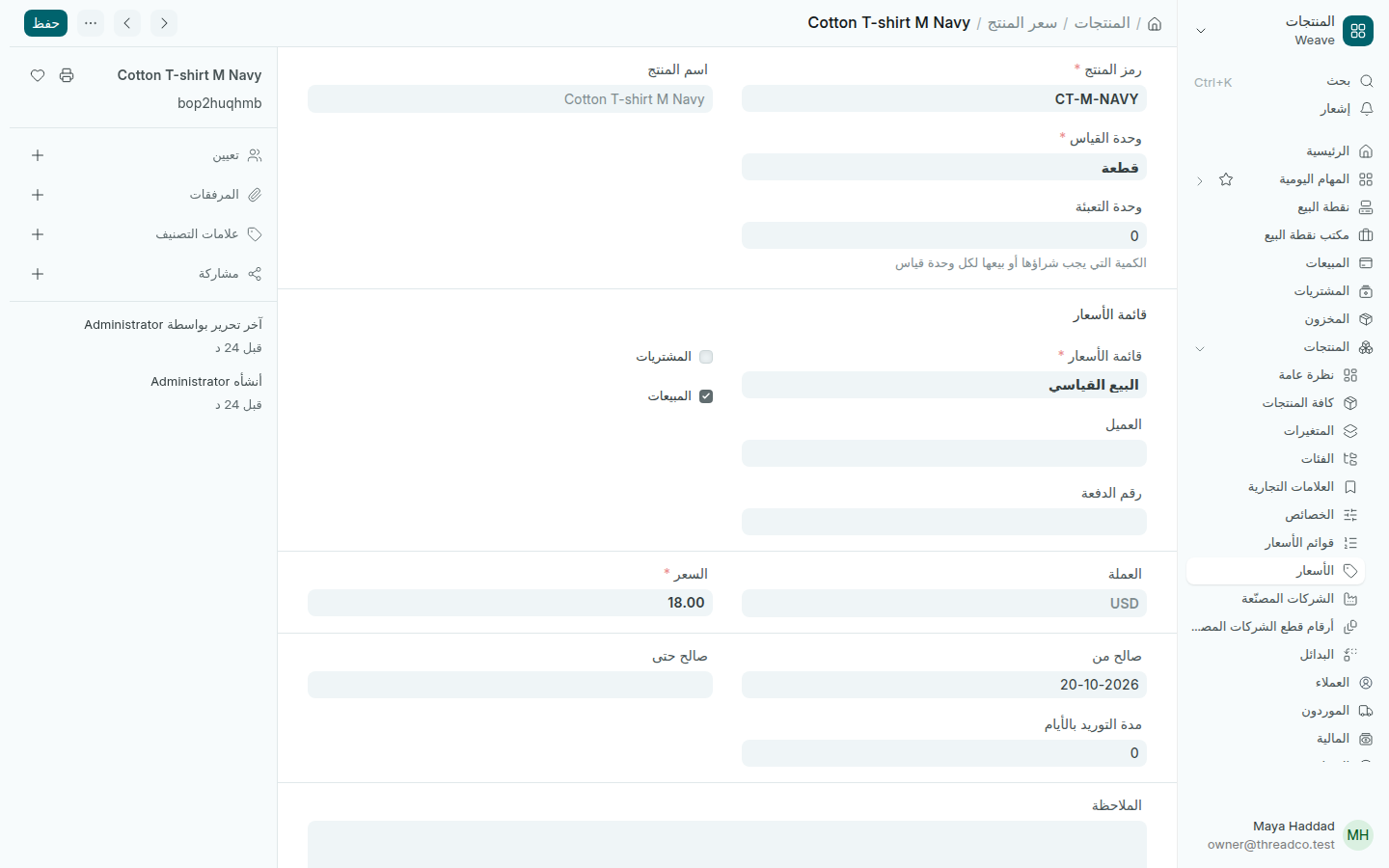
  1. في المنتجات ← الأسعار، افتح سطر المنتج في قائمة البيع القياسي.
  2. اكتب السعر الجديد في السعر.
  3. اضغط حفظ.
سعر منتج في قائمة البيع القياسي
غيّر السعر فقط، واترك باقي الحقول كما هي.

تأخذ نقطة البيع المفتوحة السعر الجديد خلال خمس دقائق، أو فوراً إذا أعدت فتحها. الملصقات الموجودة على المنتجات تبقى بالسعر القديم، فـاطبع ملصقات جديدة.

إضافة سعر

اضغط إضافة سعر المنتج، واختر رمز المنتج وقائمة الأسعار، واكتب السعر، ثم اضغط حفظ. المنتج الذي لا سعر بيع له لا يُباع على نقطة البيع.

أسعار التكلفة

يحدّث Weave سعر التكلفة في قائمة الشراء القياسي عند تسجيل استلام بضاعة، ويضيف سعري البيع والتكلفة عند إضافة منتج بسرعة.
Price lists and prices

The selling price the till charges, the cost price from the supplier, and how to change a price.

Every product has two prices in US dollars: the selling price in the Standard Selling list, which the till charges, and the cost price in the Standard Buying list, which you pay the supplier. The till shows the amount in Lebanese pounds at today's rate.

Price lists

Open Products → Price lists. The selling list has Selling ticked and the buying list Buying, and each list has its own Currency.

The Standard Selling and Standard Buying lists
One list to sell, one to buy, both in dollars.

The till sells at the Price List set in Settings → Till settings.

Prices

Open Products → Prices. Each product has a row in each list. Search by Product code or Product name, or choose a Price List to see only the selling prices.

The list of prices for each product
The selling and cost price of every size and colour.

Changing a selling price

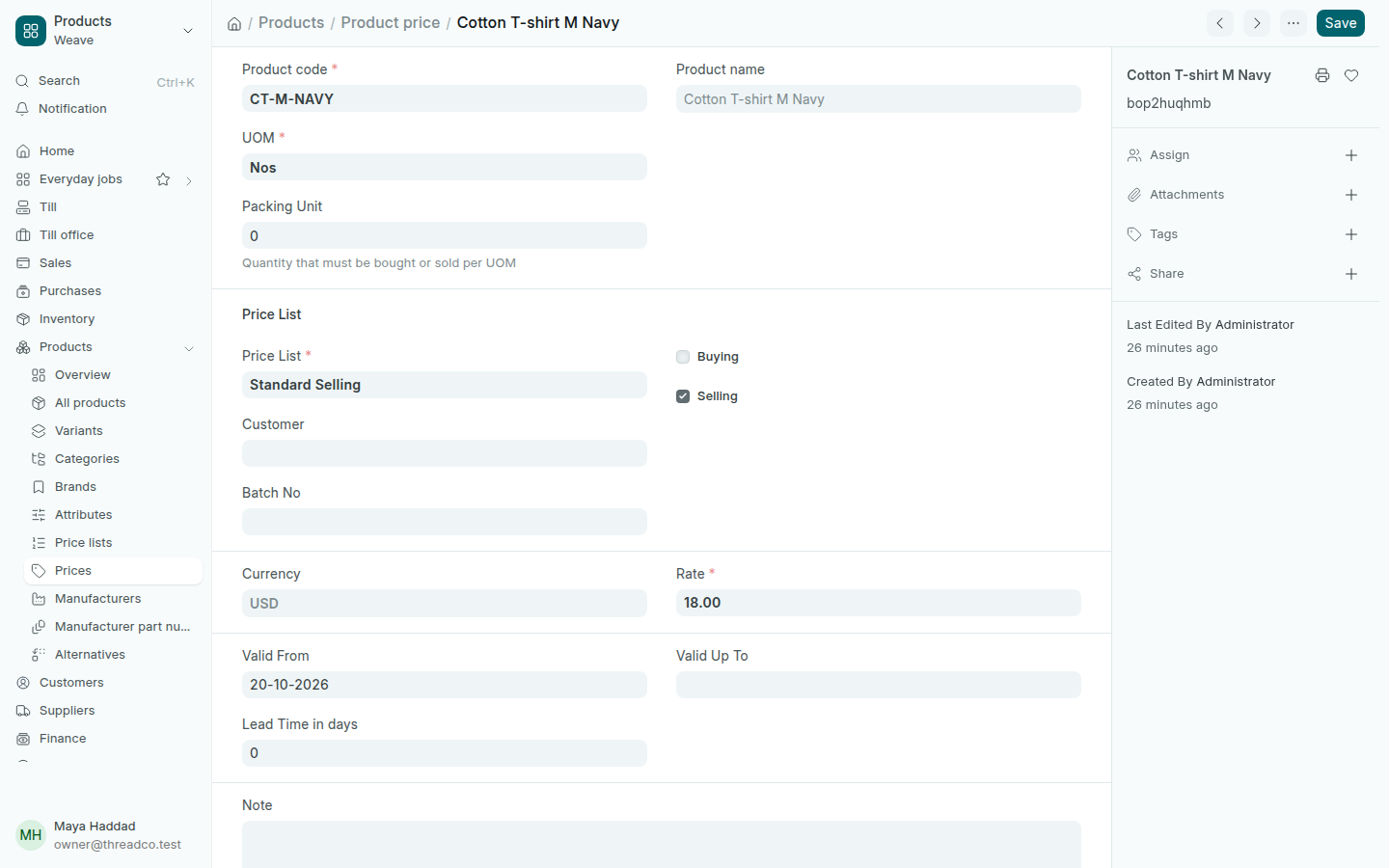
  1. In Products → Prices, open the product's row in the Standard Selling list.
  2. Type the new price in Rate.
  3. Press Save.
A product's price in the Standard Selling list
Change the rate only and leave the other fields as they are.

An open till takes the new price within five minutes, or at once if you open it again. Labels already on the products keep the old price, so print new labels.

Adding a price

Press Add Product price, choose the Product code and the Price List, type the Rate and press Save. A product with no selling price cannot be sold at the till.

Cost prices

Weave updates the cost price in the Standard Buying list when you record a delivery, and adds both prices when you quick add a product.