ربط تطبيق Weave Companion

اربط الهاتف بمتجرك مرة واحدة بمسح رمز من حاسوب Weave، ثم ادخل بحسابك.

تطبيق Weave Companion يضع متجرك في هاتفك: أرقام اليوم، ومسح أي منتج لمعرفة سعره ومخزونه في كل فرع، ومهام أرض المتجر مثل الجرد والاستلام والنقل.

على الحاسوب

  1. ادخل إلى Weave وافتح الإعدادات ← ربط هاتف.
  2. تظهر صفحة فيها رمز مربّع وعنوان متجرك.
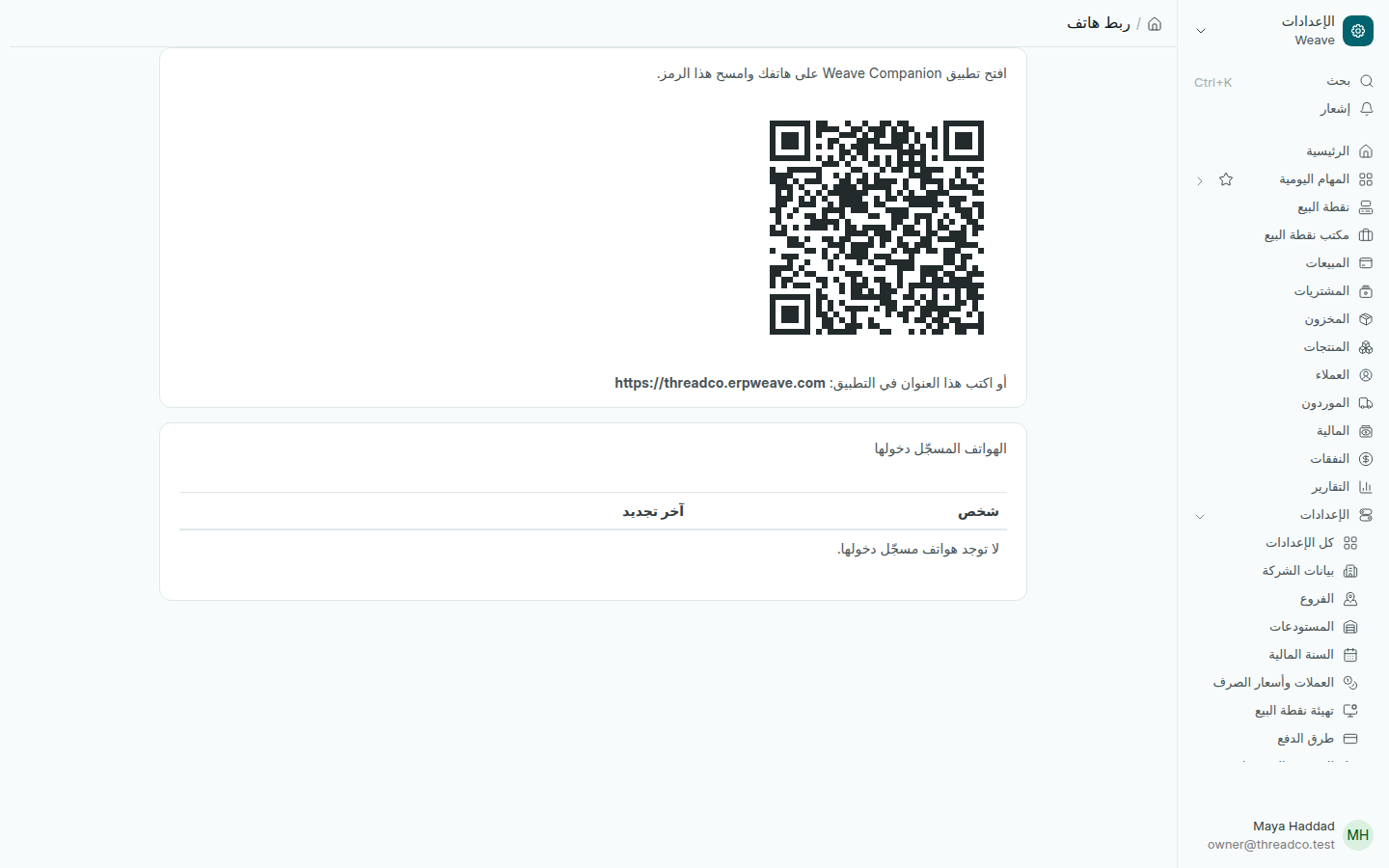
صفحة ربط هاتف مع الرمز وعنوان المتجر
يمكن مسح الرمز أو كتابة العنوان في التطبيق.

على الهاتف

  1. افتح تطبيق Weave Companion. تظهر شاشة اربط التطبيق بمتجرك.
  2. اضغط امسح الرمز الظاهر على حاسوب Weave ووجّه الكاميرا إلى الرمز. أو اكتب عنوان المتجر في أو اكتب عنوان المتجر واضغط متابعة.
  3. تفتح صفحة الدخول إلى متجرك. ادخل ببريدك الإلكتروني وكلمة المرور، وبرمز التحقق إذا كان عملك يتطلّبه.

يدخل كل شخص بحسابه الخاص، فيرى التطبيق ما يسمح له عمله وفرعه برؤيته فقط.

الهواتف المسجّل دخولها

في أسفل صفحة ربط هاتف تجد قائمة الهواتف المسجّل دخولها: اسم كل شخص وآخر تجديد لدخوله.

إذا لم يتم الربط

  • هذا العنوان ليس متجر Weave: تحقّق من العنوان كما يظهر في صفحة ربط هاتف وحاول مجدداً.
  • لا يوجد اتصال: يحتاج الربط والدخول إلى الإنترنت. اتصل بالإنترنت ثم أعد المحاولة.
  • لم يكتمل تسجيل الدخول: أعد الدخول وتأكّد من البريد الإلكتروني وكلمة المرور والرمز.
Connect the Weave Companion app

Link a phone to your shop once by scanning a code on the Weave computer, then sign in with your own account.

Weave Companion puts your shop in your pocket: today's figures, scanning any product for its price and stock in each branch, and shop floor jobs such as counting, receiving and moving stock.

On the computer

  1. Sign in to Weave and open Settings → Connect a phone.
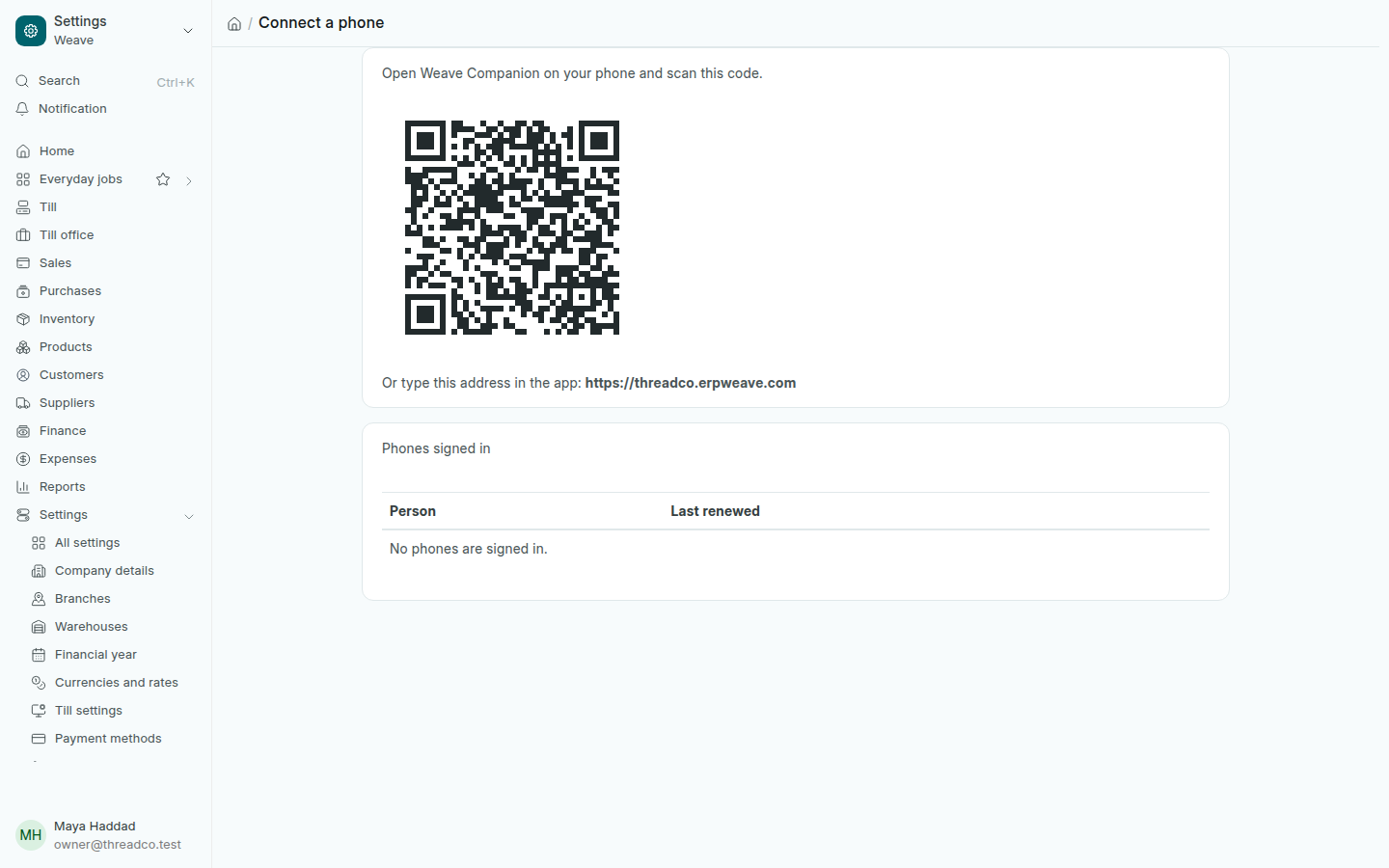
  2. A page shows a square code and your shop's address.
The Connect a phone page with the code and the shop address
Scan the code, or type the address in the app.

On the phone

  1. Open Weave Companion. The Connect to your shop screen opens.
  2. Press Scan the code on the Weave computer and point the camera at the code. Or type the address under Or type the shop address and press Continue.
  3. Your shop's sign-in page opens. Sign in with your email and password, and the verification code if your job needs one.

Each person signs in with their own account, so the app shows only what their job and branch allow.

Phones signed in

At the bottom of Connect a phone, Phones signed in lists each person and when their sign-in was last renewed.

If the phone does not connect

  • That address is not a Weave shop: check the address as it appears on Connect a phone and try again.
  • No connection: connecting and signing in need the internet. Connect, then try again.
  • Sign-in did not complete: sign in again and check your email, password and code.