الدخول إلى متجرك

لكل متجر عنوانه الخاص. يدخل كل شخص بحسابه، ويُدخل المالك ومدير المتجر رمزاً من هاتفهما أيضاً.

عنوان متجرك

يعمل متجرك على عنوان خاص به، مثل yourshop.erpweave.com. يمكنك أيضاً فتح erpweave.com والضغط على تسجيل الدخول ثم كتابة اسم متجرك.

الدخول

  1. افتح عنوان متجرك في المتصفح.
  2. اكتب بريدك الإلكتروني وكلمة المرور، ثم اضغط تسجيل الدخول.
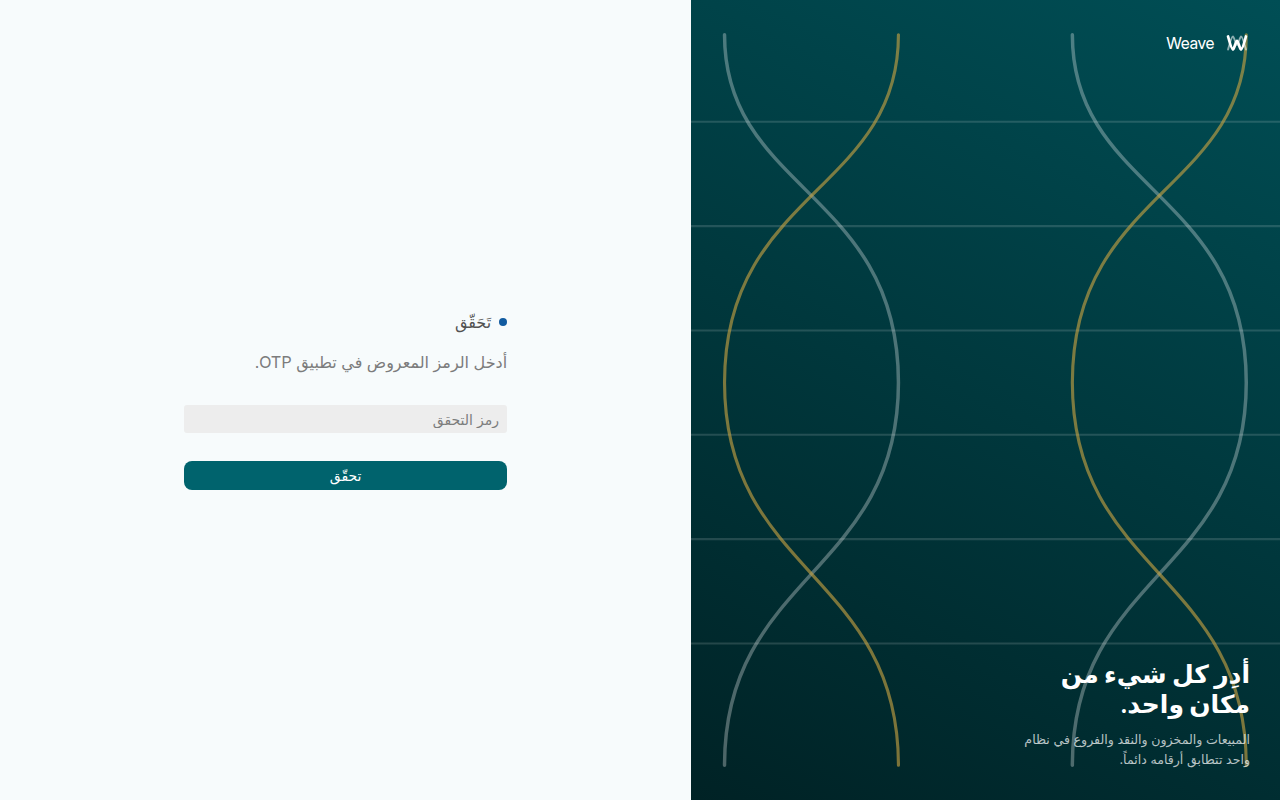
  3. إذا كان عملك مالكاً أو مدير فرع، يطلب Weave رمز التحقق. افتح تطبيق التحقق على هاتفك، واكتب الأرقام الستة الظاهرة تحت Weave، ثم اضغط تحقّق.
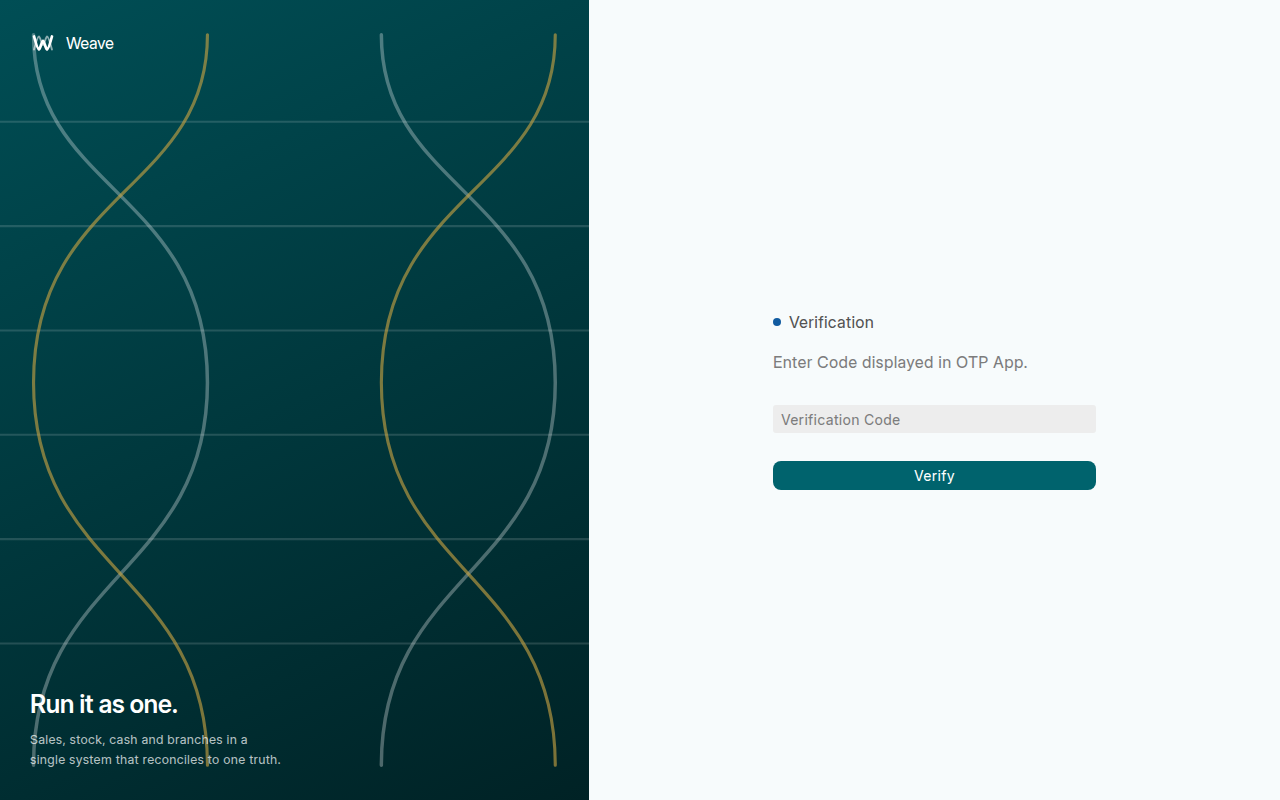
صفحة الدخول إلى متجر Thread & Co
صفحة الدخول تحمل اسم متجرك.
Weave يطلب رمز التحقق من تطبيق الهاتف
الرمز يتغيّر كل 30 ثانية. اكتب الرمز الظاهر لحظة الدخول.

لا يُطلب الرمز من أمين الصندوق، فيكفيه البريد الإلكتروني وكلمة المرور.

أول دخول برمز الهاتف

يحتاج المالك ومدير المتجر إلى ربط تطبيق تحقق بحسابهما مرة واحدة. ثبّت على هاتفك تطبيقاً مجانياً مثل Google Authenticator أو Microsoft Authenticator، ثم:

  1. ادخل ببريدك الإلكتروني وكلمة المرور. يرسل Weave رابطاً إلى بريدك الإلكتروني. اترك نافذة الدخول مفتوحة.
  2. افتح الرسالة على الحاسوب واضغط الرابط. تظهر صفحة فيها رمز مربّع.
  3. في تطبيق التحقق على هاتفك اضغط + ثم امسح الرمز المربّع. يظهر Weave في التطبيق مع ستة أرقام.
  4. عُد إلى نافذة الدخول، واكتب الأرقام الستة، واضغط تحقّق.

يعمل الرابط بضع دقائق فقط. إذا انتهت صلاحيته فادخل مرة أخرى ليرسل Weave رابطاً جديداً.

إذا نسيت كلمة المرور

اضغط نسيت كلمة المرور؟ في صفحة الدخول واكتب بريدك الإلكتروني. تصلك رسالة لاختيار كلمة مرور جديدة.

إذا غيّرت هاتفك أو فقدته

تبقى رموز التحقق في الهاتف القديم. يفتح مالك آخر حسابك من الإعدادات ← المستخدمون، ثم يضغط كلمة المرور ← إعادة ضبط رمز تطبيق التحقق. عند دخولك التالي يرسل Weave رابطاً جديداً لتمسحه بالهاتف الجديد. إذا تعذّر الدخول على جميع المالكين فراسلنا على [email protected].
Sign in to your shop

Every shop has its own address. Each person signs in with their own account, and owners and store managers also enter a code from their phone.

Your shop's address

Your shop runs at its own address, such as yourshop.erpweave.com. You can also open erpweave.com, press Sign in and type your shop's name.

Signing in

  1. Open your shop's address in a browser.
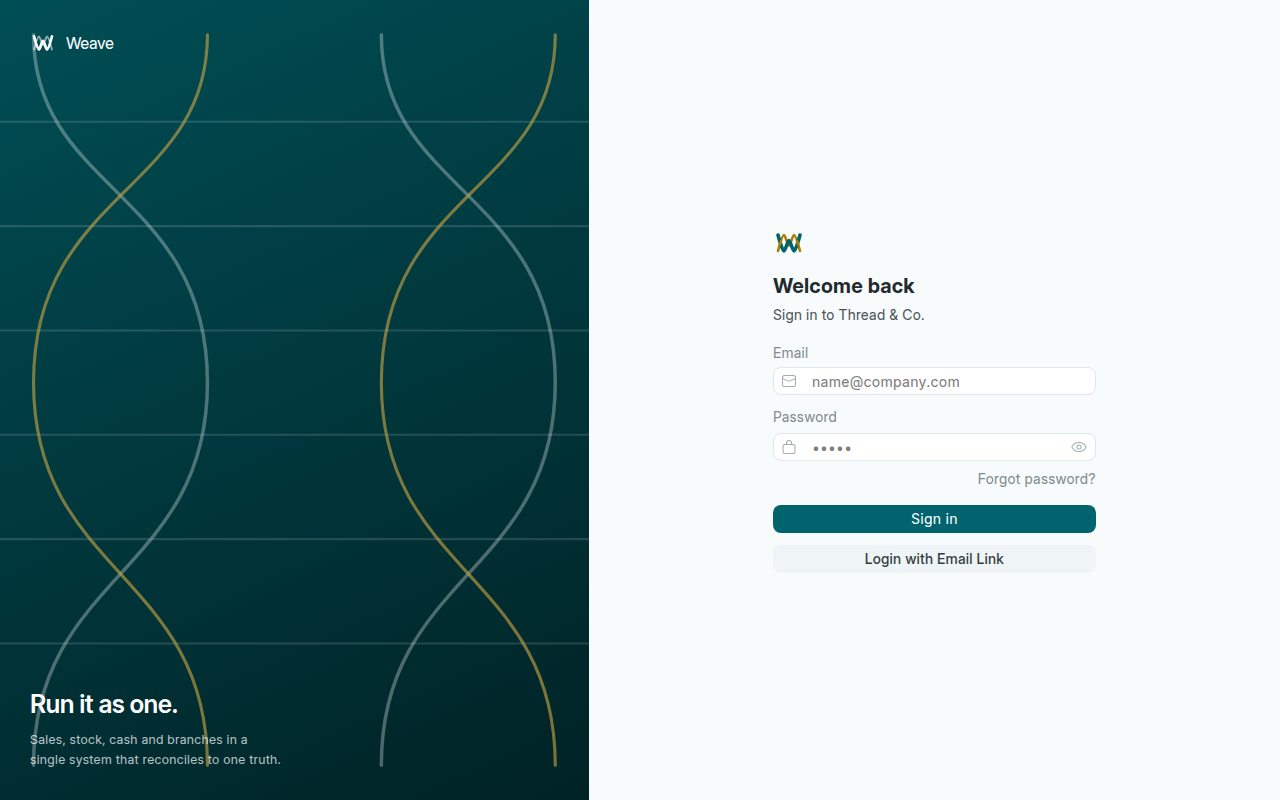
  2. Type your email and password, then press Sign in.
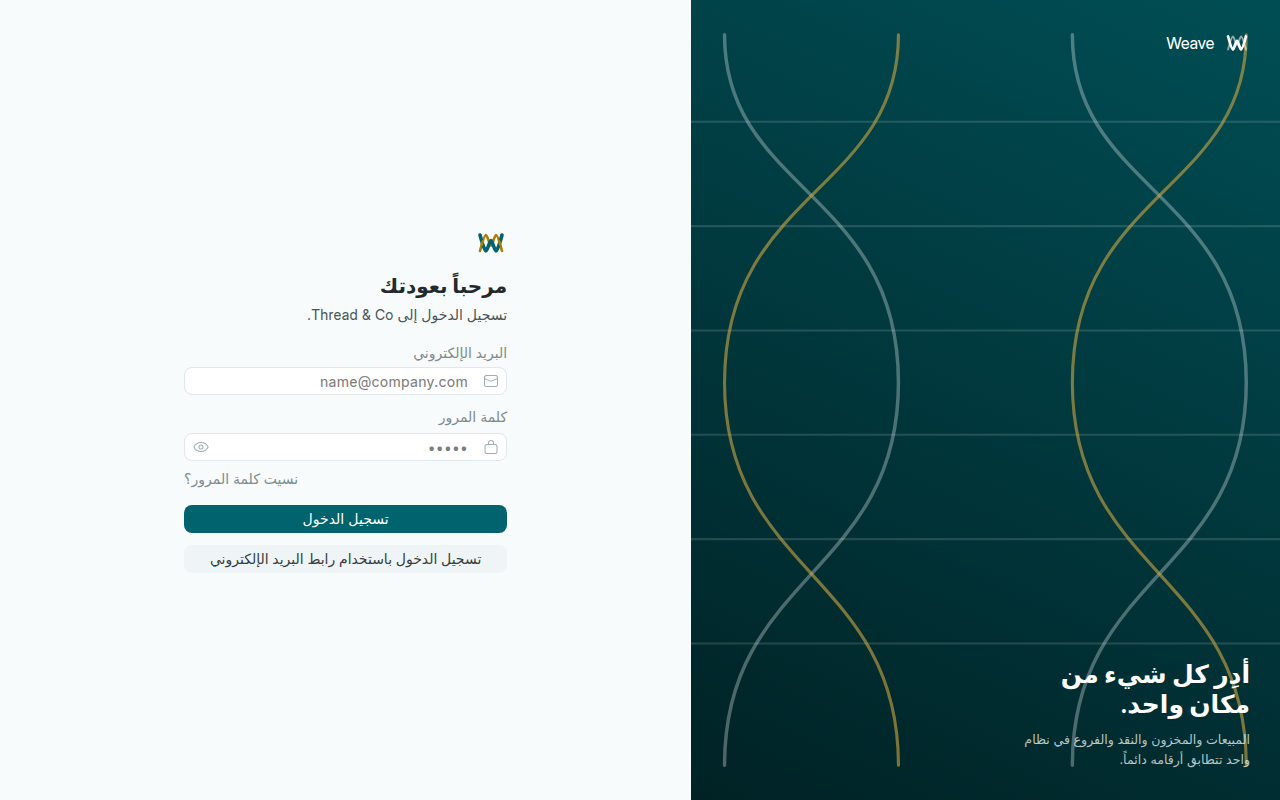
  3. If your job is owner or store manager, Weave asks for a Verification Code. Open the authenticator app on your phone, type the six digits shown under Weave, and press Verify.
The sign-in page of the Thread & Co shop
The sign-in page carries your shop's name.
Weave asking for the code from the phone app
The code changes every 30 seconds. Type the one showing as you sign in.

Cashiers are not asked for a code: their email and password are enough.

Your first sign-in with the phone code

Owners and store managers link an authenticator app to their account once. Install a free app such as Google Authenticator or Microsoft Authenticator on your phone, then:

  1. Sign in with your email and password. Weave emails you a link. Leave the sign-in window open.
  2. Open the email on the computer and click the link. A page with a square code opens.
  3. In the authenticator app press + and scan the square code. The app now shows Weave with six digits.
  4. Go back to the sign-in window, type the six digits and press Verify.

The link works for a few minutes only. If it has expired, sign in again and Weave sends a new one.

If you forget your password

Press Forgot password? on the sign-in page and type your email. You receive an email to choose a new password.

If you change or lose your phone

The codes stay on the old phone. Another owner opens your account in Settings → Users and presses Password → Reset OTP Secret. At your next sign-in Weave emails you a new link to scan with the new phone. If no owner can sign in, write to us at [email protected].