إضافة الموظفين وتحديد عمل كل منهم وفرعه

حساب لكل شخص، وعمل واحد لكل حساب، وفرع لكل من يعمل في فرع واحد.

أعطِ كل شخص حسابه الخاص. الحساب المشترك يمنعك من معرفة من منح الخصم، أو من ألغى عملية بيع، أو من عدّ الدرج.

1. إضافة شخص

  1. افتح الإعدادات ← المستخدمون واضغط زر الإضافة (+) في أعلى الصفحة.
  2. اكتب البريد الإلكتروني الخاص بالشخص، وهو ما يدخل به. لكل شخص بريد مختلف.
  3. اكتب الاسم الأول واسم العائلة كما يعرفه زملاؤه، فهو يُطبع على الإيصالات ويظهر في السجل.
  4. أبقِ إرسال رسالة ترحيبية محدّداً ليختار الشخص كلمة مروره من الرسالة، ثم اضغط حفظ.
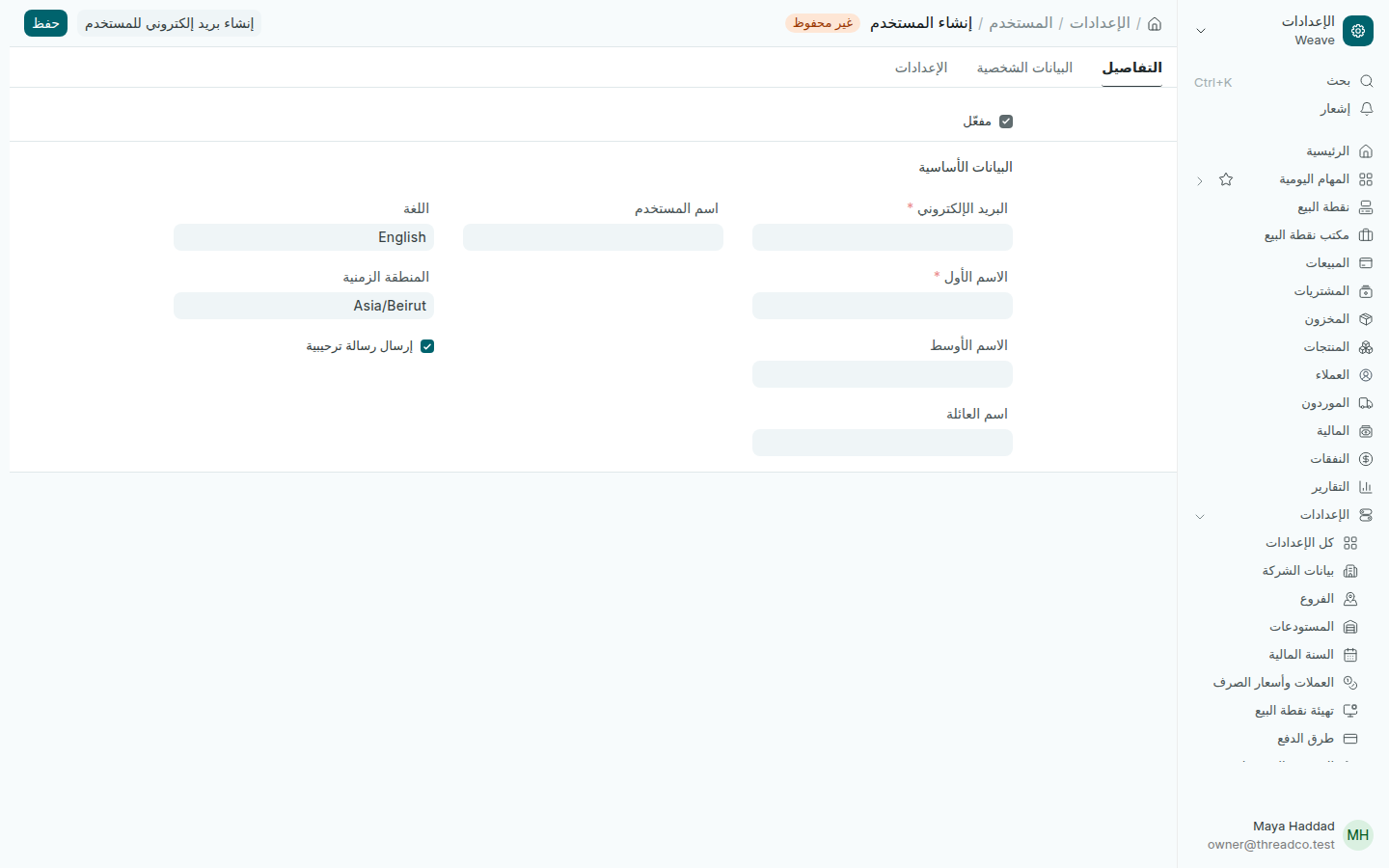
نموذج مستخدم جديد
البريد الإلكتروني هو اسم الدخول.

2. تحديد العمل

بعد الحفظ افتح تبويب الأذونات وحدّد عملاً واحداً من أعمال Weave الثمانية، ثم اضغط حفظ:

مالك المتجر، مدير المتجر، أمين الصندوق، أمين المستودع، المحاسب، المشتري، مساعد المبيعات، المدقّق.
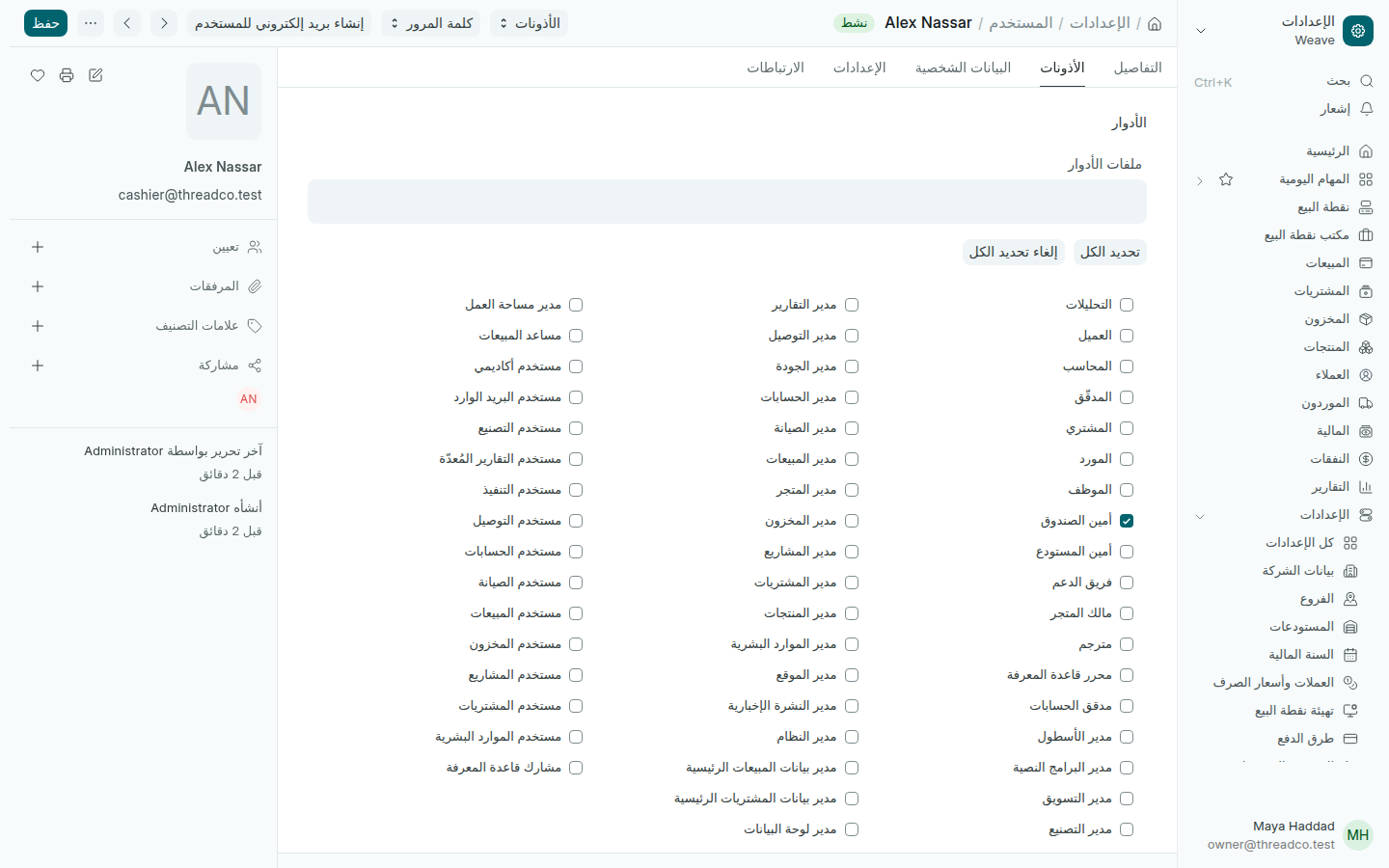
تبويب الأذونات وقد حُدّد عمل أمين الصندوق
عمل واحد لكل شخص.

إذا حمل الشخص عملين، يُحسب حدّ الخصم من أعلى حدّ محدّد بينهما. فمن يحمل مالك المتجر وأمين الصندوق معاً يُقيَّد بحدّ أمين الصندوق.

يُطلب من مدير المتجر رمز الهاتف عند أول دخول. لا يُطلب ذلك من أمين الصندوق.

3. ما يستطيع كل عمل فعله

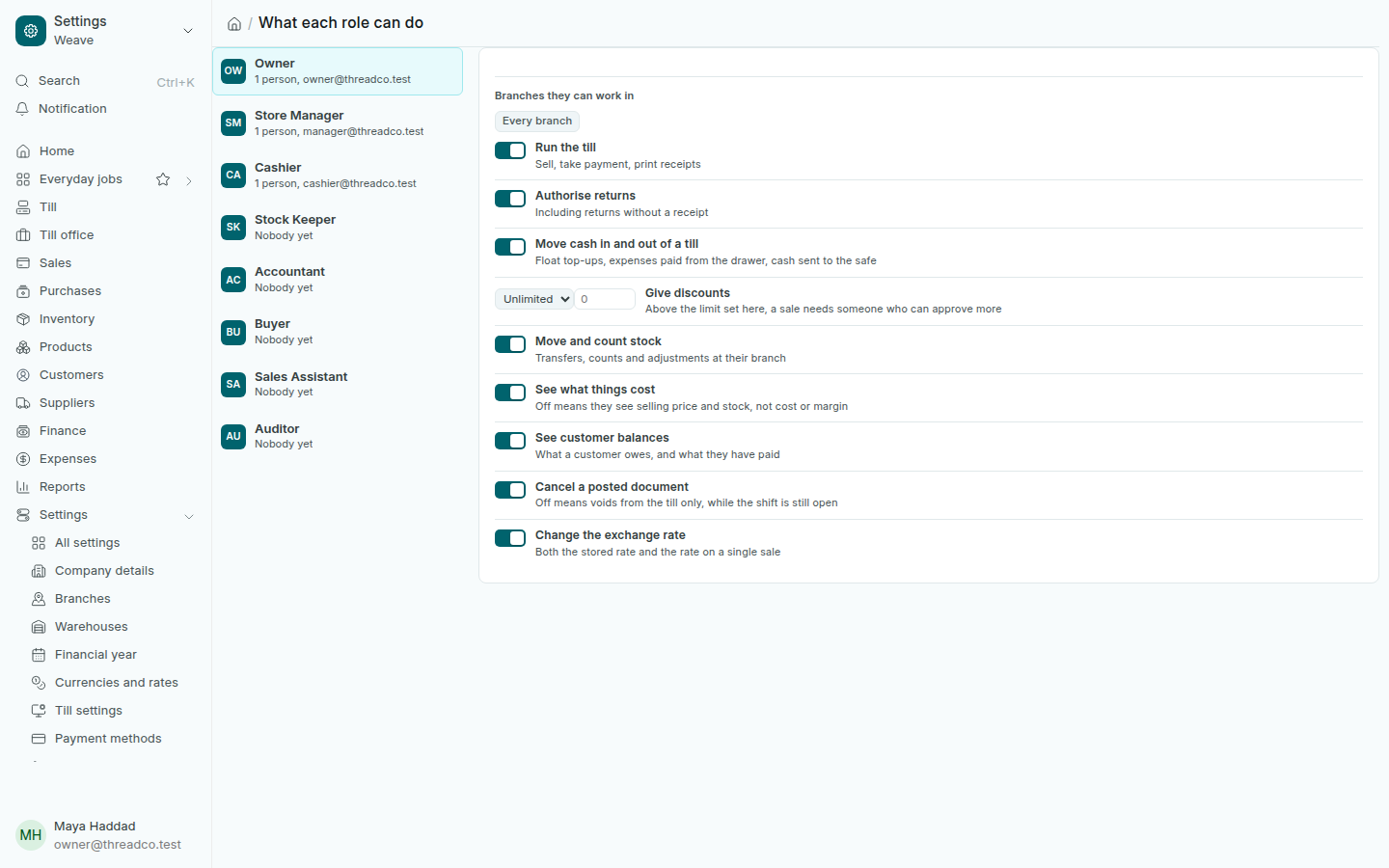
افتح الإعدادات ← صلاحيات كل دور. لكل عمل الفروع التي يعمل فيها، ثم مفاتيح واضحة: تشغيل نقطة البيع، والموافقة على الإرجاع، وإدخال النقد إلى نقطة البيع وإخراجه منها، ومنح الخصومات حتى حدّ معيّن، وتحريك المخزون وجرده، والاطلاع على التكاليف، والاطلاع على أرصدة العملاء، وإلغاء مستند مُرحَّل، وتغيير سعر الصرف.
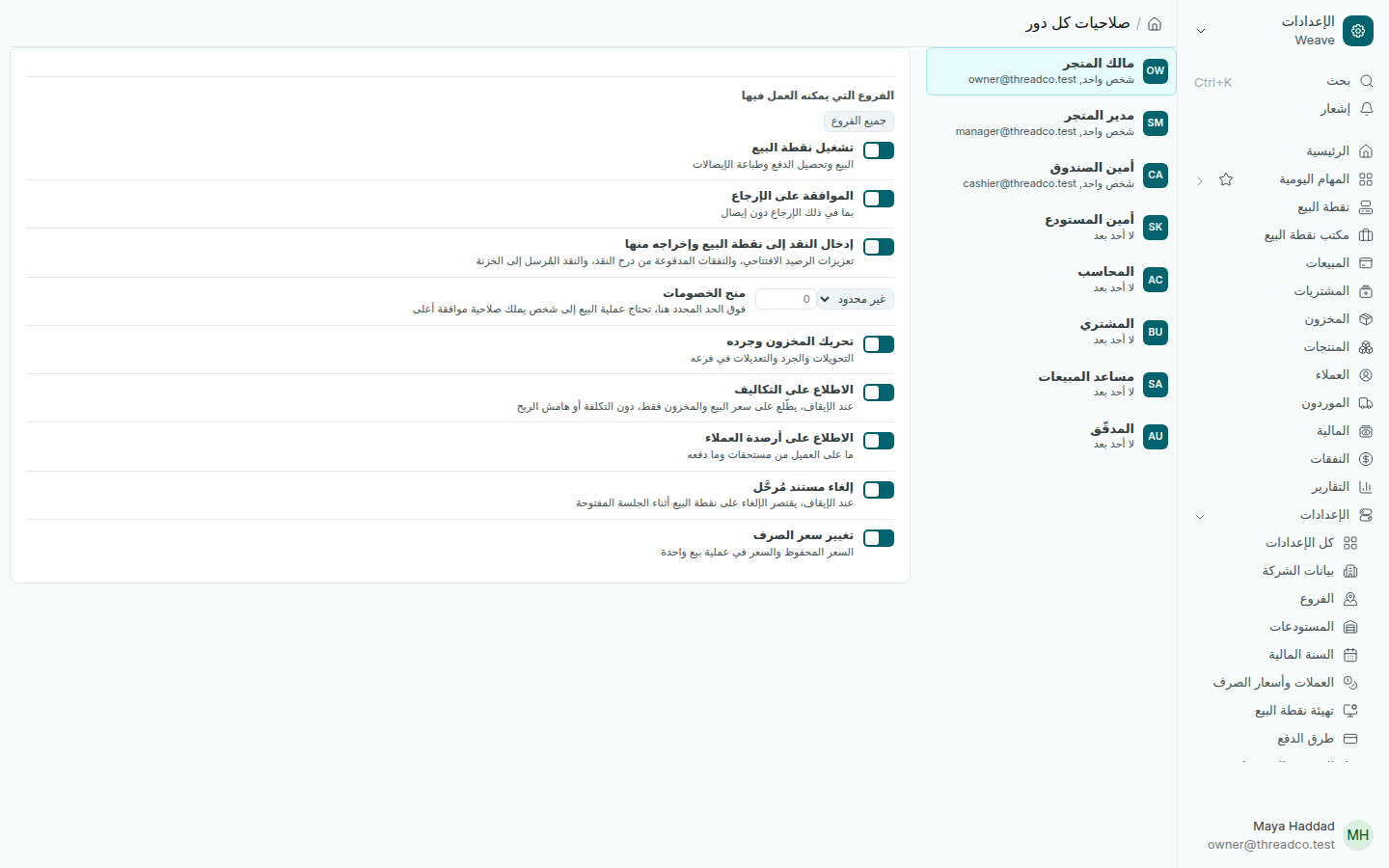
صفحة صلاحيات كل دور
غيّر ما لا يناسب طريقة عمل متجرك.

هذه الحدود تُطبَّق فعلاً. أمين الصندوق الذي يحاول خصماً أعلى من حدّه يُرفض طلبه فوراً، وتُجمع الخصومات على البند وعلى الفاتورة قبل المقارنة بالحدّ.

أمران يفاجئان كثيراً من المالكين: مدير المتجر يستطيع إلغاء عملية بيع مُرحَّلة من مكتب نقطة البيع، والمحاسب يستطيع تغيير سعر الصرف. أوقف ما لا تريده من هذه الصفحة.

4. تحديد الفرع

الشخص الذي ليس له أي قيد يرى كل الفروع. أضف قيداً لكل من يعمل في فرع واحد، وهم عادةً الجميع ما عدا المالك والمحاسب.

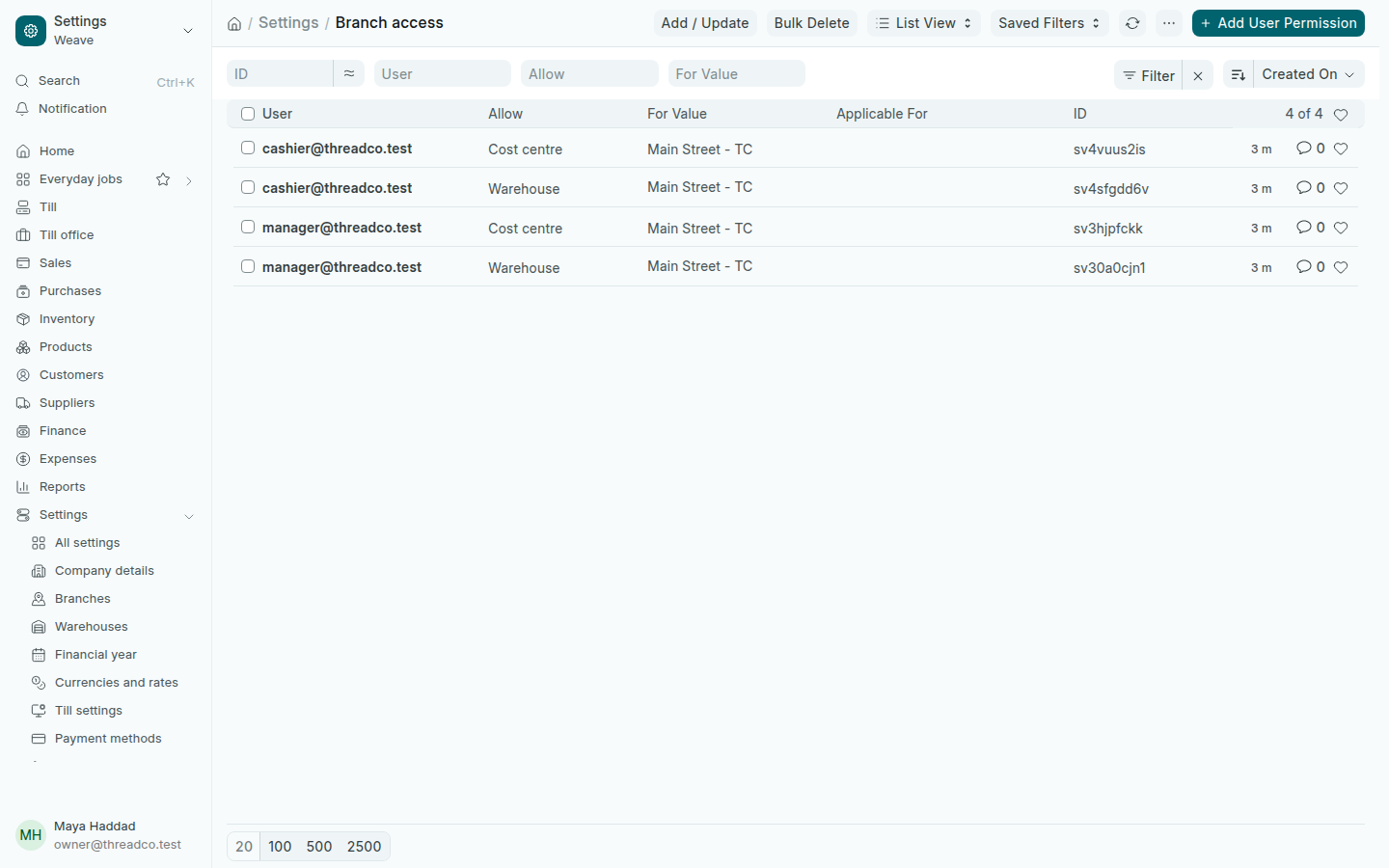
  1. افتح الإعدادات ← صلاحية الوصول إلى الفروع واضغط إضافة إذن المستخدم.
  2. اختر المستخدم، وفي السماح اختر المستودع، وفي للقيمة اختر فرعه.
  3. أبقِ تطبيق على جميع أنواع المستندات محدّداً، ثم احفظ.
  4. أضف سطراً ثانياً للشخص نفسه: السماح مركز التكلفة، وللقيمة مركز تكلفة الفرع نفسه، لتقتصر أرقامه على فرعه أيضاً.
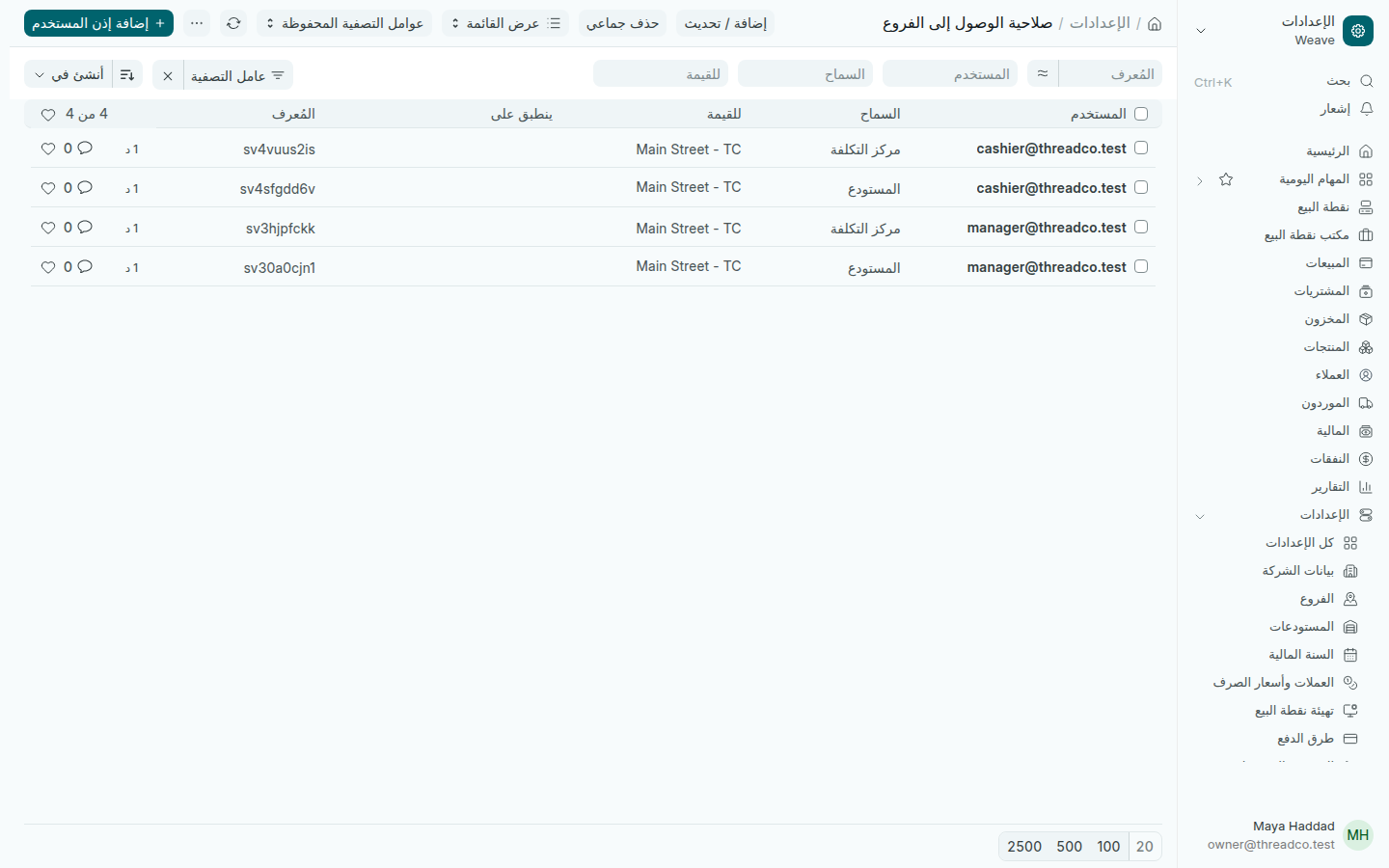
قائمة صلاحية الوصول إلى الفروع
لكل شخص سطران: المستودع ومركز التكلفة.

أمين الصندوق المقيّد بفرع لا يرى مبيعات الفرع الآخر في أي قائمة، ولا يفتح أياً منها حتى لو عرف رقمها، ولا يرى مخزونه. للتأكد، ادخل بحسابه وافتح قائمة المبيعات.
Add staff, give each a job and a branch

One account per person, one job per account, and a branch for everyone who works in one branch.

Give everyone their own account. A shared account makes it impossible to say who gave a discount, who cancelled a sale or who counted the drawer.

1. Add a person

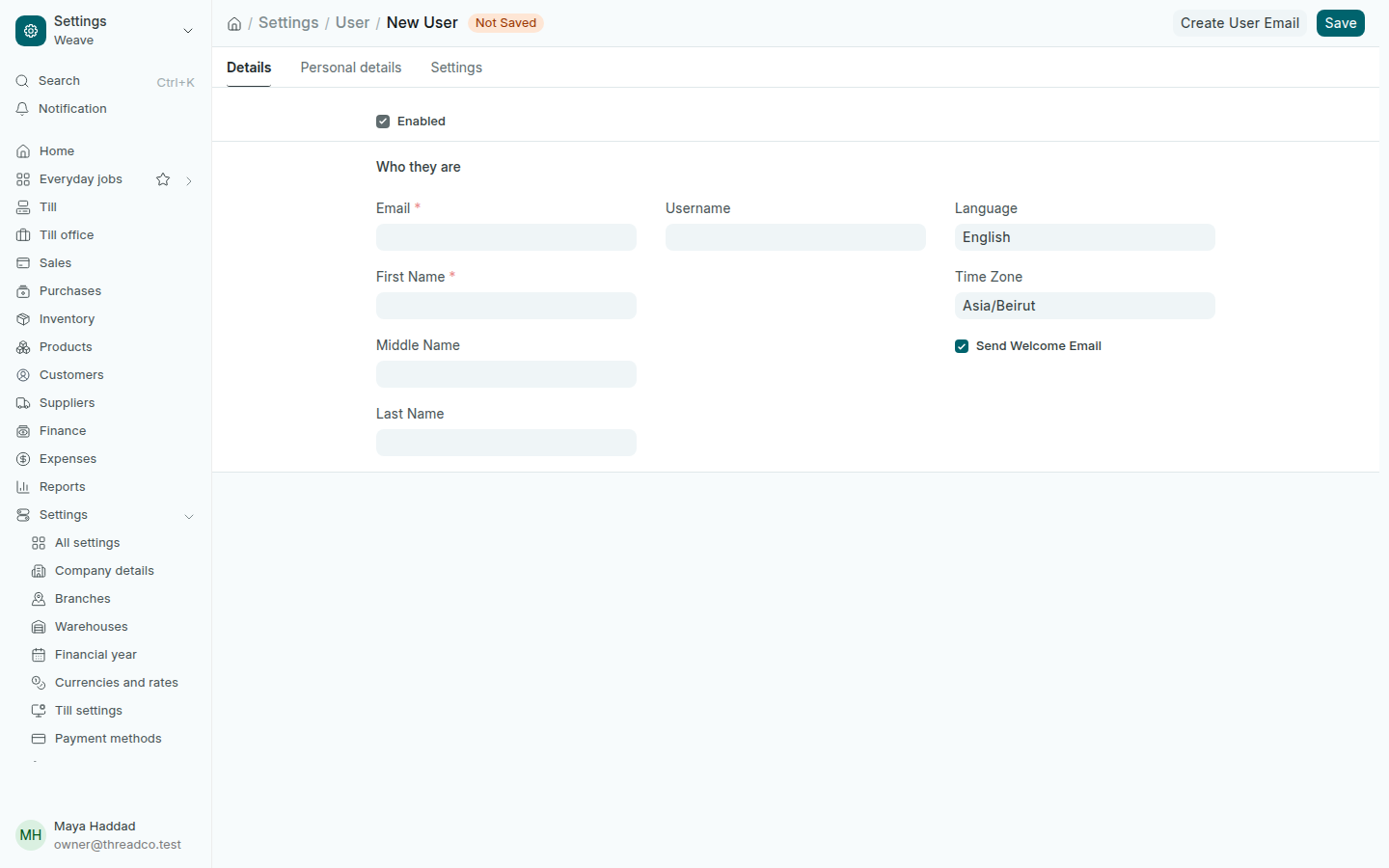
  1. Open Settings → Users and press the add button (+) at the top of the page.
  2. Type the person's own Email. It is how they sign in, and each person needs a different one.
  3. Type their First Name and Last Name as colleagues know them: the name prints on receipts and shows in the record.
  4. Leave Send Welcome Email ticked so they choose their own password from the email, then press Save.
A new user form
The email is the sign-in name.

2. Give them a job

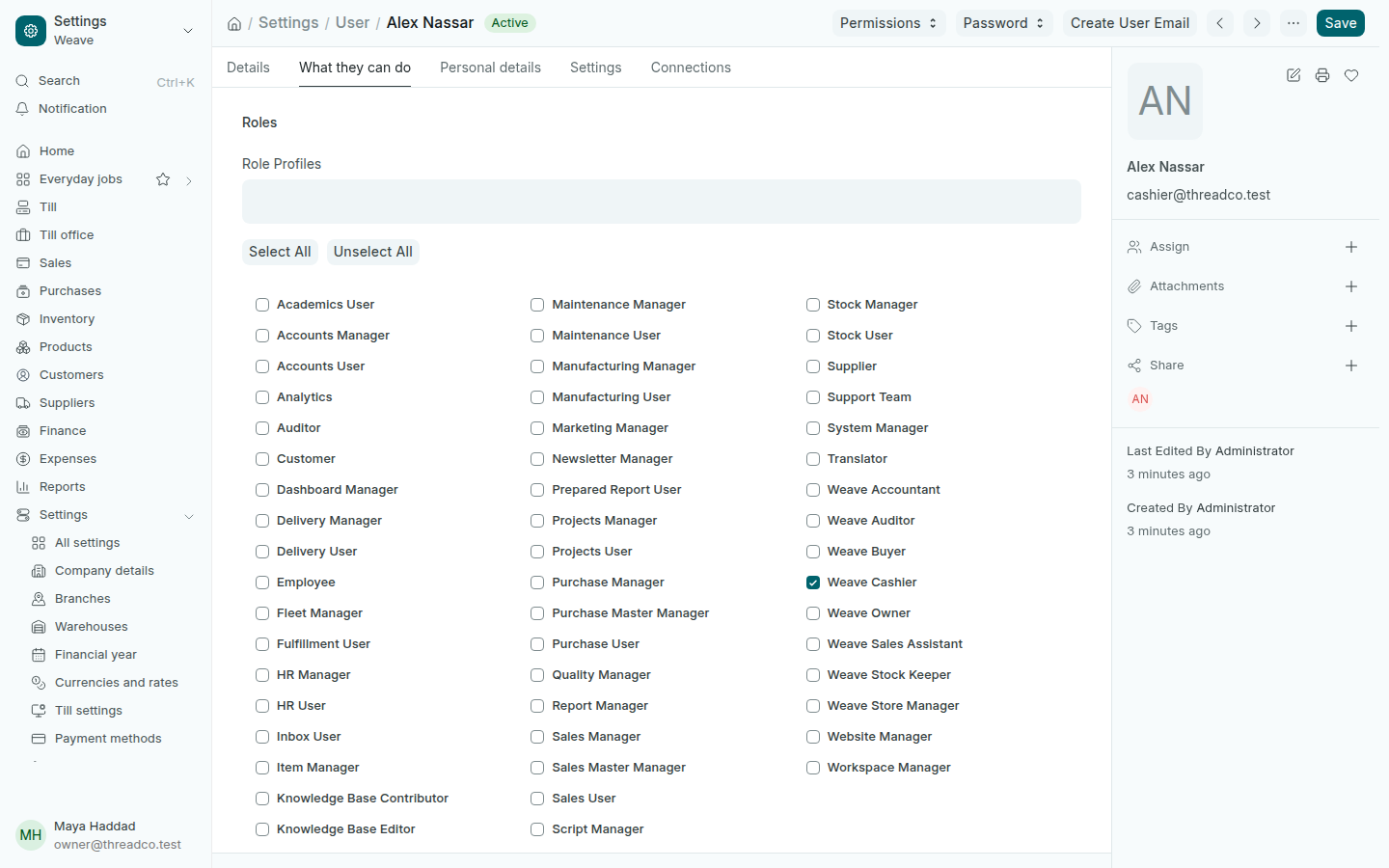
After saving, open the What they can do tab, tick one of Weave's eight jobs and press Save:

Weave Owner, Weave Store Manager, Weave Cashier, Weave Stock Keeper, Weave Accountant, Weave Buyer, Weave Sales Assistant, Weave Auditor.

The What they can do tab with Weave Cashier ticked
One job per person.

If someone holds two jobs, their discount limit is the highest limit set among them. A person holding Weave Owner and Weave Cashier is held to the cashier's limit.

Store managers are asked for the phone code at their first sign-in. Cashiers are not.

3. What each job can do

Open Settings → What each role can do. Each job shows the branches it works in, then plain switches: run the till, authorise returns, move cash in and out of a till, give discounts up to a limit, move and count stock, see what things cost, see customer balances, cancel a posted document, and change the exchange rate.

The What each role can do page
Change whatever does not match how your shop runs.

These limits are enforced. A cashier who tries a discount above their limit is refused at once, and a discount on a line and a discount on the whole sale are added together before the limit is checked.

Two settings surprise many owners: a store manager can cancel a posted sale in Till office, and an accountant can change the exchange rate. Switch off what you do not want on this page.

4. Give them a branch

A person with no restriction sees every branch. Add one for everyone who works in a single branch, which is usually everyone except the owner and the accountant.

  1. Open Settings → Branch access and press Add User Permission.
  2. Choose the User, set Allow to Warehouse, and set For Value to their branch.
  3. Leave Apply To All Document Types ticked, then save.
  4. Add a second row for the same person: Allow Cost Center and For Value the same branch's cost centre, so their figures are limited to the branch too.
The Branch access list
Two rows per person: the warehouse and the cost centre.

A cashier restricted to one branch cannot see the other branch's sales in any list, cannot open one even knowing its number, and cannot see its stock. To check, sign in as them and open the sales list.