التنقّل في Weave

الصفحة الرئيسية تعرض أرقام اليوم والمهام اليومية، ومنها تصل إلى كل أقسام Weave.

الصفحة الرئيسية

عند الدخول يفتح Weave للمالك ومدير المتجر صفحة Weave المبسّط:

  • أربعة أرقام في الأعلى: مبيعات اليوم، ومبيعات هذا الشهر، وسعر الليرة اليوم مع وقت تسجيله، وما ينتظر قرار المدير.
  • بانتظار المراجعة: ما يحتاج إلى انتباهك الآن، مثل جرد ينتظر موافقتك أو قطع شُطبت من المخزون.
  • المهام اليومية: زر لكل عمل متكرر، من نقطة البيع وسعر الصرف إلى استلام البضاعة والنفقات والرواتب.
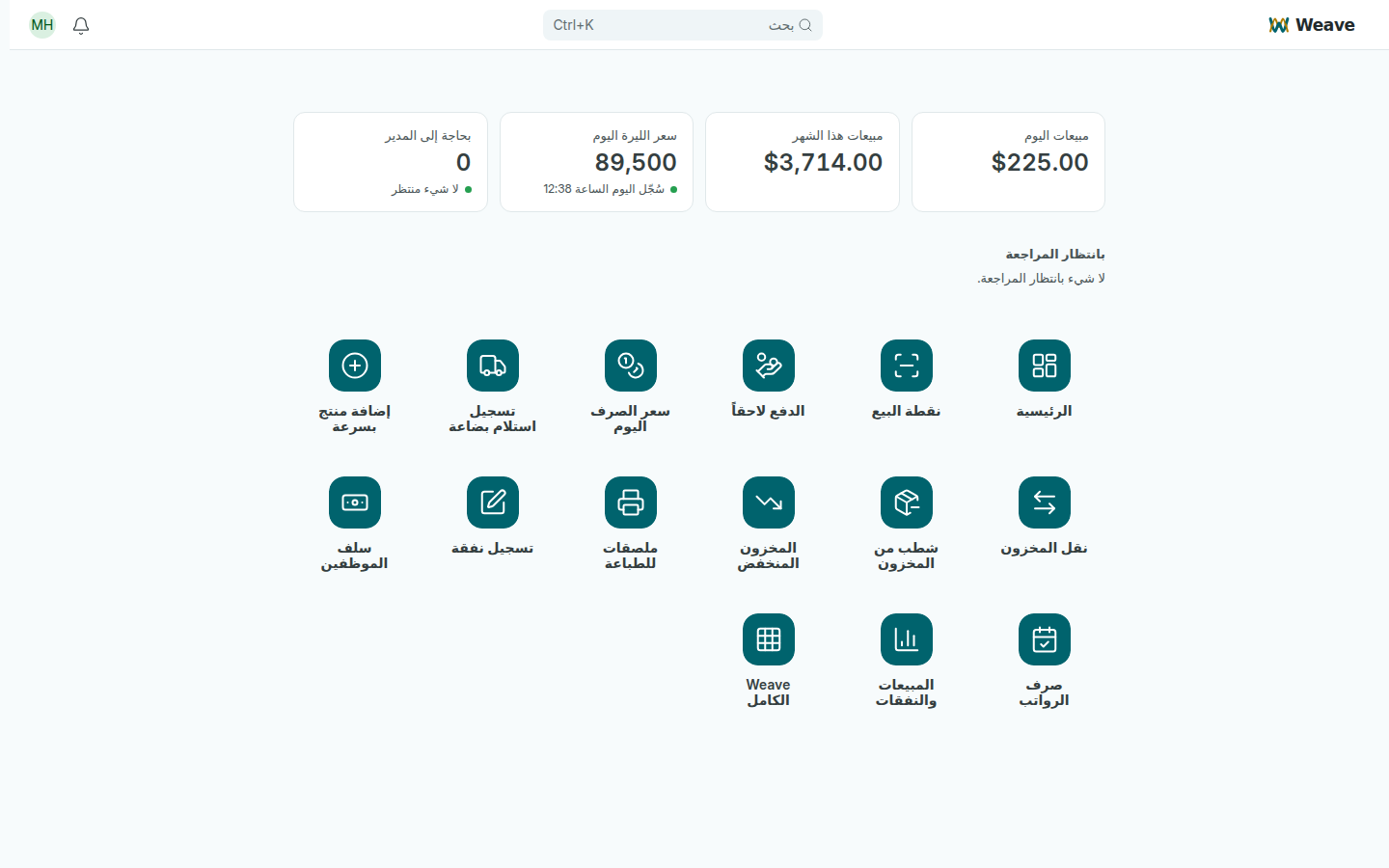
صفحة Weave المبسّط مع أرقام اليوم وأزرار المهام اليومية
كل زر يظهر فقط لمن يسمح له عمله بفتحه.

تظهر الأرقام بحسب صلاحيتك: مدير المتجر يرى فرعه فقط، والتكلفة وقيمة المخزون تظهر فقط للأعمال المسموح لها برؤية التكلفة. ويرى أمين الصندوق نقطة البيع فقط.

كل أقسام Weave

اضغط Weave الكامل لفتح القائمة الجانبية بكل الأقسام: المهام اليومية، ونقطة البيع، ومكتب نقطة البيع، والمبيعات، والمشتريات، والمخزون، والمنتجات، والعملاء، والموردون، والمالية، والنفقات، والتقارير، والإعدادات.
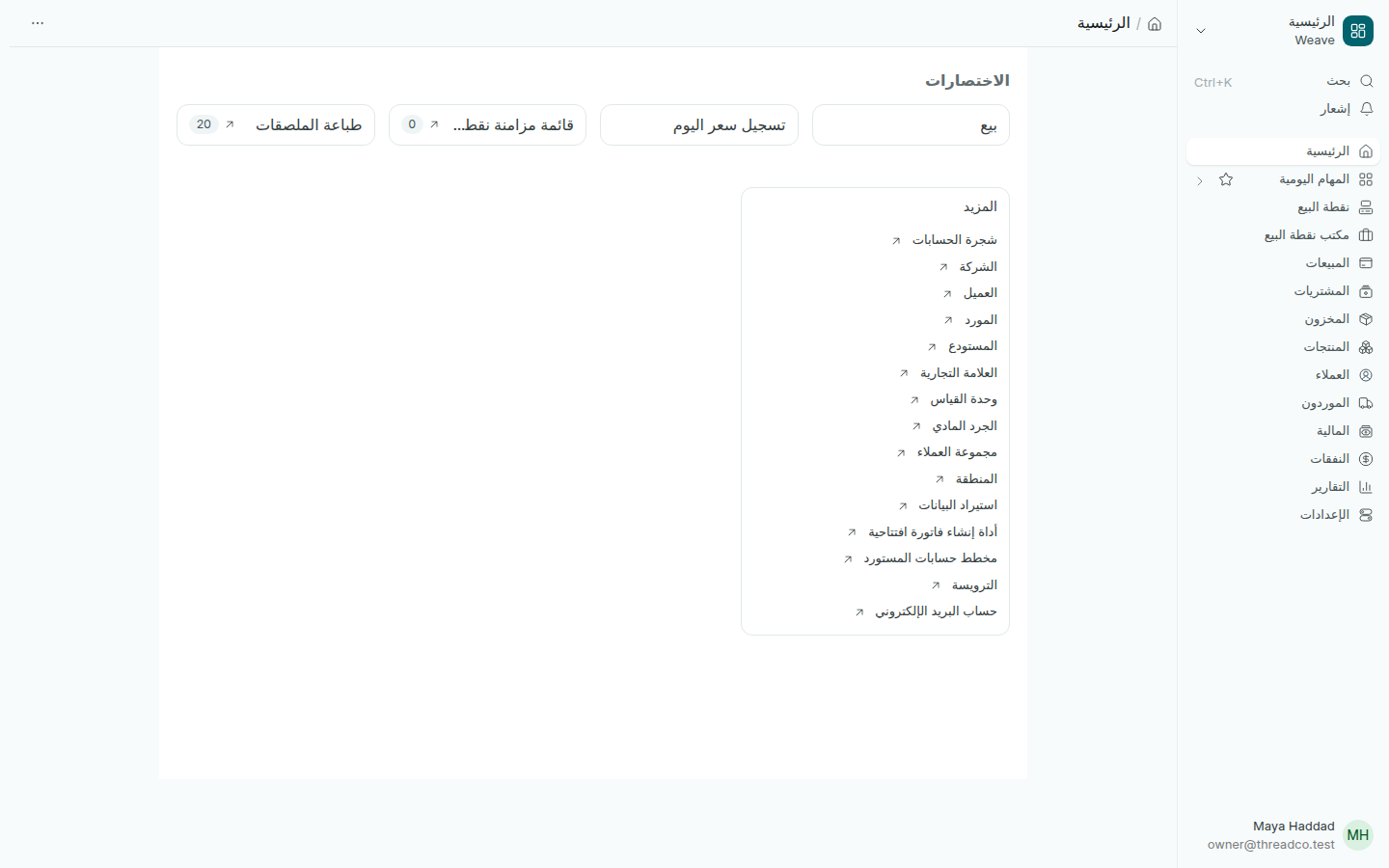
القائمة الجانبية في Weave مع كل الأقسام
كل قسم يفتح على أرقامه الخاصة، ثم القوائم والتقارير التابعة له.

للعودة إلى الصفحة الرئيسية اضغط رمز المنزل في أعلى الصفحة.

البحث

اضغط بحث في أعلى الصفحة أو Ctrl+K، ثم اكتب اسم منتج أو عميل أو مورد أو صفحة. اضغط النتيجة لفتحها.

القائمة الخاصة بك

اسمك في أسفل القائمة الجانبية يفتح حسابك، ومنه تغيّر لغتك وكلمة المرور. أما تسجيل الخروج فتجده في القائمة التي تفتح من أعلى القائمة الجانبية.
Find your way around Weave

The home page shows today's figures and the everyday jobs, and leads to every part of Weave.

The home page

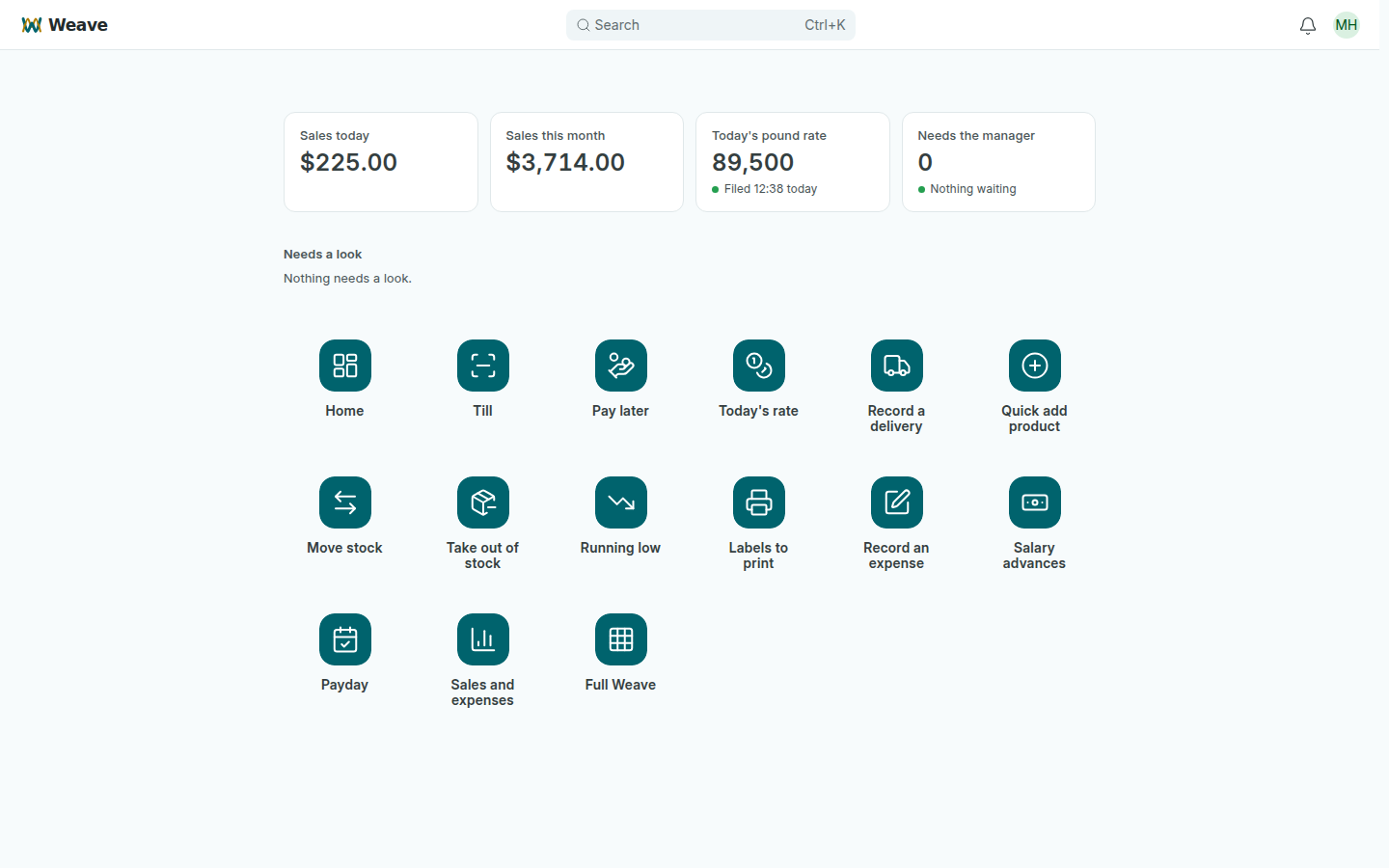
When an owner or store manager signs in, Weave opens Weave Lite:

  • Four figures at the top: sales today, sales this month, today's pound rate with the time it was filed, and what is waiting for the manager.
  • Needs a look: what needs your attention now, such as a stock count waiting for your approval or pieces taken out of stock.
  • Everyday jobs: one button for each job you do often, from the till and today's rate to deliveries, expenses and payday.
Weave Lite with today's figures and the everyday job buttons
Each button appears only for people whose job lets them open it.

The figures follow your access: a store manager sees their own branch, and cost and stock value appear only to jobs allowed to see cost. Cashiers see the till only.

Every part of Weave

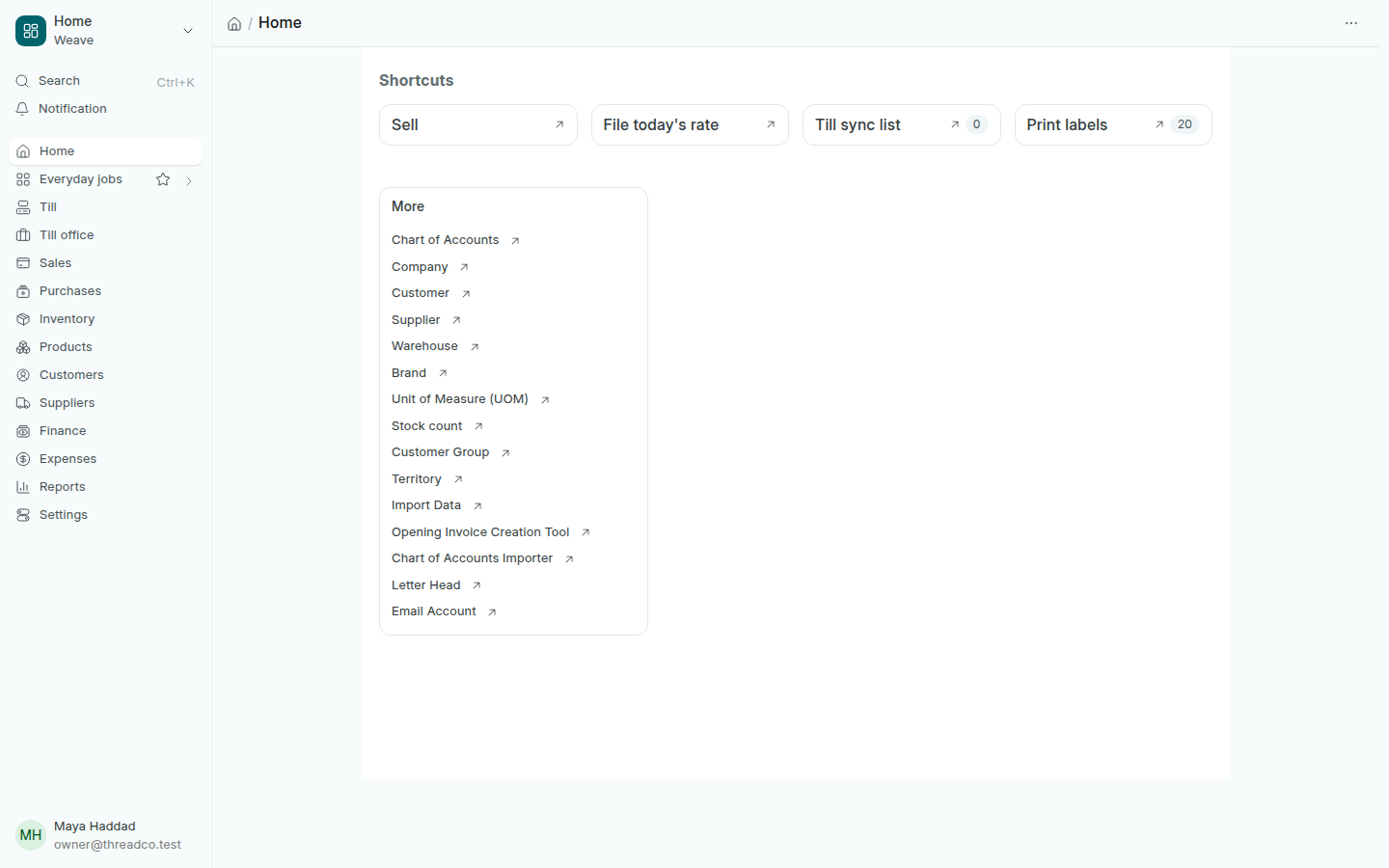
Press Full Weave to open the side menu with every area: Everyday jobs, Till, Till office, Sales, Purchases, Inventory, Products, Customers, Suppliers, Finance, Expenses, Reports and Settings.

The Weave side menu with every area
Each area opens on its own figures, then the lists and reports that belong to it.

To go back to the home page, press the house icon at the top of the page.

Search

Press Search at the top of the page or Ctrl+K, then type the name of a product, customer, supplier or page. Press a result to open it.

Your own menu

Your name at the bottom of the side menu opens your account, where you change your language and password. Logout is in the menu that opens from the top of the side menu.