تقارير المبيعات

كل فاتورة بيع في سطر، والمبيعات شهراً بشهر، والمنتجات الأكثر مبيعاً.

سجل المبيعات

افتح التقارير ← سجل المبيعات. لكل فاتورة عميل سطر: التاريخ، والعميل، وطريقة الدفع، ثم الإجمالي الصافي والإجمالي الكلي والمبلغ المستحق في آخر الأعمدة. مبيعات نقطة البيع تظهر هنا أيضاً.
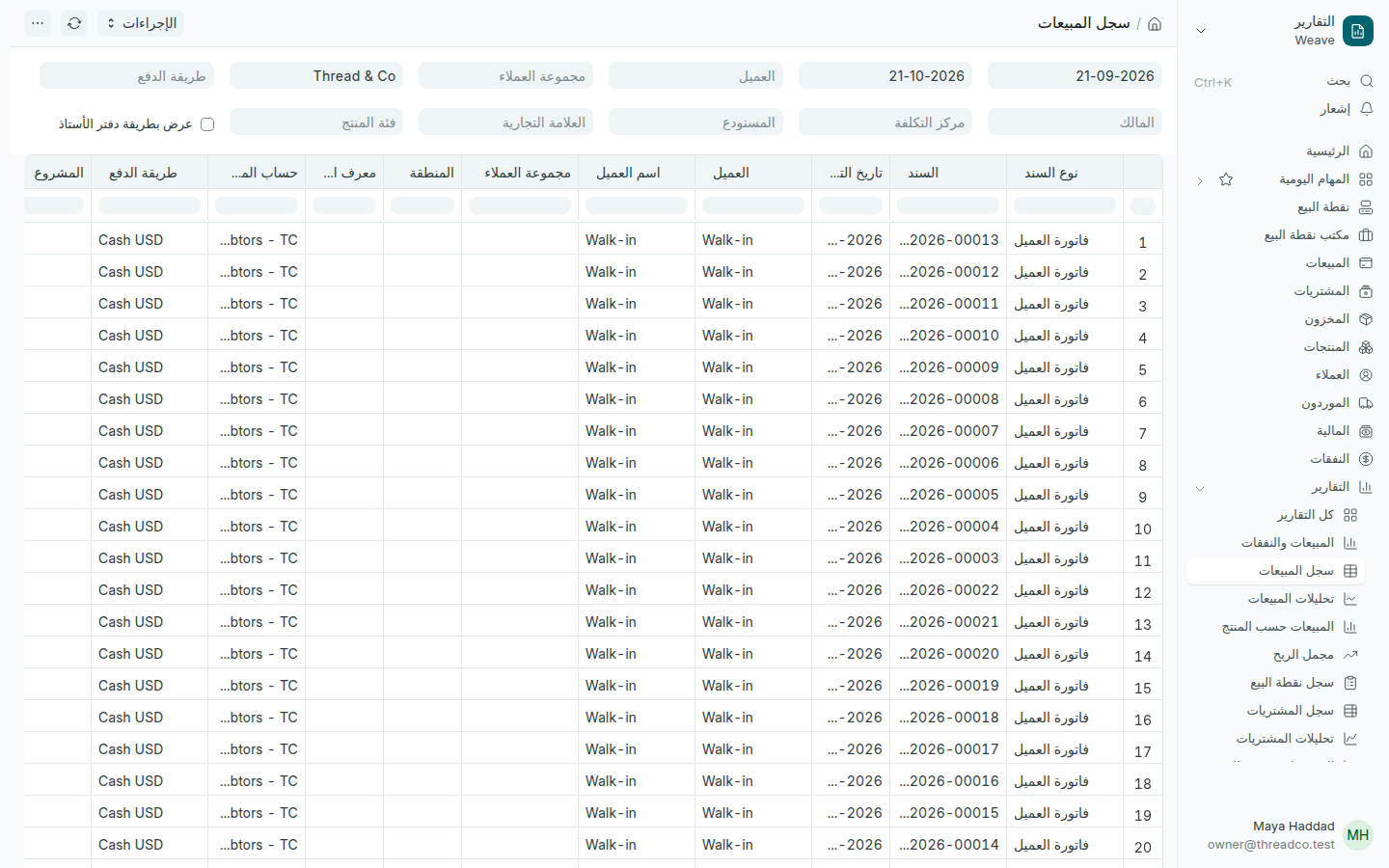
تقرير سجل المبيعات
الفترة الافتراضية هي الشهر الأخير.

اختر طريقة الدفع لترى ما دُفع بها وحدها، أو المستودع لفرع واحد.

تحليلات المبيعات

افتح التقارير ← تحليلات المبيعات. لكل عميل سطر، ولكل شهر عمود، والإجمالي في آخر عمود.

  1. غيّر الحقل الأول من العميل لترى المبيعات حسب المنتج أو فئة المنتج بدلاً من العميل.
  2. اختر القيمة للمبالغ، أو الكمية لعدد القطع.
  3. اختر شهرياً أو فترة أخرى، أسبوعية أو ربع سنوية أو سنوية.
  4. حدّد الأسطر التي تريد أن تراها في الرسم.
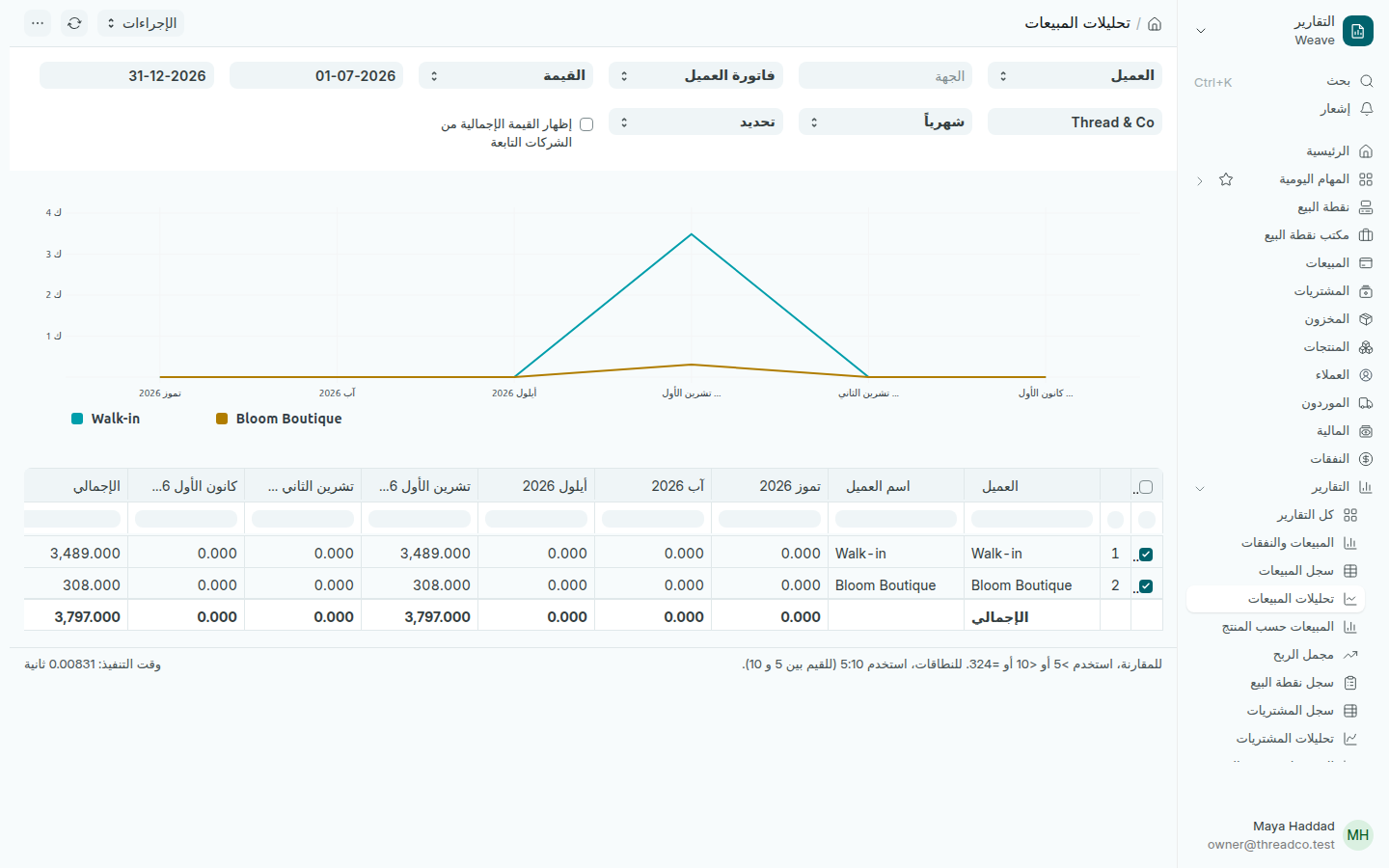
تقرير تحليلات المبيعات
الرسم يعرض الأسطر المحدّدة فقط.

المبيعات حسب المنتج

افتح التقارير ← المبيعات حسب المنتج. لكل منتج في كل فاتورة، من نقطة البيع أو من الحاسوب، سطر: الفاتورة والتاريخ والعميل، ثم الكمية والسعر والمبلغ. اختر تجميع حسب لترى مجموع كل منتج أو كل عميل.
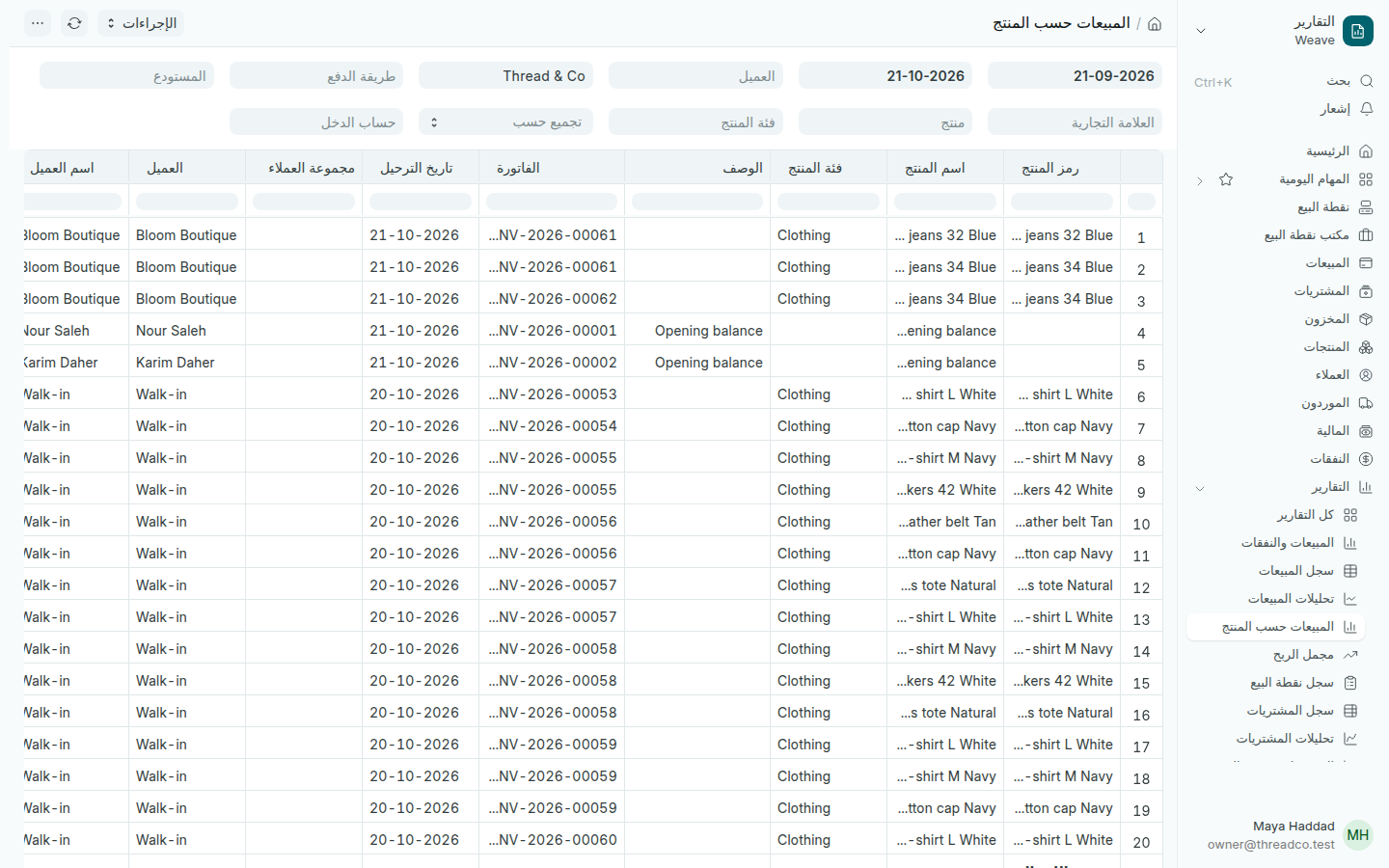
تقرير المبيعات حسب المنتج
الأرصدة الافتتاحية المستوردة تظهر بسطر «Opening balance».

لكل جلسة وكل صرّاف، انظر سجل الجلسات وسجل نقطة البيع.
Sales reports

Every sales invoice on a line, sales month by month, and the products that sell most.

Sales register

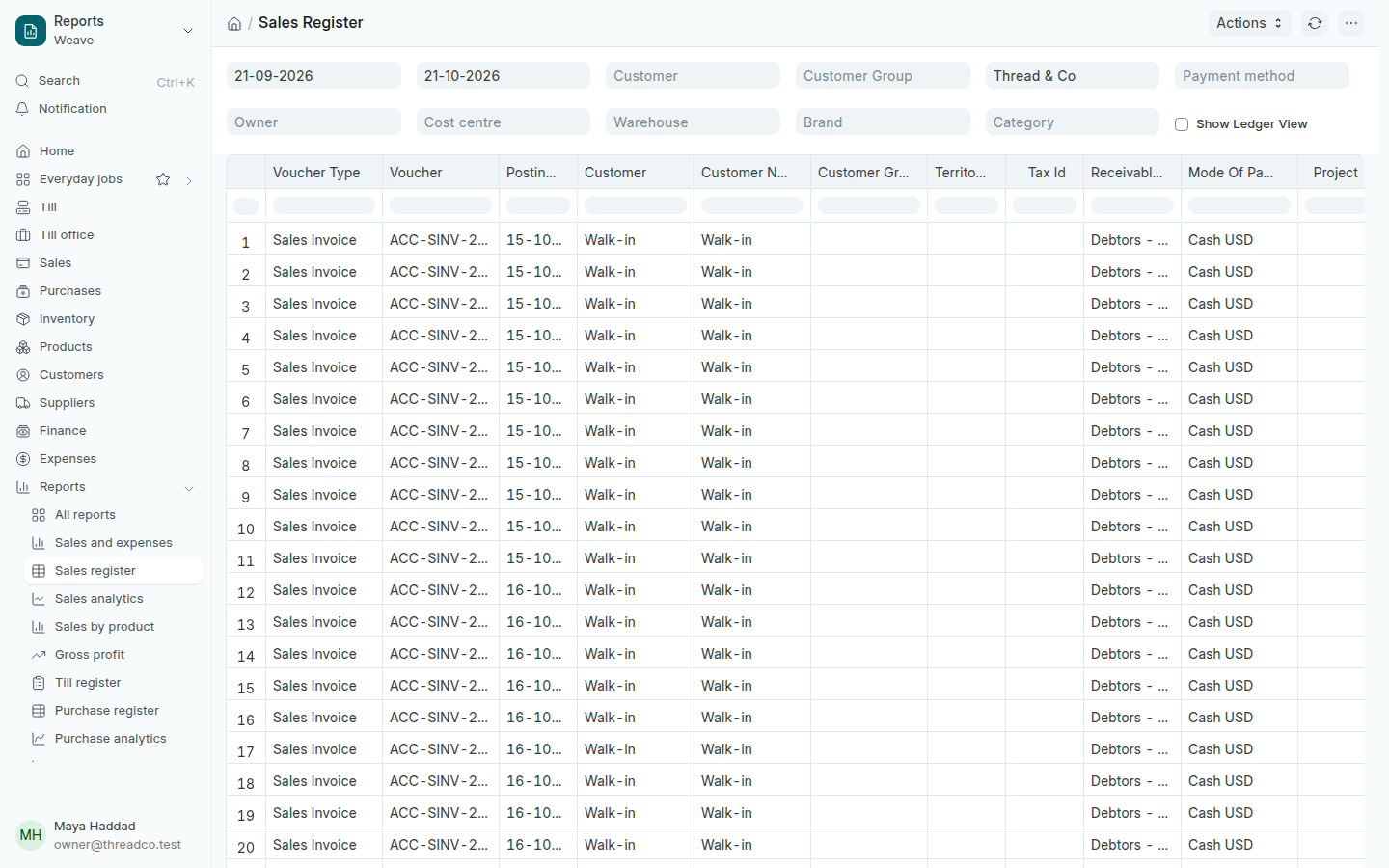
Open Reports → Sales register. Each sales invoice has a line: the date, the customer, the Mode Of Payment, then the Net Total, Grand Total and Outstanding Amount in the last columns. Till sales are here too.

The Sales register
The period starts as the last month.

Choose a Payment method to see what was paid that way, or a Warehouse for one branch.

Sales analytics

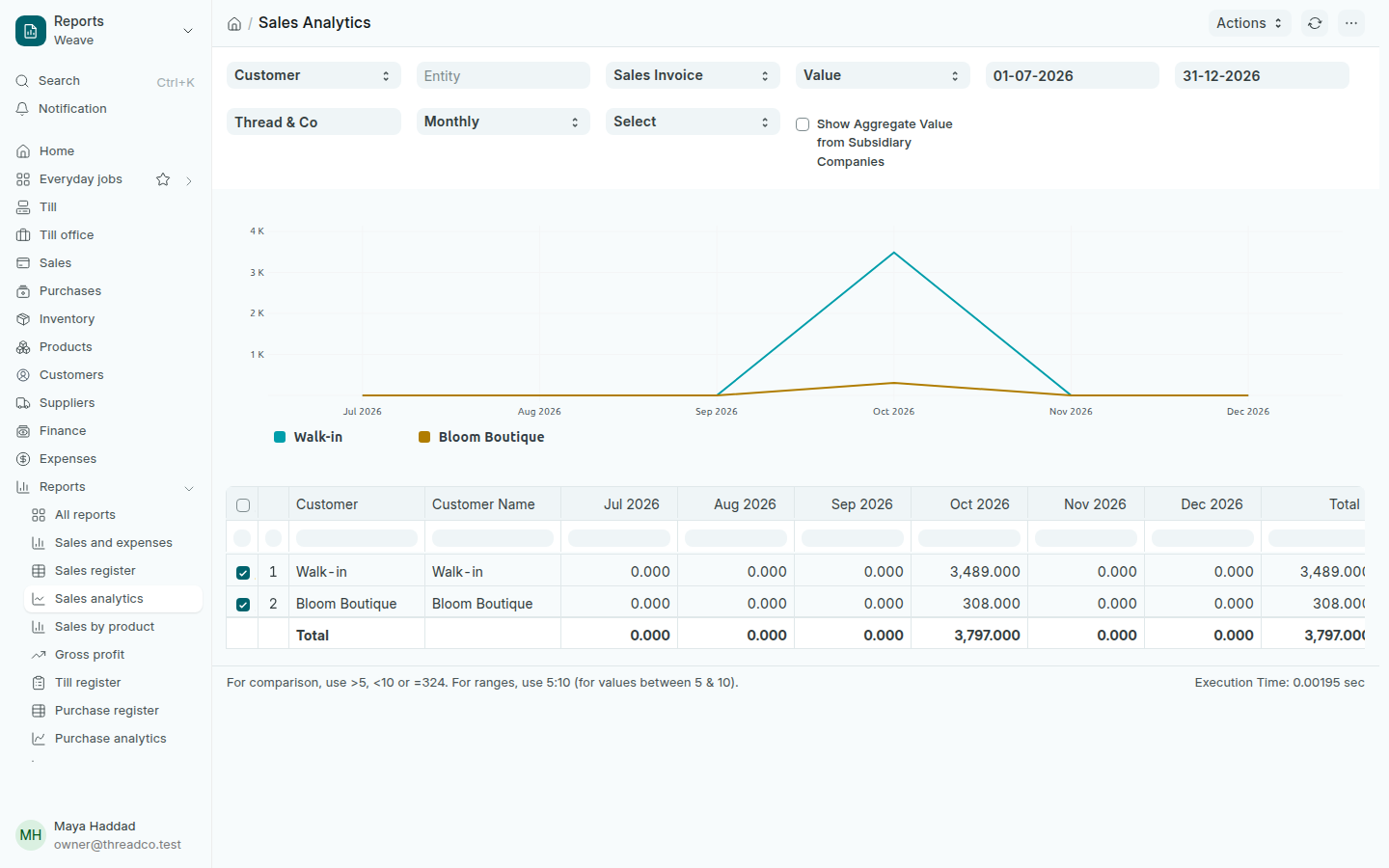
Open Reports → Sales analytics. Each customer has a line, each month a column, and the total is in the last column.

  1. Change the first field from Customer to see sales by product or category instead.
  2. Choose Value for amounts, or quantity for pieces.
  3. Choose Monthly or another period: weekly, quarterly or yearly.
  4. Tick the lines you want to see on the chart.
The Sales analytics report
The chart shows only the ticked lines.

Sales by product

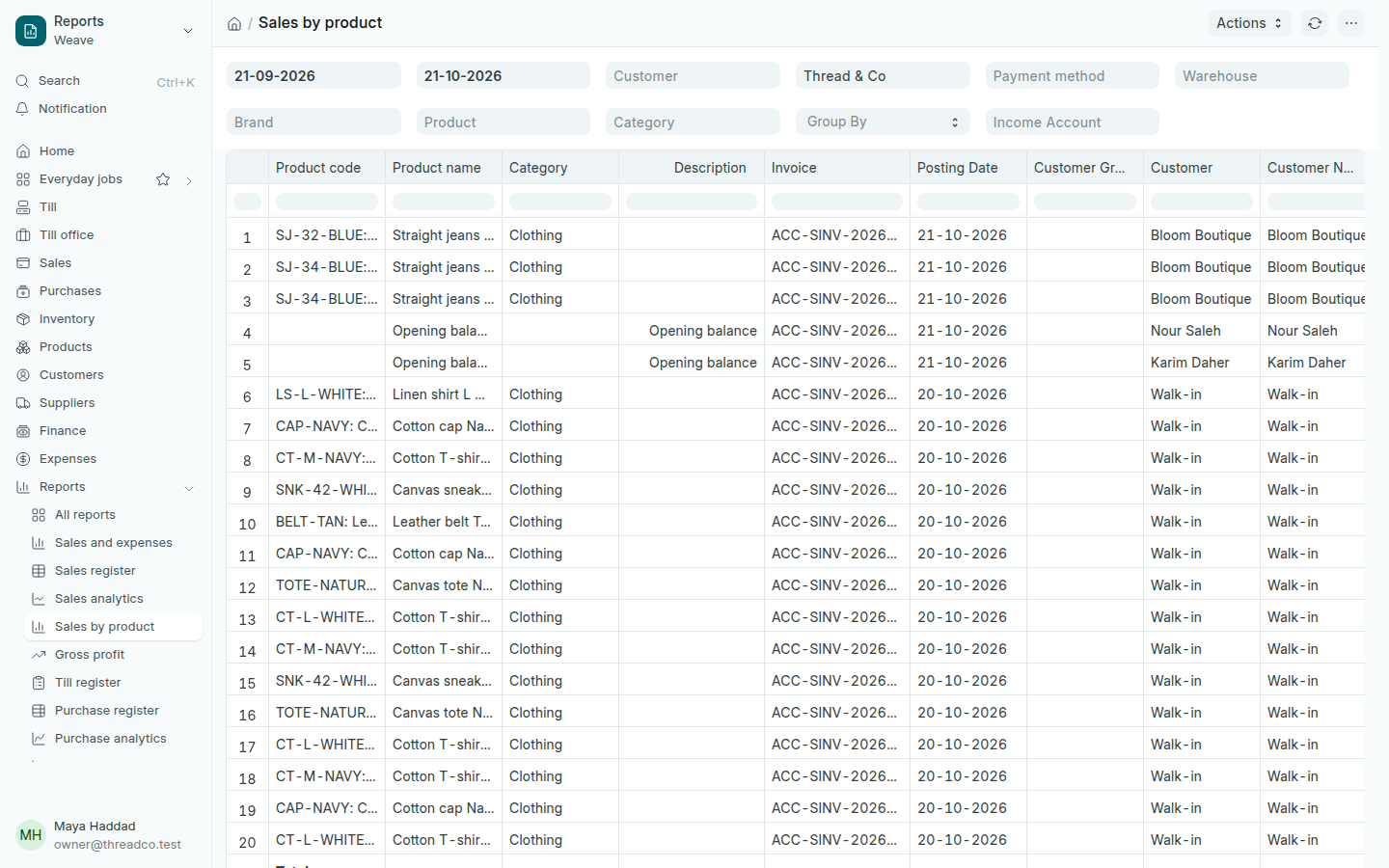
Open Reports → Sales by product. Each product on each invoice, from the till or the computer, has a line: the invoice, date and customer, then the quantity, rate and amount. Choose Group By to see totals for each product or each customer.

The Sales by product report
Imported opening balances show as an Opening balance line.

For each shift and each cashier, see Shift history and the till register.