قراءة تقرير

أين تجد التقارير، وكيف تختار الفترة والفرع، وكيف تطبع التقرير أو تصدّره.

افتح التقارير ← كل التقارير. التقارير مجمّعة في المبيعات والمشتريات والمخزون والمالية والعملاء والموردون، وتحتها مزيد من التقارير. ترى منها ما تسمح به وظيفتك.
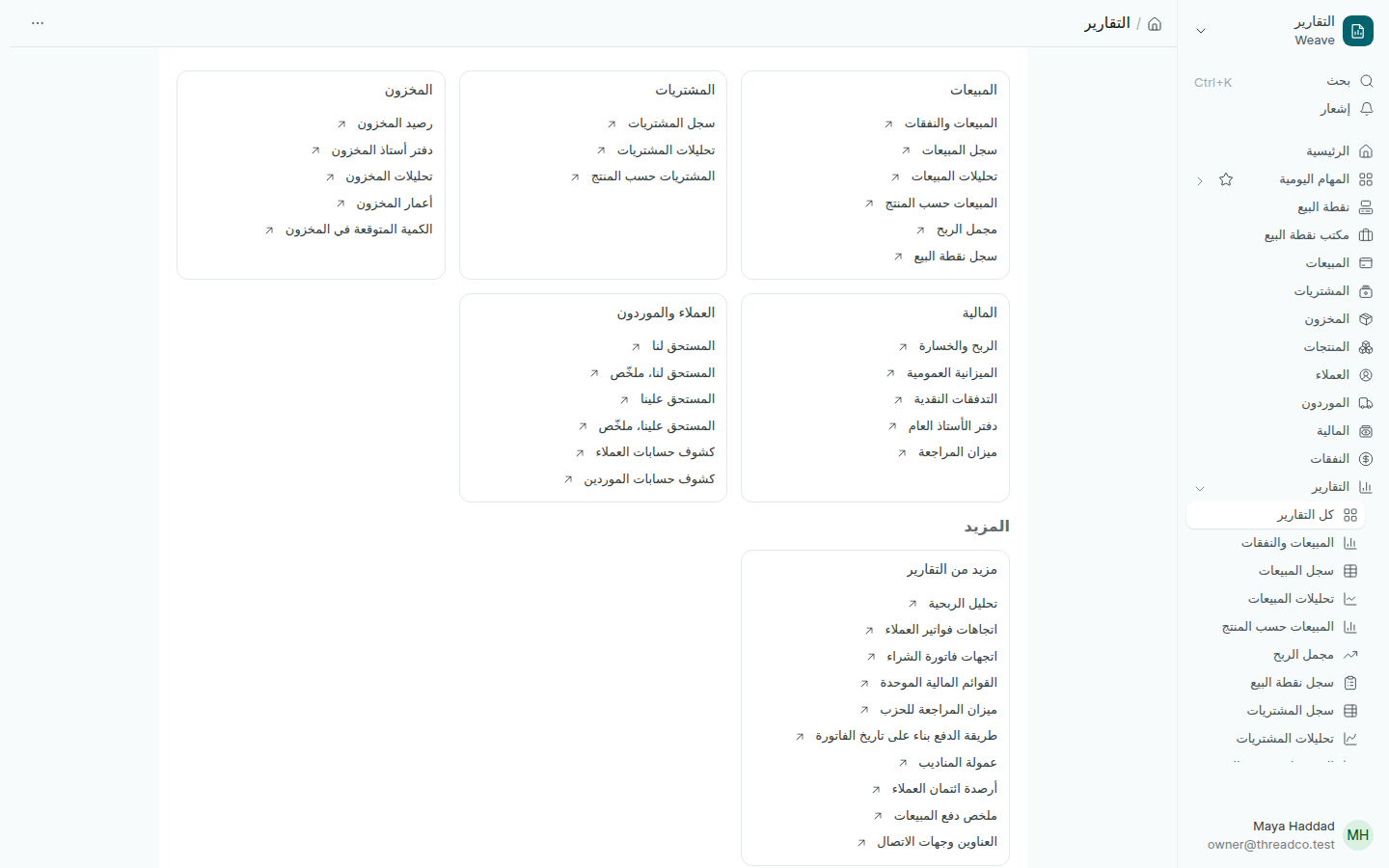
صفحة التقارير
كل تقرير في القائمة الجانبية أيضاً.

اختيار ما يعرضه التقرير

  1. غيّر التاريخين في أعلى التقرير لتختار الفترة.
  2. اختر المستودع لترى فرعاً واحداً، أو العميل أو المورد أو المنتج أو فئة المنتج.
  3. يتحدّث التقرير مع كل تغيير. اضغط زر التحديث بجانب الإجراءات لتقرأه من جديد.

تحت عناوين الأعمدة صفّ تكتب فيه لتصفية العمود نفسه: اسم عميل، أو رقم مثل >100 للمبالغ الأكبر من 100. ولترتيب عمود، اضغط السهم الذي يظهر في عنوانه.

الطباعة والتصدير

اضغط زر القائمة (النقاط الثلاث) في أعلى الصفحة.
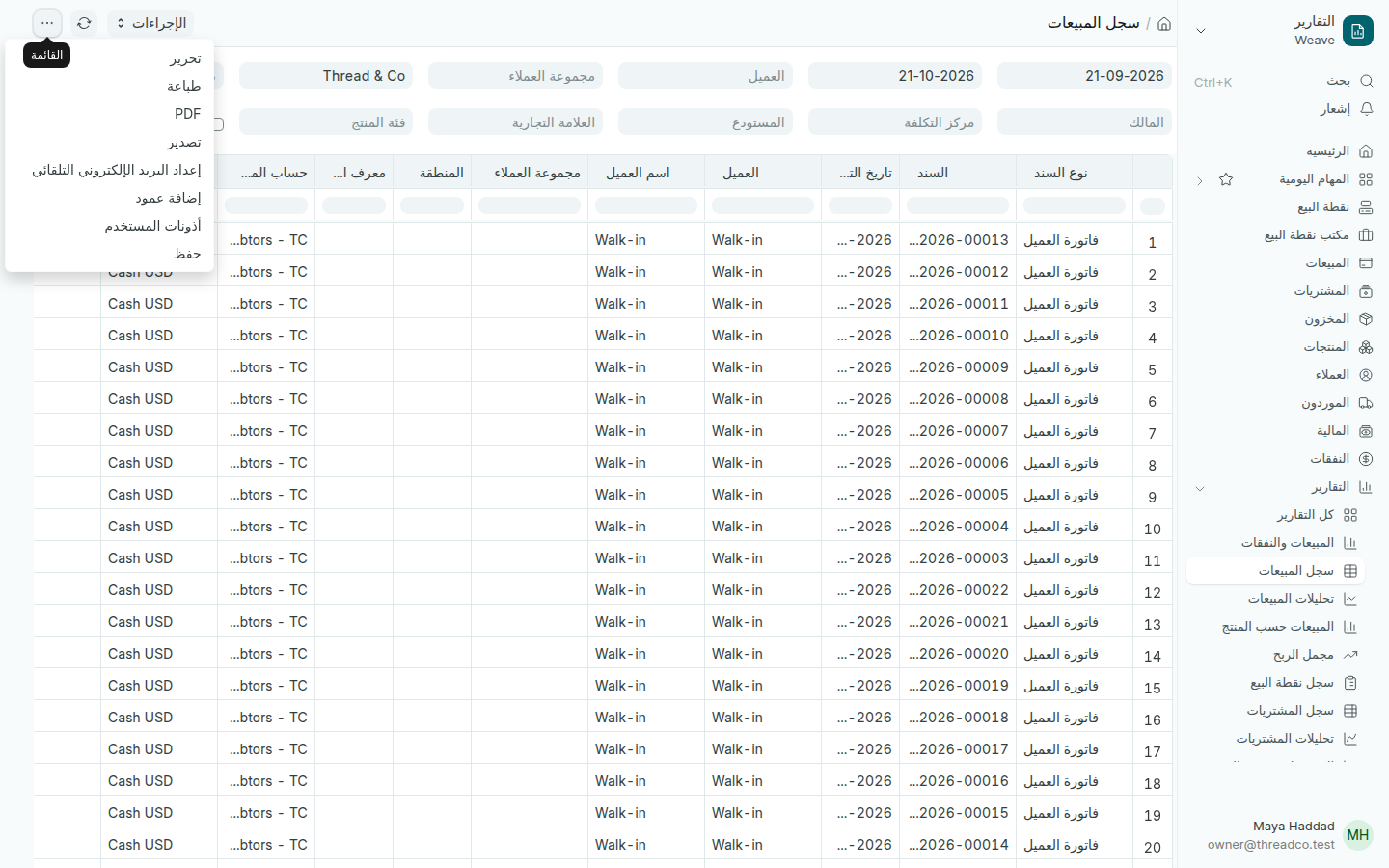
قائمة التقرير
الطباعة وPDF والتصدير من القائمة نفسها.
  • طباعة وPDF: التقرير كما تراه، بالفترة والفرع اللذين اخترتهما.
  • تصدير: ملف جدول بيانات تفتحه في Excel.
  • إضافة عمود: عمود آخر من البيانات نفسها.
  • حفظ: يحفظ التقرير باسم تختاره، بأعمدته وتصفيته، لتعود إليه.

لكل قسم في Weave صفحة تبدأ بأرقامه الرئيسية، مثل صفحة المالية وصفحة المخزون. ابدأ منها، وافتح التقرير حين تريد التفاصيل.
Read a report

Where the reports are, how to choose the period and the branch, and how to print or export one.

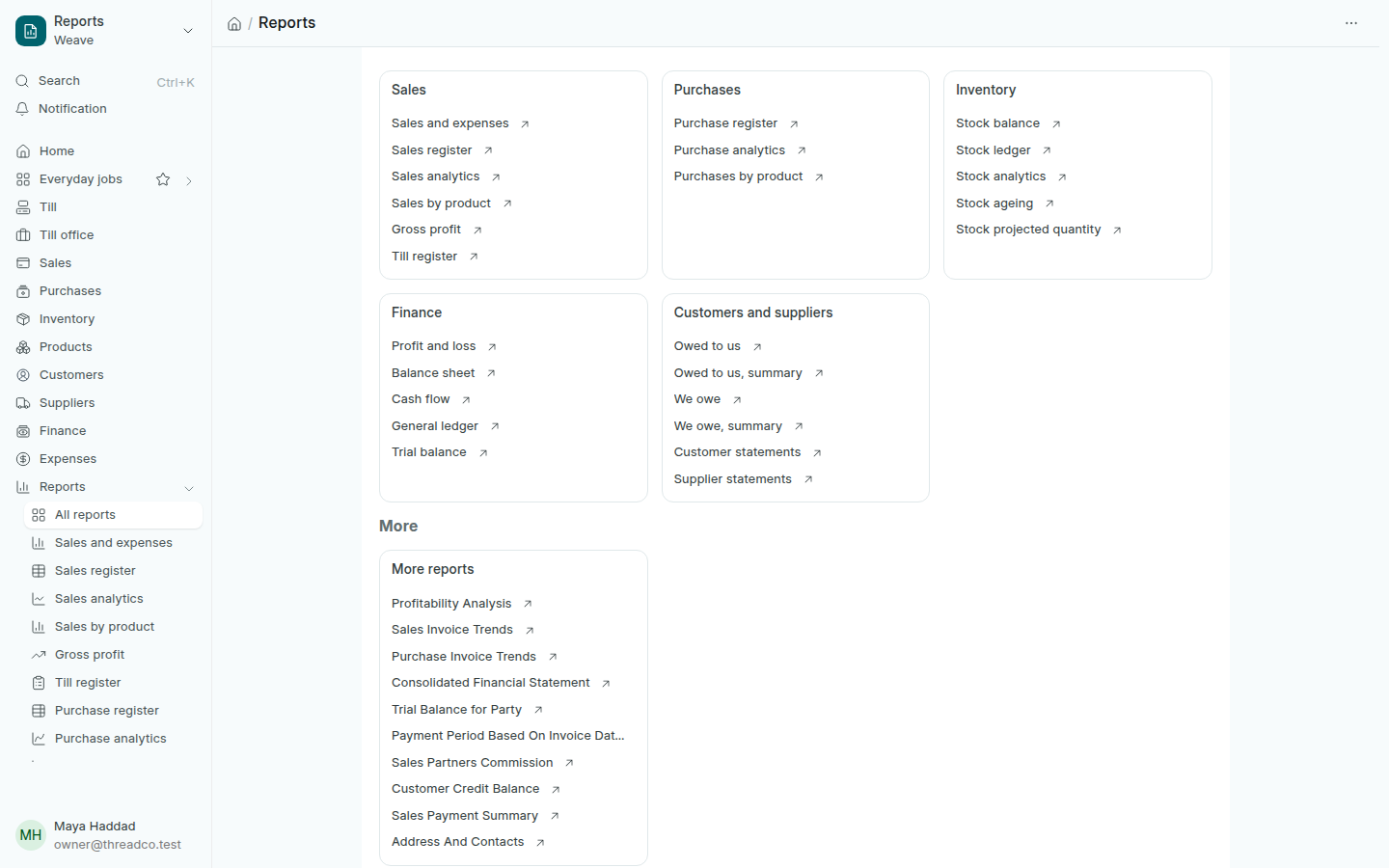
Open Reports → All reports. The reports are grouped under Sales, Purchases, Inventory, Finance and Customers and suppliers, with More reports below. You see the ones your job allows.

The Reports page
Every report is in the side menu too.

Choose what the report shows

  1. Change the two dates at the top to choose the period.
  2. Choose a Warehouse to see one branch, or a customer, supplier, product or category.
  3. The report updates with every change. Press the refresh button beside Actions to read it again.

Under the column headings is a row you type in to filter that column: a customer's name, or a number such as >100 for amounts over 100. To sort by a column, press the arrow that appears in its heading.

Print and export

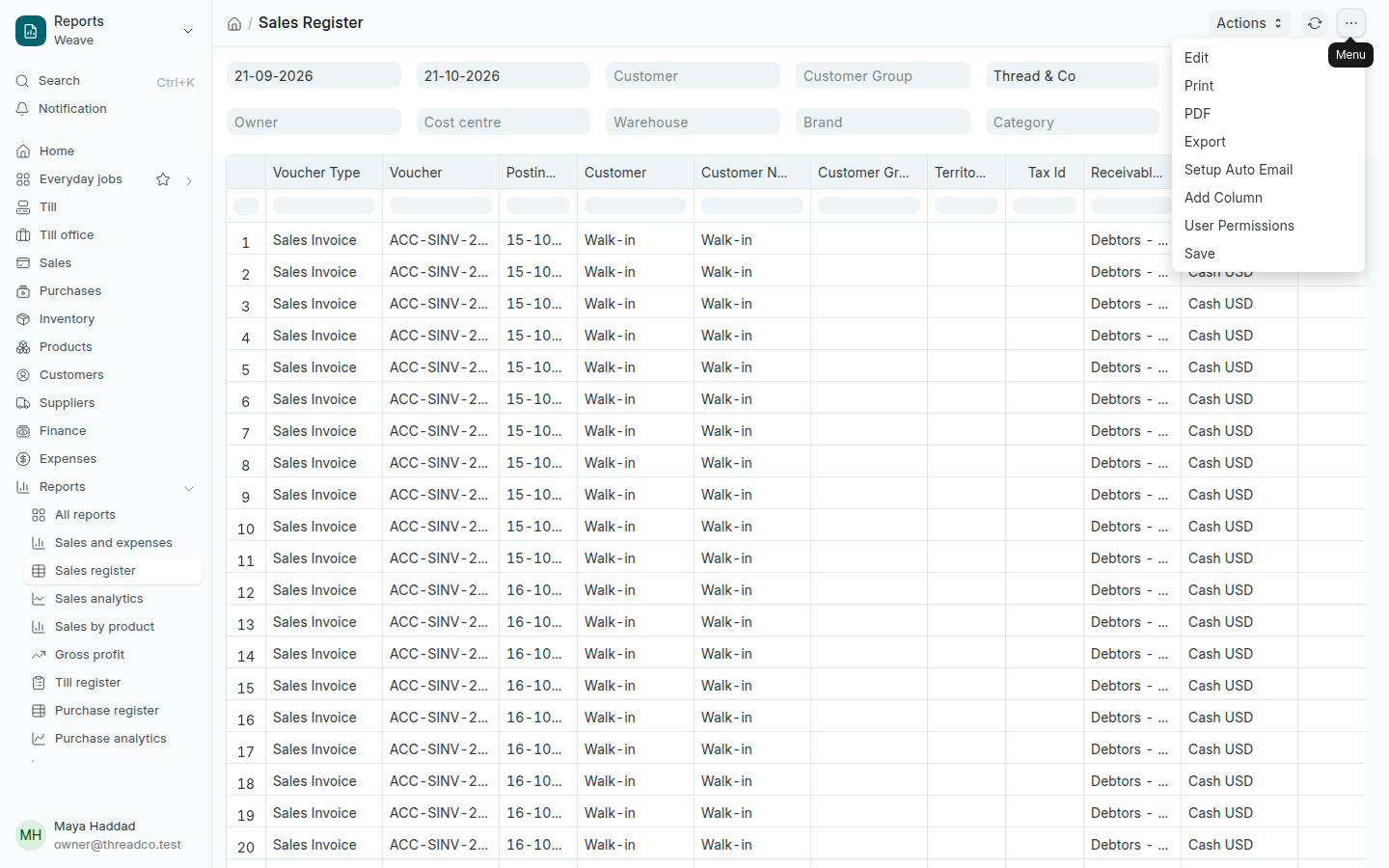
Press the menu button (the three dots) at the top of the page.

The report menu
Print, PDF and export are in the same menu.
  • Print and PDF: the report as you see it, for the period and branch you chose.
  • Export: a spreadsheet file you open in Excel.
  • Add Column: another column from the same records.
  • Save: keeps the report under a name you choose, with its columns and filters, to come back to.

Each area of Weave has a page that starts with its main figures, such as the Finance page and the Inventory page. Start there, and open a report when you want the detail.